Showing posts with label preview. Show all posts
Showing posts with label preview. Show all posts
Saturday, October 5, 2013
iPhone Live 172 iPhone event preview
Rene, Georgia, and Seth talk the Oct. 4 iPhone event, iPhone 5 vs. iPhone 4GS, iOS Assistant, case leaks, curved glass for iPhone 6, and the competition Galaxy S II, Windows Phone Mango, and webOS Pre3. This is iPhone Live
Watch WWDC 2011 Live Streaming (Keynote Video Stream)
Apple World wide Developers Conference ’11 (WWDC 2011) keynote address is ongoing now, since 10:00 am PST, and apparently Apple is not going to officially feed and stream the event live for worldwide audience. But few Apple enthusiasts are not going to let world delay for even a few seconds to know what’s happening live at the keynote.
Here’s the live streams of video feed from Apple WWDC 2011 keynote address transmitted via UStream which apparently recorded and streamed among audience. As a result, don’t expect high quality video, although the audio is fine (the feed appears to be offline).
Another live stream of WWDC 2011, also via Ustream: Apple - Events

For people who want high quality video and audio feed, but can live with about 30 minutes of delay, CNN is also telecasting WWDC. Just visit http://live.cnn.com/ to launch the live player. Then, select the “Watch: Apple developer’s conference” to start the viewing.
The WWDC ’11 takes place from June 6 to June 10, 2011 in San Francisco Moscone Westand, with tickets sold out in 24 hours. According to Apple, Steve Jobs and a team of Apple executives will unveil its next generation software – Mac OS X Lion, the eighth major release of Mac OS X; iOS 5, the next version of Apple’s advanced mobile operating system which powers the iPad, iPhone and iPod touch; and iCloud, Apple’s upcoming cloud services offering. Whether there will be announcement of new iPhone hardware, rumored to be named iPhone 5 or iPhone 4S is uncertain.
The official HD and SD version of WWDC 2011 keynote address is expected to be available as VOD (video on demand) at http://www.apple.com/apple-events/ shortly after the event ended.
Few hours away from the long awaited WWDC, today we will see iOS 5, Lion and iCloud. We will provide pictures, articles, information and even video sources - if available - to ensure full event coverage.

WWDC 2011 surprises :
- iOS 5
- Mac OS Lion
- iCloud
- iPhone 4S / 5 ?

Wednesday, October 2, 2013
Install Windows 8 Preview on Your Mac Using Boot Camp
These are instructions on how to install Windows 8 Consumer Preview on your Mac using Boot Camp.
Before you begin this tutorial you will need the Windows 8 Consumer Preview ISO and Product Key. Those of you with a DVD burner will need to burn this ISO to DVD before continuing. Those of you (like us) without a DVD drive will need to connect a blank 8GB USB flash drive before beginning.
Step One
Open a new Finder window by clicking the Finder icon in your dock.
Step Two
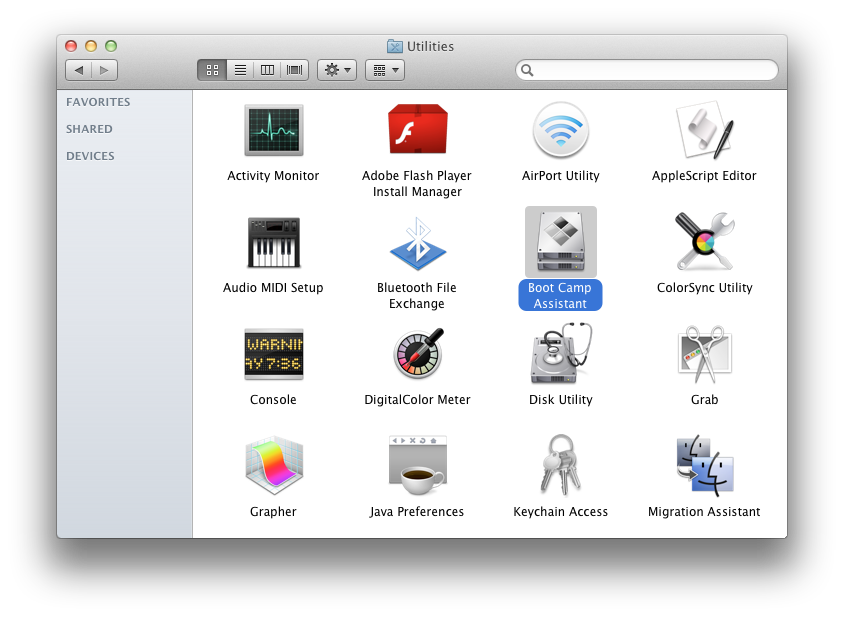
Navigate to the Applications : Utilities folder and double click the Boot Camp Assistant icon to launch the application.
Step Three
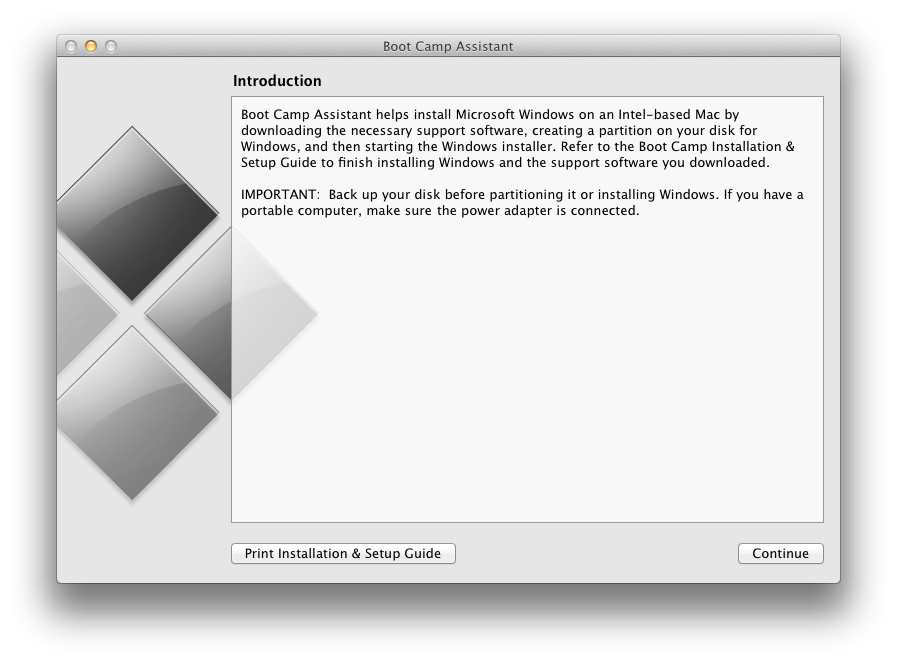
The Boot Camp Assistant will open. Click the Continue button.
Step Four
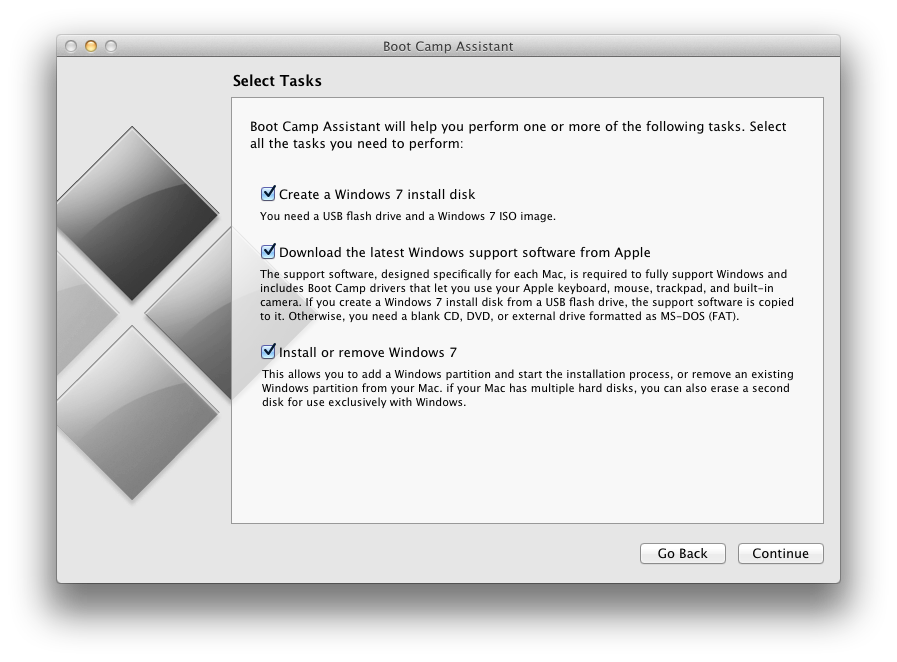
You will now be asked to select from a series of tasks. Leave all 3 tasks selected and click Continue.
Step Five
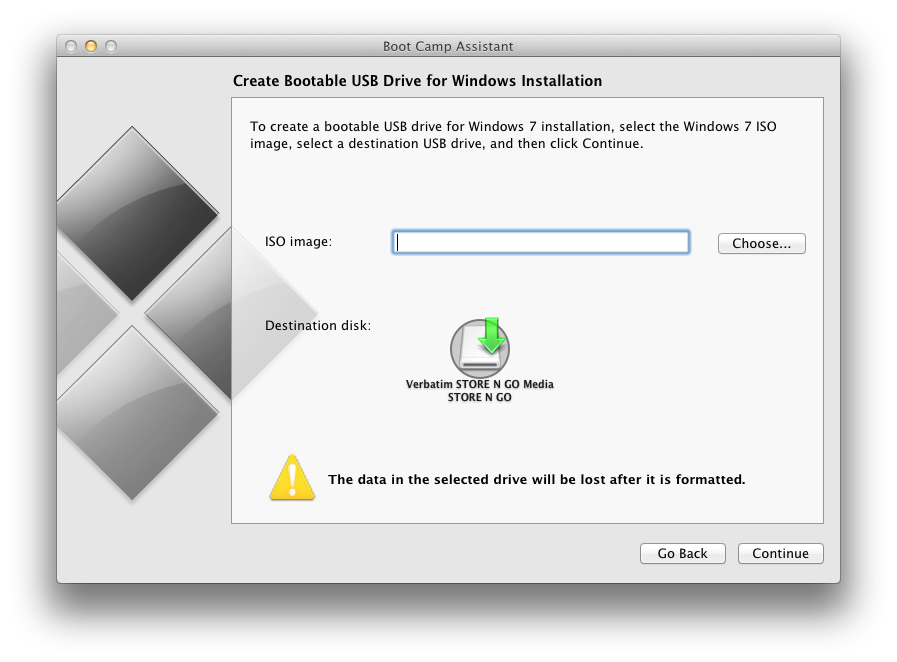
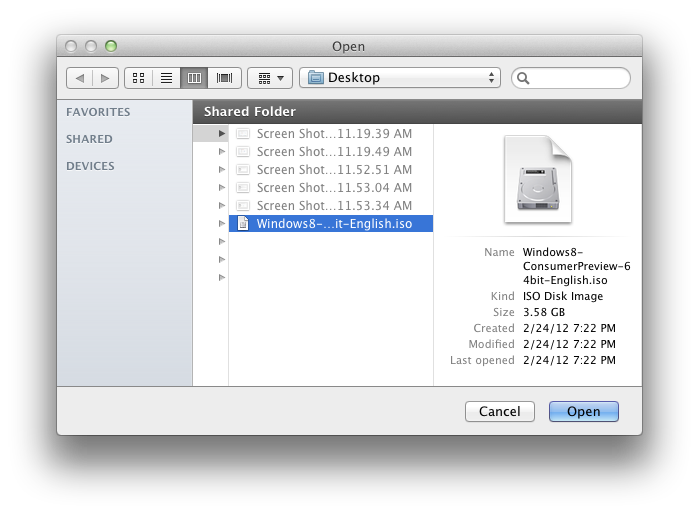
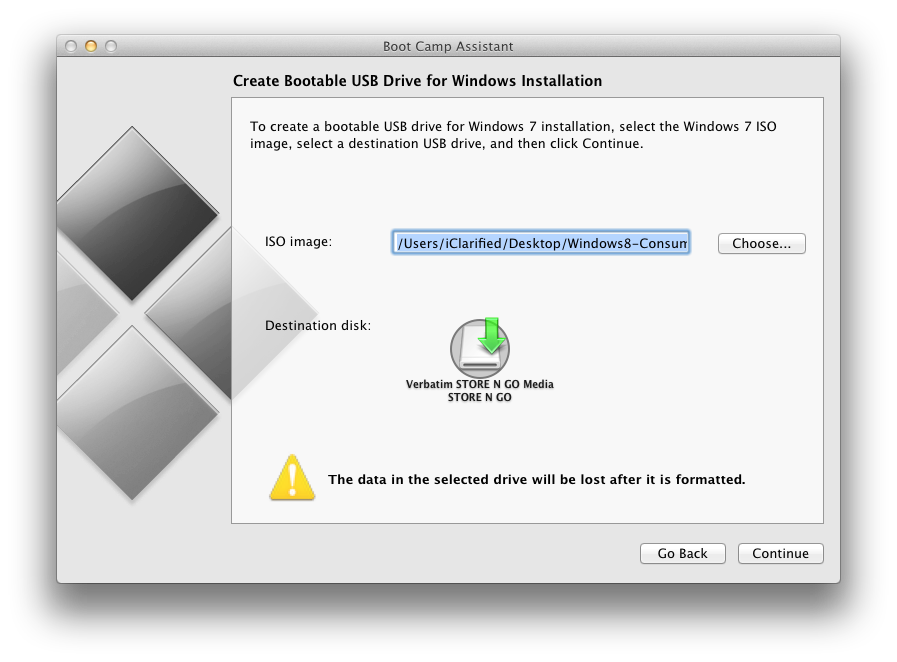
Click the Choose button, select the ISO you just downloaded, and click Open.
Make sure the correct USB flash drive is set as the destination disk and click the Continue button.
Step Six
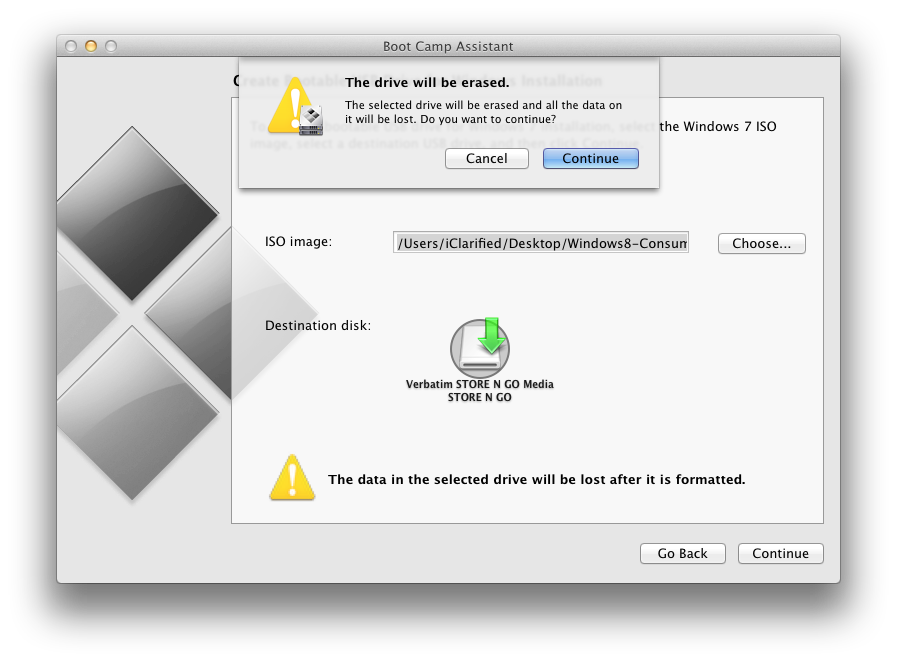
You will be warned that the drive will be erased. Click Continue.
Step Seven
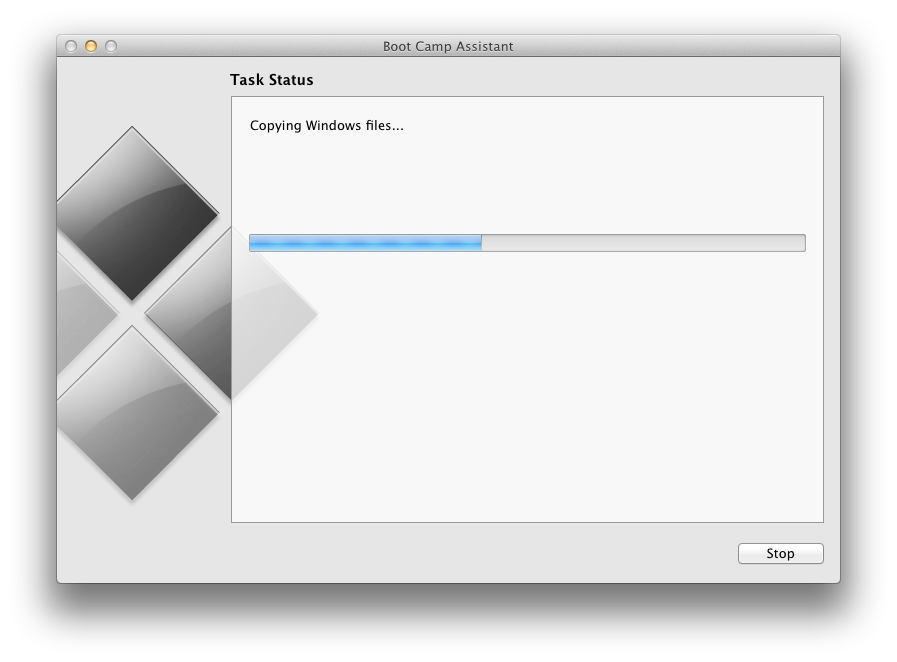
Boot Camp Assistant will now copy the Windows files to the USB flash drive.
Step Eight
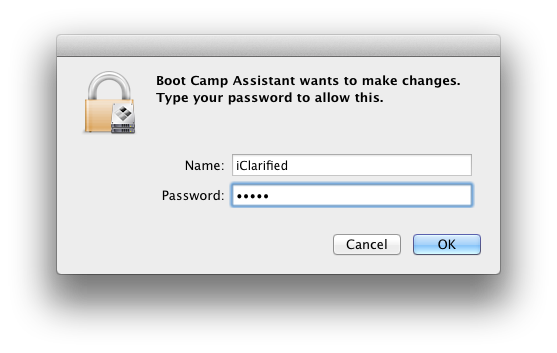
You will be asked to enter your Administrative username and password. Do this, then click the OK button.
Step Nine
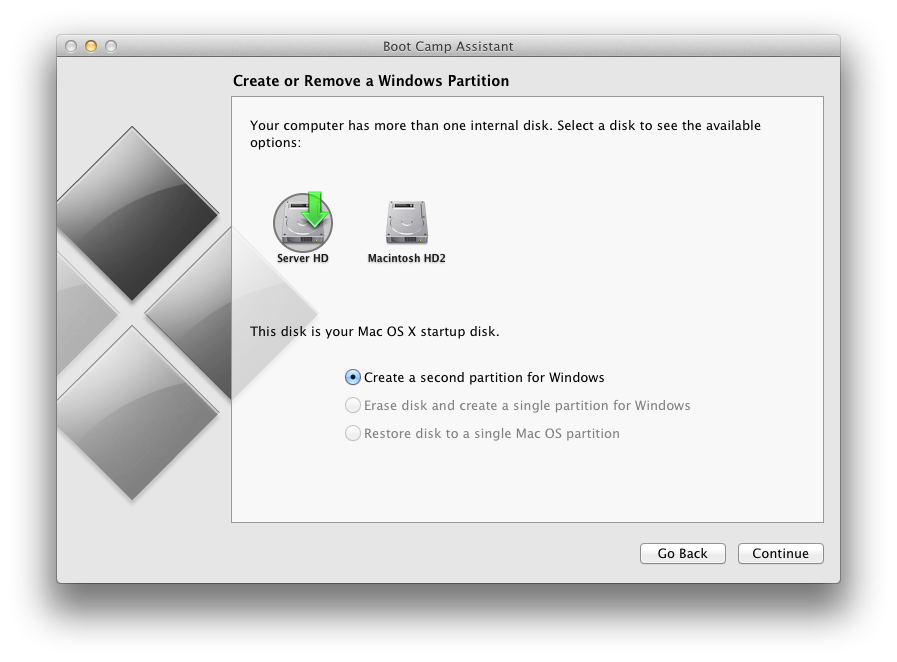
If you have more than one hard drive, you will be asked to select which system hard drive you would like to partition for Windows. Choose the correct hard drive and click the Continue button.
Step Ten
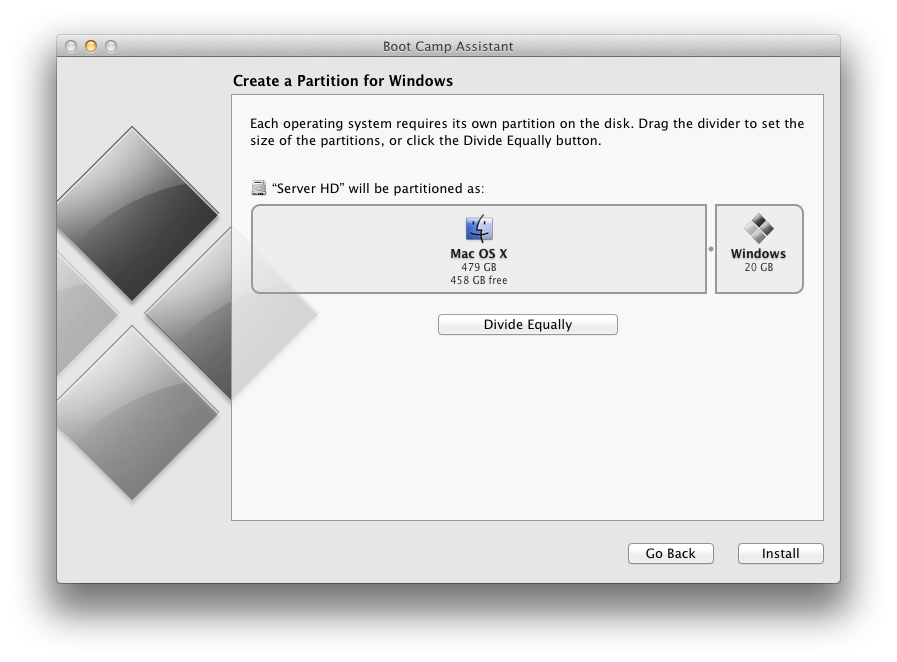
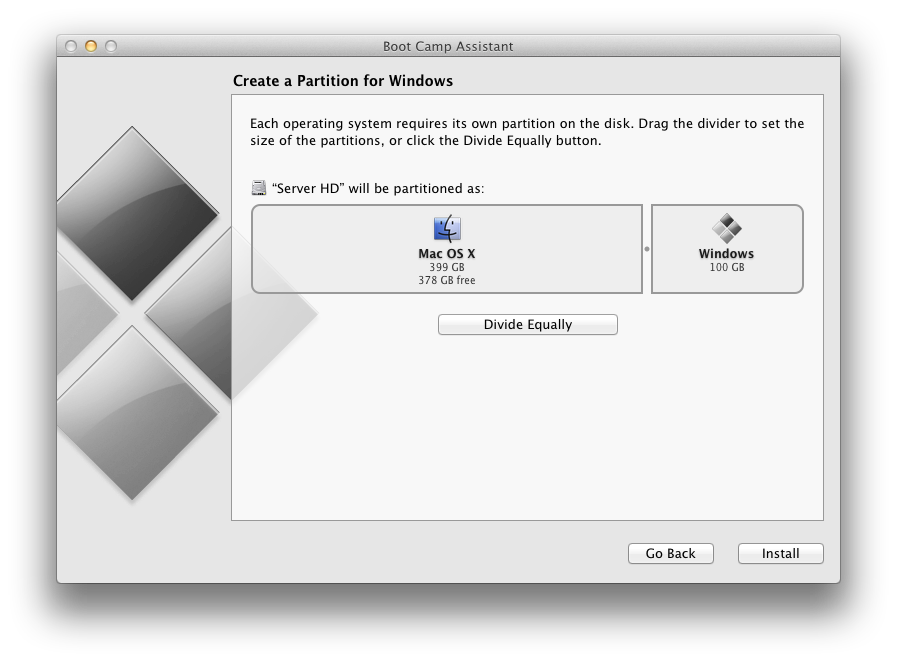
You will now be asked to Create a Partition for Windows. You can drag the divider to set the size of the partitions.
When satisfied with the size of your partition click the Install button.
Step Eleven
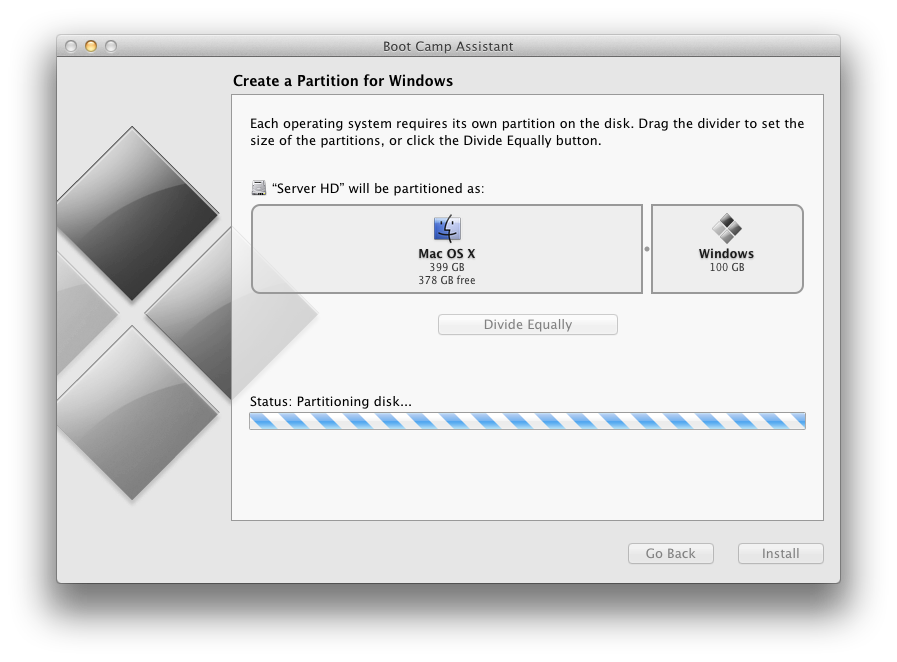
Boot Camp Assistant will now partition your disk.
Step Twelve
Once the partition has been completed your computer will automatically be restarted and launch Windows setup from the USB flash drive.
Step Thirteen
Proceed through the Windows setup.
When asked whether to do a Upgrade or Custom (advanced) install, choose Custom (advanced).
When asked "Where do you want to install Windows?" select the partition labelled BOOTCAMP. Next click Drive Options then click Format. Click OK to confirm format and click Next to continue the installation.
Step Fourteen
Once installation has completed successfully, click the Windows Explorer tile.
Step Fifteen
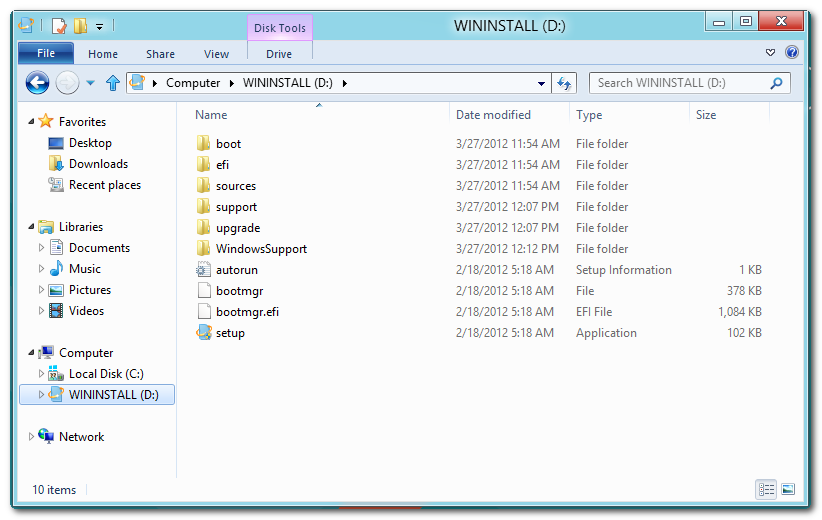
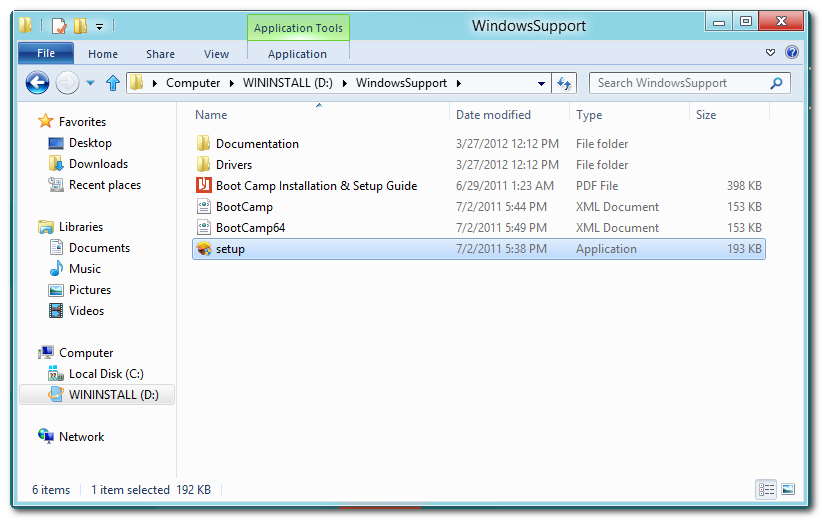
Select the WININSTALL USB flash drive from the list of devices under Computer and double click the WindowsSupport folder to open it.
Step Sixteen
Double click setup to launch the executable.
Step Seventeen
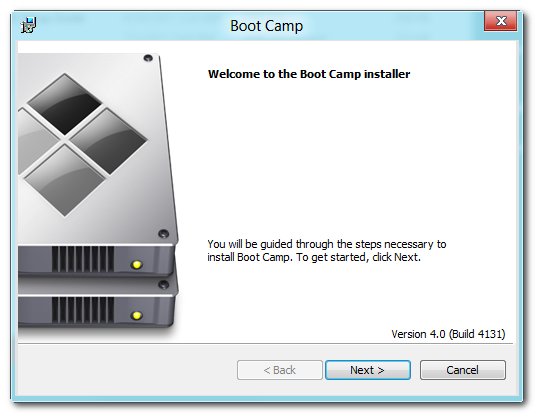
The Boot Camp Installer will appear to guide you through the steps necessary to install Boot Camp. Click the Next button to get started.
Step Eighteen
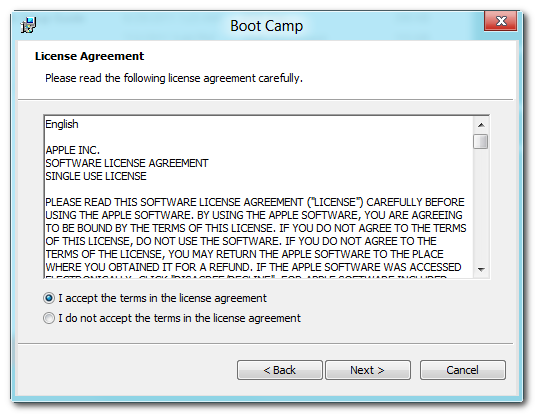
Read the license agreement, select I accept the terms in the license agreement, then click the Next button to continue.
Step Nineteen
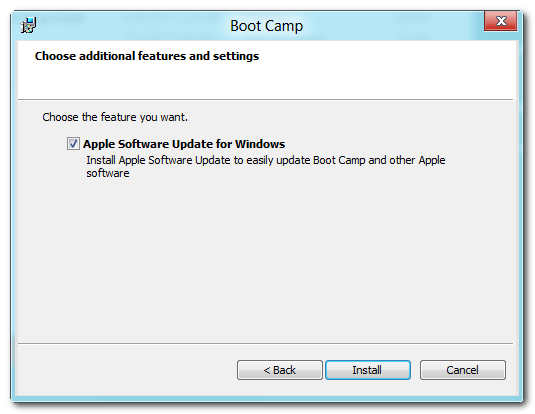
Choose whether you would like to install Apple Software Update for Windows then click the Install button.
Step Twenty
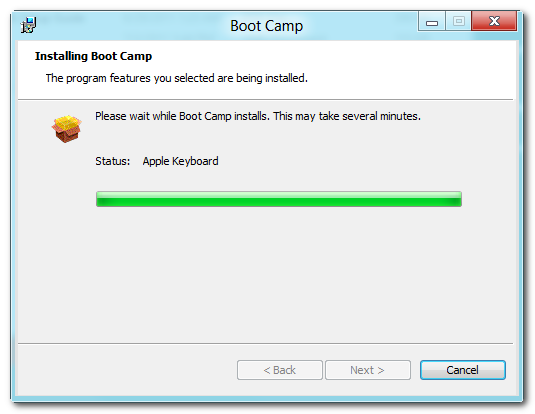
Boot Camp will proceed to install the drivers necessary for your Mac to work properly with Windows.
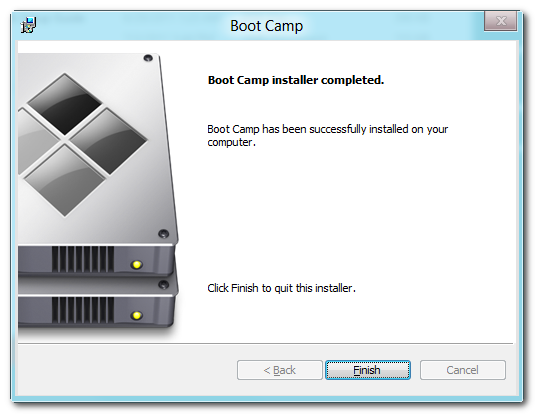
When the installation has completed click the Finish button.
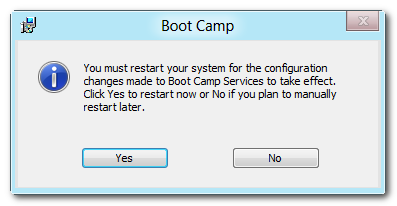
You will then be prompted to restart your system for the configuration changes to take effect. Click the Yes button.
Step Twenty One
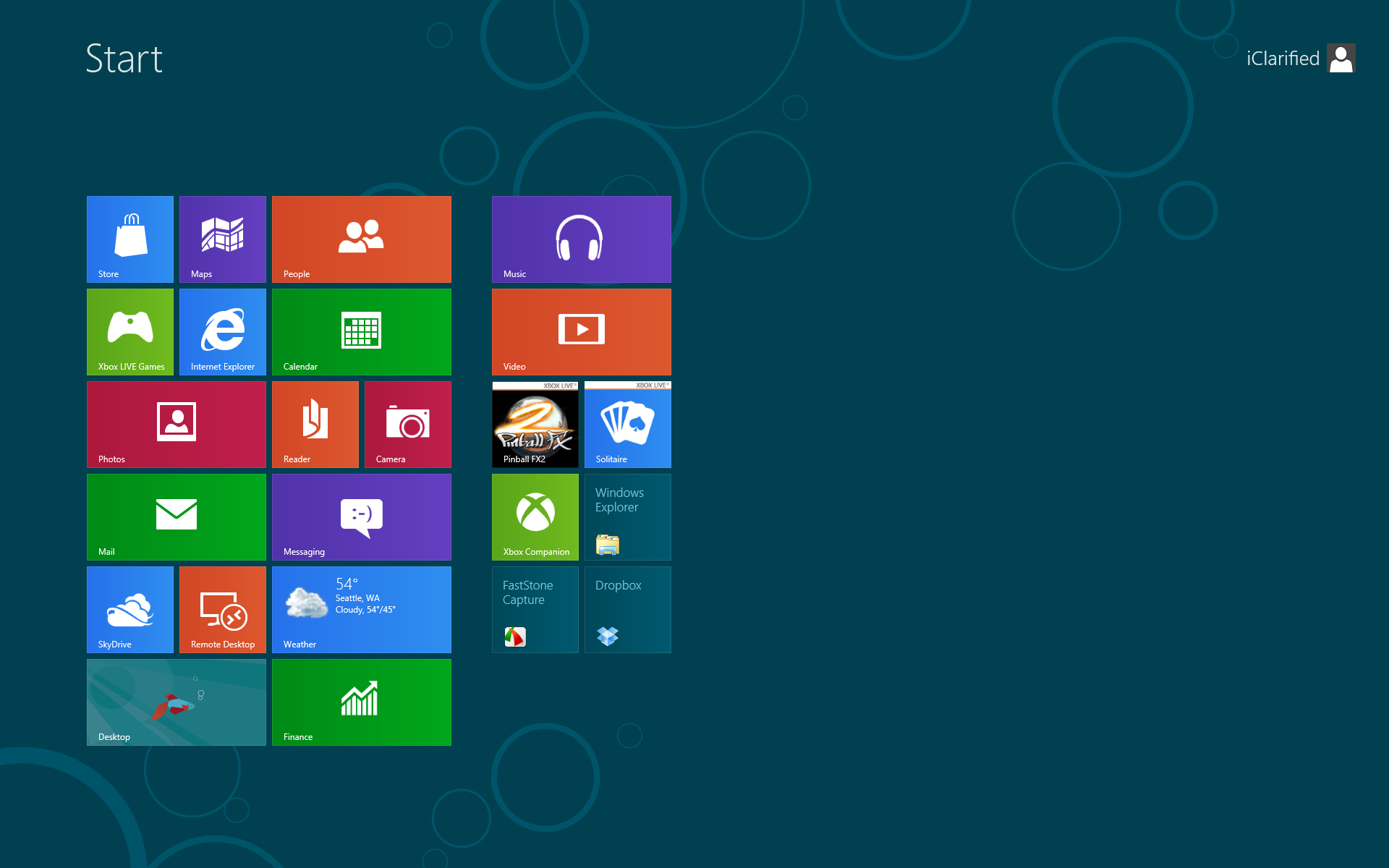
Once your system has restarted you will have successfully installed Windows 8 on your Mac using Boot Camp.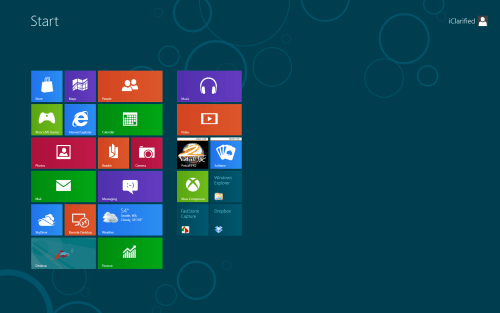

Monday, September 23, 2013
How to install uninstall Windows 8 Consumer Preview language packs
finaly Microsoft has released language packs for windows 8 consumer preview and this will let all users
change it to any language they are looking for. because Windows 8 Consumer Preview language packs are available for computers that are running under this OS . The Windows 8 Consumer Preview language packs
can be installed only from the language control panel in desktop. These language packs are not available
on the Microsoft Windows Server Update Services (WSUS) server or through the Microsoft Download Center.
How to install a Windows 8 Consumer Preview language pack
and change the Windows display language?
To download and install a Windows Consumer Preview language pack, follow these steps:
On the Start page, type language, and make sure that the search scope is set to Settings.
change it to any language they are looking for. because Windows 8 Consumer Preview language packs are available for computers that are running under this OS . The Windows 8 Consumer Preview language packs
can be installed only from the language control panel in desktop. These language packs are not available
on the Microsoft Windows Server Update Services (WSUS) server or through the Microsoft Download Center.
How to install a Windows 8 Consumer Preview language pack
and change the Windows display language?
To download and install a Windows Consumer Preview language pack, follow these steps:
On the Start page, type language, and make sure that the search scope is set to Settings.


In the Change your language preferences pane, click or tap Options next to the language that you added


Log off and then log on to Windows for the change to take effect.
Notes
Installing many additional language packs affects disk space and system performance. In particular, disk space and system performance are affected during servicing operations, such as service pack installations. Therefore, we recommend that you only add a language pack to your computer if you will use the language pack.
Language packs also let multiple users who share a computer select distinct display languages. For example, one user can select to see the dialog boxes, menus, and other text in Japanese, whereas another user can select to see the same content in French.
How to uninstall a Windows 8 Consumer Preview language pack?
To uninstall a language pack, follow these steps:
On the Start page, type language, and make sure that the search scope is set to Settings.
Notes
Installing many additional language packs affects disk space and system performance. In particular, disk space and system performance are affected during servicing operations, such as service pack installations. Therefore, we recommend that you only add a language pack to your computer if you will use the language pack.
Language packs also let multiple users who share a computer select distinct display languages. For example, one user can select to see the dialog boxes, menus, and other text in Japanese, whereas another user can select to see the same content in French.
How to uninstall a Windows 8 Consumer Preview language pack?
To uninstall a language pack, follow these steps:
On the Start page, type language, and make sure that the search scope is set to Settings.

In the Results panel, click or tap on Language.


-Click or tap on Uninstall language pack.
-Follow the instructions to uninstall the language.
Prerequisites
To apply this update, you must be running Windows 8 Consumer Preview.
Registry information
To apply the update in this package, you do not have to make any changes to the registry.
Restart requirement
You may have to restart the computer after you apply this update.
Update replacement information
This update does not replace a previously released update.
****This update is available from the following Microsoft Update website*****Support.microsoft.com/kb/2607607
Subscribe to:
Posts (Atom)