Showing posts with label to. Show all posts

Sunday, March 23, 2014

How to increase internet speed

Friends this is very tough to work on computer having very low speed. You want to increase your internet connection speed. There are many tweaks to boost and increase internet speed. Some of these are here which has been tested by myself and i found these tricks very useful increasing my internet speed.


TRICK 1 :  
  • Click START and then RUN, or press WIN + R
  • type gpedit.msc  and press Enter.
  • expand "Local Computer Policy"
  • then expand "Administrative Templates" 
  • then expand "Network Branch" 
  • Click on "QoS Packet Scheduler"
  • on right side of window Double click "Limit reservable bandwidth"
  • a different window will pop up, set  Enabled and change Bandwidth limit (%) to 0.
  • Click OK and Restart your computer.
you have done it.


TRICK 2 :
  • Download SG TCP Optimizer , dont need to install , just double click and it runs. the window looking like below
speed increase


  •  Under the General Setting tab, just drag the slider to match your connections download speed. and then at the bottom of window select Optimal Settings button and click Apply changes.
  •  you will now be looking a window like below
interned speed
  • Make sure the Backup box must be ticked, and then click OK.
  •  Restart your system and experiance the increasing internet connection speed.


TRICK 3 :

Sometimes your internet connection works too low due to virus and hard drives junk files or errors.
So for best results use any Good Antivirus to remove virus if found, Remove all the hard drives junk files or errors by using freeware open source softwares like C Cleaner (free), Registry booster and speed up PC (paid) etc. 


enjoy and comment.....
Read More..

Friday, March 21, 2014

How To Increase Internet Speed Of Mozilla Firefox Browser

Mozilla Firefox being a favorite browser for any internet users, there are a few tricks that you can do to speed up your mozilla firefox browser to make it connect to the internet much faster than the normal speed.

about:config

The tricks i am posting can be done by any person who is new to technology and computers. This small and simple tricks can make your browser faster than ever and make your downloads quicker thus saving much of your time. Firefox is speed browser,good to uploading and downloading,But this tips helps to increase the speed. Follow these given steps carefully

1. Type about:config  in your mozilla firefox browser.

2. A warning window will popup, Press  Ill be careful, I promise! button.

3. Type network in search

4. A list of preference will appear, double click on network.buffer.cache.size and increase its value (you
can increase the value more than the supposed limit, the computer will simply limit it to the maximum that it is being programmed for).

5. Scroll down to find network.http.max-connections and increase the values of all the connections.

6. Click on network.http.pipelining and Set pipelining to true.

7. Double Click on network.http.pipelining.maxrequests and Increase the value of pipelining max-requests.


Youve done it, now close your browser and restart it to find a new browser working faster than before. The speed increase is not much visible if you are using faster networks. But if you are two people using the same Wi-Fi connection you will definitely observe the difference.

Tag: how to speed up internet, how to speed up mozilla firefox, how to increase speed of mozilla firefox, Speed up your browser
Read More..

Thursday, March 20, 2014

How to Use USB Pen drive as RAM of Computer

Use USB pen drive as RAM

Here I am sharing you a trick to increase your RAM without any extra investment. This trick will surely improve the performance of your computer and increase operational speed. Here you have to use a USB pen drive or flashdrive, which can be used as RAM of your computer. Before trying this trick, make sure this can damage pen drive so be careful. To make it true we have to make some modifications. Just follow given steps carefully


How to use USB pen drive as RAM in Windows XP -:

1. First connect your pen drive to computer. Note that pen drive should be at least of 1GB.
2. Now right click on the my computer and then click properties.
3. Click on Advanced Tab and then Performance.
4. Now click on Advanced and then click on Virtual Memory.
5. Select your pen drive icon and click Custom size.
6. Now view the memory available in your pen drive and note it down then click on OK.
7. Restart your computer and enjoy your fast system.

How to use USB pen drive as RAM in Windows Vista and Windows 7 -:

1. Insert your pen drive and format it.
2. Right click on your pen drive and click on properties.
3. Now click on Ready boost tab and then Use this device.
4. Choose maximum space to reserve system speed then click on OK and Apply.
Youve done! use your pen drive as RAM.

Tabs: How to use pen drive as RAM, How to use USB pen drive or flash drive as RAM in Windows XP, How to use USB pen drive as RAM in Windows Vista, How to use pen drive as RAM in Windows 7
Read More..

Wednesday, March 19, 2014

Delhi Police Recruitment 2013 for SI ASI and Intelligence Officer Notification Exam syllabus Exam pattern and tips to crack exam

Staff Selection Commission (SSC) has invited applications from Indian for the post of Sub-Inspector and Intelligence Officer in Delhi police, CAPFs, CISF and NCB. 
You can check number of vacancies and grade pay for these posts, click here.

All eligible and interested candidates can apply till 12th April, 2013 upto 5.00 pm for these post of recruitment.
Candidates should be between 20-25 years as on 01 January 2013 and should hold a degree of graduation from a recognized university.

After applying for these post of SI, ASI and Intelligence Officer, one may be in dilemma what should do after applying, how to prepare for these posts of ssc, what is the exam pattern of delhi police SI and Intelligence officer recruitment exam, what is the exam syllabus for these posts of delhi police. Lets try to solve all these questions one after one.

Date of Exam: 10 May, 2013 (Paper-I) & 18 Aug, 2013 (Paper-II)


EXAM PATTERN OF SSC, DELHI POLICE EXAM FOR POST OF SI, ASI AND INTELLIGENCE OFFICER:
 
Candidates will be selected on the basis of Written examination, Interview and Personality test.
Written examination comprise of two objective papers on two different days.

Written examination Paper-I ( 10 June, 2013 ) - 200 questions of 200 marks in 2 hours duration

1. General Intelligence and Reasoning - 50 questions of 50 marks
2. General Knowledge and Awareness - 50 questions of 50 marks
3. Quantitative Aptitude - 50 questions of 50 marks
4. English Comprehension - 50 questions of 50 marks

Written examination Paper-II ( 18 Aug, 2013 ) 

English language and Comprehension - 200 questions of 200 marks in 2 hours duration
  

EXAM SYLLABUS OF SSC DELHI POLICE EXAM FOR POST OF SI, ASI AND INTELLIGENCE OFFICER:

For Syllabus of Delhi police, SSC exam for post of SI, ASI and Intelligence Officer, click here


TIPS AND TRICKS TO CRACK SSC DELHI POLICE SI, ASI RECRUITMENT EXAM :
  •  There is negative marking of 0.25 marks for wrongly answered questions, so carefully attempt all questions.
  • For General Reasoning dont try hard, have some basic idea of all types and practice a lot on questions.
  • For General awareness, i advice you to prefer Lucent book.
  • For Quantitative ability, try to solve problems upto your secondary class. clear your concepts and practice more questions.
  • I advice you to attempt all section equally by dividing seperate time for all. Try to attempt sections by pre-decided planning of time. Never run to attempt all questions.


Tags: Syllabus of Delhi police SI, ASI Recruitment 2013 | Exam Pattern of SSC SI and ASI Exam 2013 | Sub Inspector and Intelligence Officer recruitment  Exam | Tips for SSC Delhi police SI, ASI and intelligence officer Recruitment Exam 2013 | Last year solved papers of SSC Delhi police SI and Intelligence officer Recruitment exam  | Unsolved papers of SSC Delhi police SI, ASI and Intelligence officer Recruitment exam  2013
Read More..

Tuesday, March 18, 2014

How to Backup your e mails from your Gmail Account to your computer

If you want to backup your e-mail from your Gmail account onto your computer its very simple.
Just use Mozilla Thunderbird or Outlook Express and follow the below steps - 

1. Sign in to Gmail.
2.Click the gear icon in the upper right, then select Settings
2. Click on Forwarding and POP/IMAP.
3. Select Enable POP for all mail or Enable POP for mail that arrives from now on.
    Make sure the setting is set to "Keep Google Mails copy in the inbox". 
    Also if you look on that screen there is also a link to Configuration Instructions, if you click on that link it  will take you to a page that shows you how to set up your e-mail program, like Thunderbird, or Outlook Express.
4. Now click on Save Changes
For ease I would highly recommend using Thunderbird rather than Outlook as Thunderbird has all the Gmail servers already built in to it.

For Thunderbird 
1. Open Mozilla Thunderbird 
2. Just go to the "Tools" menu and click "Account Settings".
3. In the Account Settings box click on "Add Account".
4. Select Gmail from the list and click Next
5. Enter Your Name and Gmail address
6. Click Next and then click Finish.

All the other settings will be automatically set up for you.

When you click on the Get Mail icon in Thunderbird it will then ask you for your Gmail account. If this computer is only going to be used by you (and anyone else that you dont mind reading your e-mail) tick the box "remember password" and then you dont need to enter your password again.

It will then contact Gmail and download all your e-mail to your computer. Here you get all your e-mails in your computer.
Read More..

Monday, March 17, 2014

How to Find the Name or Title of a Song by Lyrics

Most people listen to songs from bands they like and sometimes search for the lyrics of a song if they can’t quite make out what’s being sung. However, for those of us who happen to listen to the lyrics of a song and want to find out who sang it, there are some useful lyric search engines that do just that. Frankly, this happen to me all the time!

Anyway, so if you know some of the lyrics for the song you’re looking for, you can try out a few of these lyric search engines to try and find the band or song name. Actually, there are quite a few of them out there, but only a few really have large databases of song lyrics. Here are some them websites :

 
1. Search Lyrics – This site also has some non-English lyrics and you can translate any of the English lyrics to another language on the lyric pages. Get Lyrical finds an exact match for your lyrics whereas Search Lyrics searches for those words anywhere in a particular song and will return a result even if the words are all not together.
song by lyrics


3. LyricsFly –  Make sure you click on Lyrics first and then perform a search.

songs by lyrics

The other web sites that I tried did not work good for song lyrics and so I’m not going to mention them here. If you know of any other lyric search engines, post a comment!
 
Read More..

Friday, March 14, 2014

How to choose best suitable Processor for your computer or laptop


stechnotrick choose processor

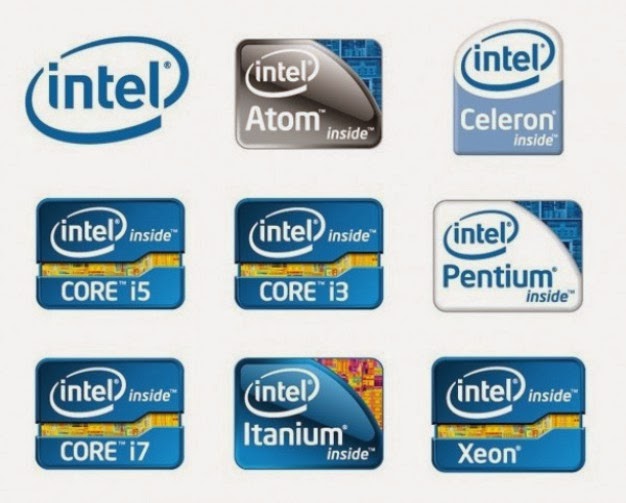
You must know what processor is best suitable to buy in your budget. A wrong perception about processor sometimes make you spend more money. Here Im trying to make you more familiar to the different processors available in market, and I will suggest you to what processor you should buy according to your requirement.

Many companies are manufacturing processors, but in todays market competition Intel and AMD have their own name as a superior manufactures. HP and IBM have also developed their processor products.

Intel Processors:

Intel has manufactured many processors starting from 8086 series to Pentium. Pentium has many versions; and all are very responsive. After Pentium, Intel launched Dual-Core and Core-2-duo (latest). Basically, core means processor, and dual core contains two processors embedded on PC chip. So the dual core processors are comparatively much faster and efficient.

If PC chip is embedded with two processor called as dual core, and if embedded with four processors then called as quadcore processor. It should be noted that more in numbers of processors, the more in speed of system.

Core i processor :
Core i is a brand name of Intel processor, which are multicore processor. These are very famous processors now days. Intel has launched a big series of processors of brand core i named core i3, core i5, core i7, core i9. The  number of count progress, the more advance in processing speed. These processors are comparatively expensive but very faster and efficient.

Intel has manufactured Atom processor for Netbook and Tablets; which are cheaper and having with less processing speed.
Intel has also manufactured Itanium processor mostly used in server, where you need a good speed of data processing. That has really amazing speed.
Celeron processor are the cheaper processor made by Intel; used at home for general applications.

AMD processors:

AMD company developed Sempron and Athlone to face Celeron processor. Phenom and Turion are the high speed processors developed by AMD.

Now the question arise how to select the processor according to your requirement. Im giving a list where you can select your best one justify your budget and requirement.

Celeron- General home usage
Dual core or Core i3 processor- Good for MS Office, music, internet, video watching.
Core2duo or Core i5 processor- Good for office applications, HD movies, YouTube videos.
Core i7 processor- Graphics, video editing and Programming.

I hope this will helps you if you are a newbiee. For any query, feel free to comment.


Read More..

Saturday, March 8, 2014

How to check BSNL Broadband Data Usage

Some of you might be in a fix that you are having BSNL broadband, but dont know how to check your broadband data usage. There are many methods to check BSNL broadband usage, Here i am suggesting you some of the methods.

1. Find BSNL broadband usage via BSNL Portal :-
  • Go to BSNL Portal
  • Enter you User Name and Password at the top left of sidebar, then click on Login. Note that this portal works only for the user having IP addresses of type 5x.xx.xx.xx. Users with IP addresses of  type 117.xx.xx.xx shall go on link http://data.bsnl.in/wps/portal  and login  with your Portal User ID and Password. Portal ID can be obtained from BSNL customer care or by calling the Toll free number 1800-424-1600.you can check your IP address by clicking Start -> Run and type cmd . then press Ok. Press ipconfig and then Enter. your IP address will be shown. 
  •  Once you login, you will see some links in sidebar. Click on "Service Records" link.
  • You can choose to view the usage statistics for any month. Then, select the service and Domain for which you want to check the usage.You may also choose to view the usage statistics for “All Services” and “All domains”. After making the selection, Click the “Ok” button. 
  • You will then be shown the complete usage statistics including Total Send Volume(GB), Total Receive Volume(GB), Total Volume (GB), Total Duration(hour), Sum Traffic Excluding Night Unlimited(GB). BSNL also gives separate usage statistics for every single day and for every service that you make use of.

2. Firefox add-in to check BSNL Usage :-

There is even a firefox add-on to check bsnl broadband usage. Download and install the Datafox firefox add-on on your firefox browser.

After installing the firefox add-on, restart Firefox, and click on its status bar icon to enter your BSNL username and password. Then click on the “Login” button. You will then be able to Check BSNL Dataone Broadband usage by mousing over the cursor on top of the status bar icon.


3. Except them there are many free automated tools or utilities on internet to check BSNL broadband usage like Shaplus, Broadband Usage, Bandwidth Usage Monitor, MZL & Novatech Traffic Statistics. Just download them and follow instructions. But personally i wont suggest these tools due to less reliability.  

comments for more help.......
Read More..

Thursday, March 6, 2014

How to download save YouTube video with PC and mobile

YouTube is a website where you can watch videos online on any topics and happenings in the world. Most times, after watching your favourite video, you might wish to download and convert the video to different formats MP3, MP4, 3GP, FLV and AVI (DivX) file. If you want to resize and adjust your YouTube video, click here.

As in youtube website there is no chance to download your favorite YouTube video, so you need to use some tricks and tools to get these videos download.


Here In this post, i am sharing some tricks to download youtube videos, simply by transfering it to some other address or url.

Lets start with a very simple trick to download youtube videos, then after i will suggest some tools being helpfull.

1. Go to youtube.com to search for your favorite video.
    The link must look like this: http://www.youtube.com/watch?v=Tkgad9gngOQ
2. Now change the link above by adding “ss” to the link, like this
    http://www.ssyoutube.com/watch?v=Tkgad9gngOQ 

    and you will be redirected to the savefrom.net download page  where you will be able to download the file in MP3,  MP4, 3GP, FLV and AVI (DivX) format.

By now you must have downloaded your favorite video on youtube.com without to tools and softwares. This will work on both Mobile Phone and PC. To download these youtube videos, you do not have to install and get involved with anything complicated.

Here i am providing a list of websites what offer this facility to download youtube videos. There are a few, actually. I will highlight some of which have attracted my attention.

  • SaveVideoDownload - good tutorial to download youtube videos in both .flv & .mpeg formats
  • KeepVid - Simple tool to download videos from youtube , just copy the url in the given download bar, click “Download” and Voilaaaa! just choose the format and download the video.
  • Dirpy - Provides the ability to download only the MP3 audio which comes in handy if you are just looking to hear a talk or presentation on your iPod.
  • SaveVid - With SaveVid website instead of only being able to download youtube videos, you can also create a log of all your saved videos.
  • CatchVideo - One of the fastest services of downloading videos from youtube.
  • VideoGetting - Very simple and straightforward but offers multiple output video formats.
  • FetchVideo
  • Zamzar -  Particularly remarkable about the number of supported video formats when downloading videos from YouTube.
If you have some other sites, please share.

Also visit
 Download torrent files without using torrent client
 How to increase internet speed

Tags: How to download youtube videos to pc/computer, How to save youtube video to mobile and computer, Methods or Tricks to download youtube videos, download youtube video
Read More..

Monday, October 14, 2013

AT T’s LTE network expanded to 10 new markets


attlogo
Some speedy new 4G LTE networks are in place around the U.S.
Which is never a bad thing.
Per AppleInsider, AT&T this week announced that its high-speed 4G LTE network — compatible with Apple’s latest iPhone 5, iPad and iPad mini — has launched in 15 new markets, and also expanded coverage in a handful of other locations.

A total of 10 new locations with 4G LTE reception were announced by AT&T on Friday:
- Boise, Idaho
- Boulder, Colo.
- Bowling Green, Ky.
- Harrisburg, Pa.
- Hartford, Conn.
- Lancaster, Pa.
- Lexington, Ken.
- New Haven, Conn.
- Ogden, Utah
- Providence, R.I.
Those 10 are joined by five other markets that AT&T announced have LTE connectivity on Tuesday of this week:
- Green Bay, Wis.
- Melbourne, Fla.
- Oxford, Miss.
- Springfield, Mass.
- Tucson, Ariz.
Finally, AT&T also announced this week that its existing 4G LTE network has expanded in a handful of markets. They are:
- Middlesex County, N.J.
- Phoenix, Ariz.
- Salt Lake City, Utah
- Los Angeles, Calif.

The latest expansions are the most significant update to AT&T’s network since mid-November, when the company’s 4G LTE coverage was extended to 24 new markets, including Denver, Colo., and Columbus, Ohio.

In all, AT&T’s 4G LTE network has been launched in 124 markets. The company plans to reach 250 million people by the end of 2013, and 300 million by the end of 2014.
Read More..

How to Jailbreak Your iPod Touch 4G Using RedSn0w Mac 5 0b4

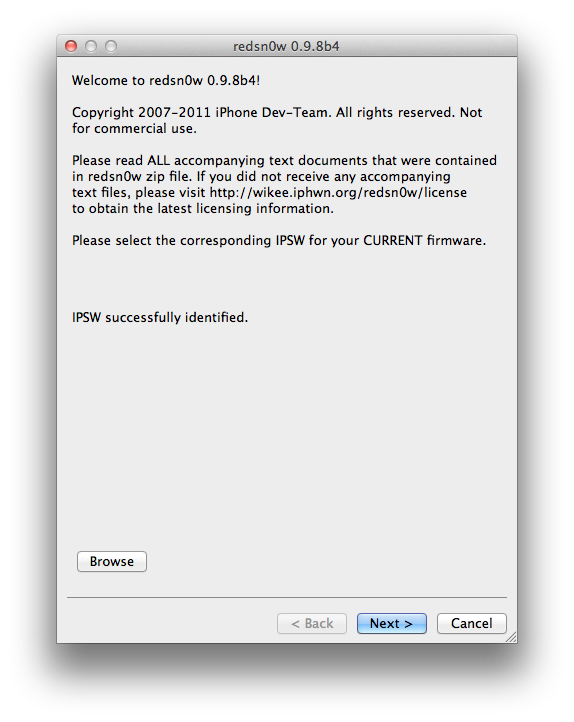
These are instructions on how to jailbreak your iPod touch 4G on the 5.0b4 firmware using RedSn0w for Mac. Since iOS 5.0 has not yet been released these are instructions for developers only. This procedure will not hacktivate so you must have your UDID registered with a developer, and as of now the jailbreak is tethered.


Step One
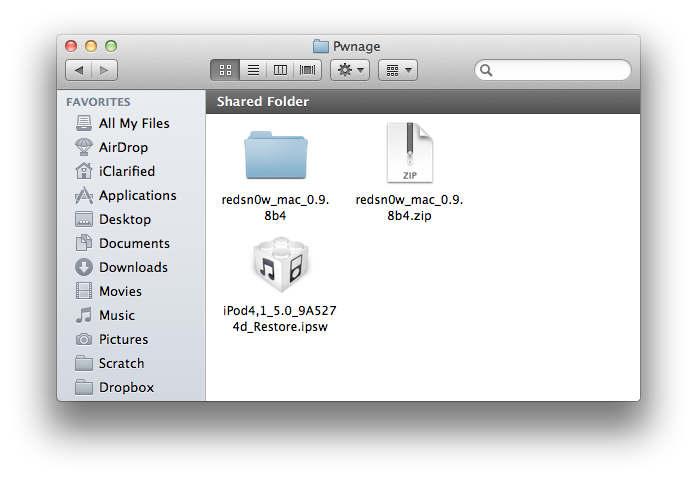
Create a folder on your desktop called Pwnage

Download RedSn0w from here and place it in the Pwnage folder. Likewise, download the latest 5.0 firmware from the iOS Dev Center and place it in the same folder.

5.0b4 (4G): iPod4,1_5.0_9A5274d_Restore.ipsw

Extract the RedSn0w zip file by double clicking it.

Click here to enlarge


Step Two
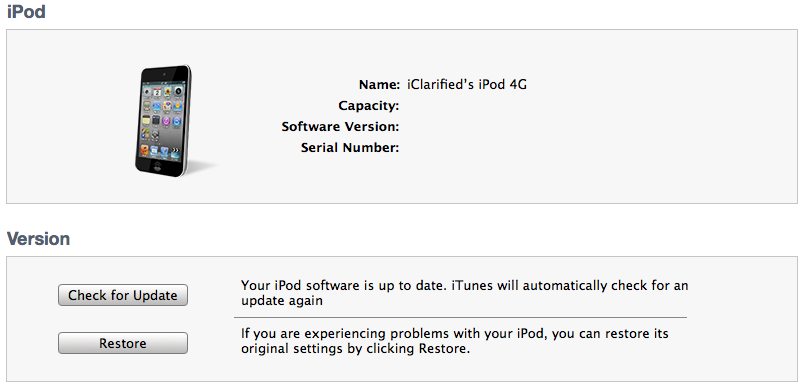
Connect your iPod to the computer and launch iTunes.

Click here to enlarge


Select your iPod from the list of devices on the left. Now hold down Option and click the Restore button. Restore is preferred as it wont create any wasted space on your iPod.


Click here to enlarge


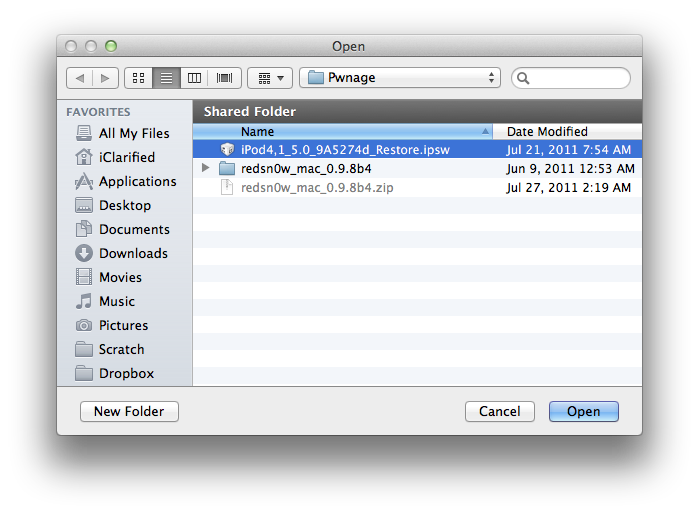
Navigate to the Pwnage folder on your desktop and select the 5.0 firmware ipsw. Click the Choose button to continue.
Click here to enlarge

Step Three
Once iTunes has finished updating your iPod to the desired firmware open the Pwnage folder on your desktop and launch the redsn0w application from the redsn0w folder we extracted earlier.

Click here to enlarge

Step Four
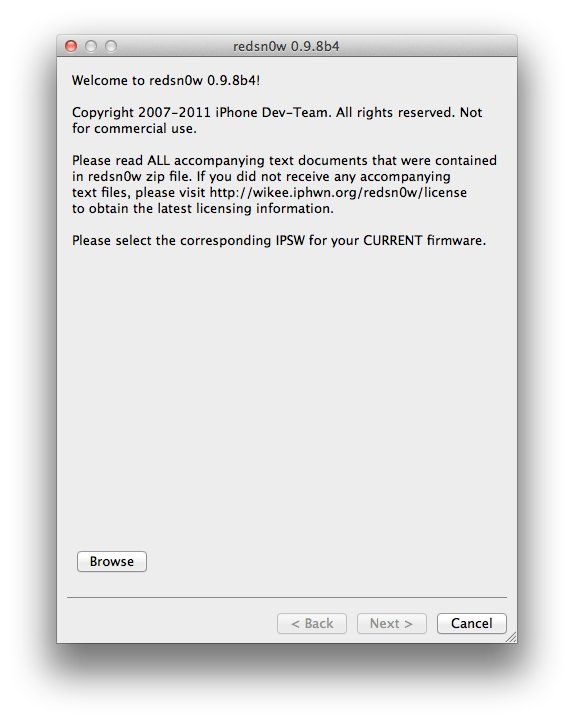
Once RedSn0w opens click the Browse button

Click here to enlarge

Step Five
Select the 5.0 firmware ipsw we placed in the Pwnage folder on our desktop then click Open.

Click here to enlarge

Step Six
Once the firmware has been verified click the Next button to continue.

Click here to enlarge

Step Seven
RedSn0w will now prepare the jailbreak data

Click here to enlarge

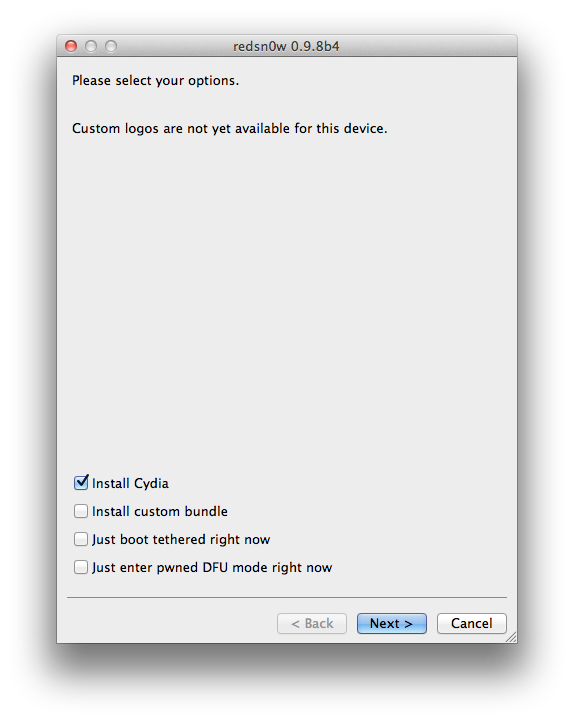
Step Eight
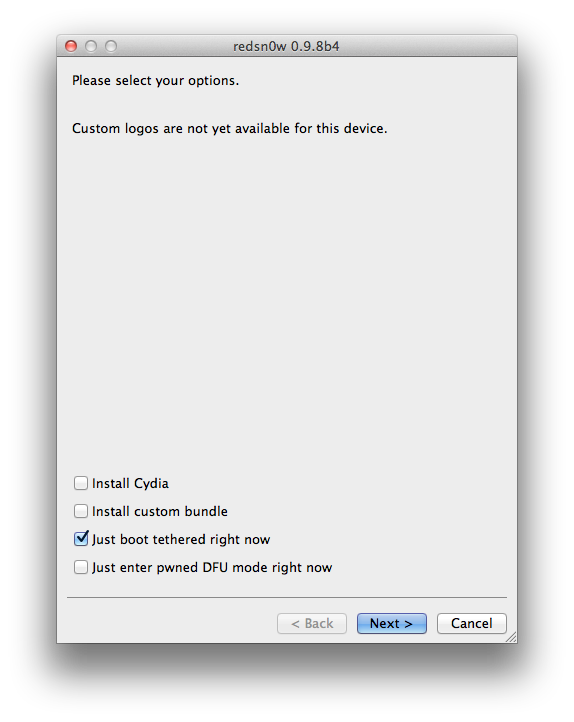
From this window you can select the jailbreak options you would like.

Make sure Cydia is selected and click the Next button to continue.

Click here to enlarge

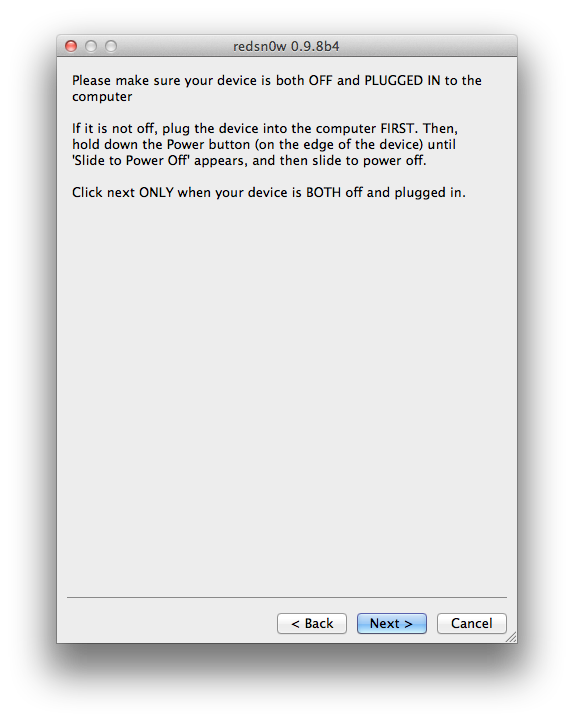
Step Nine
Please plug your iPod into the computer and make sure its OFF then click the Next button

Click here to enlarge

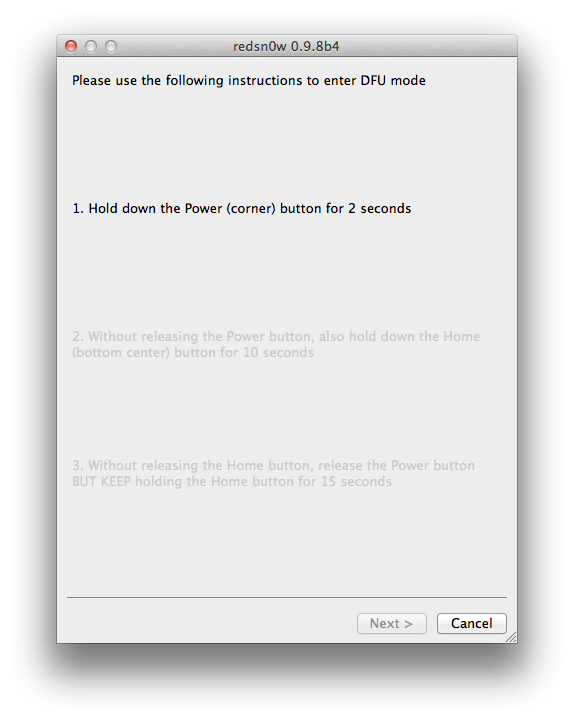
Step Ten
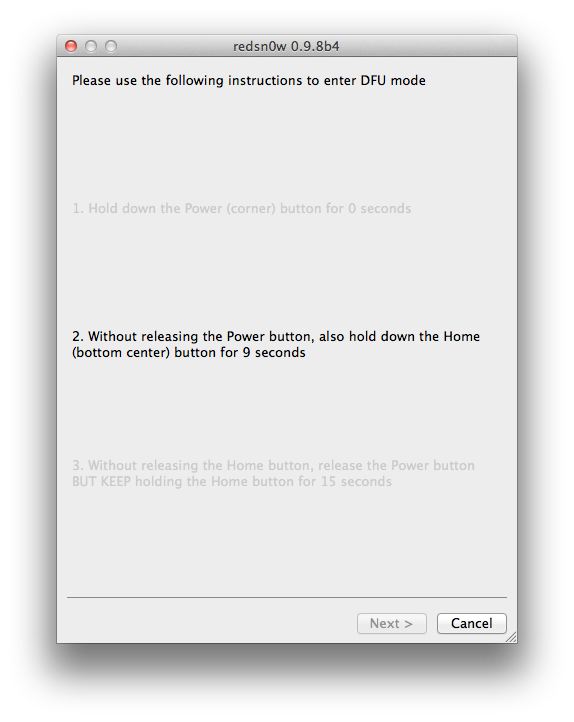
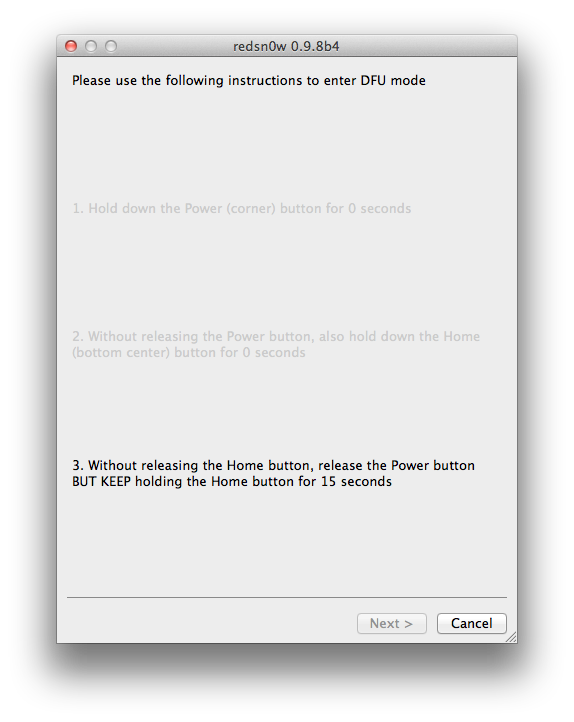
RedSn0w will now guide you through the steps to get into DFU mode.
Click here to enlarge

Hold down both the Home button and the Power button for 10 seconds.
Click here to enlarge

Release the Power button and continue holding the Home button until RedSn0w detects the device.

Click here to enlarge

Step Eleven
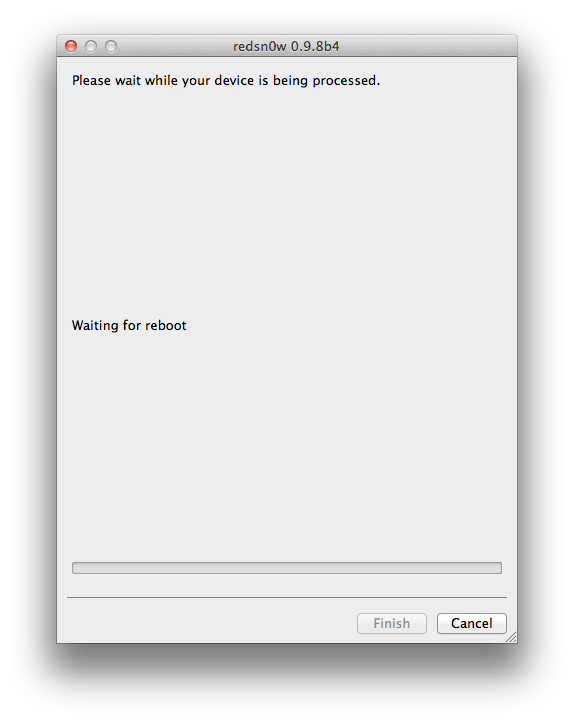
Your iPod will now reboot

Click here to enlarge


Step Twelve
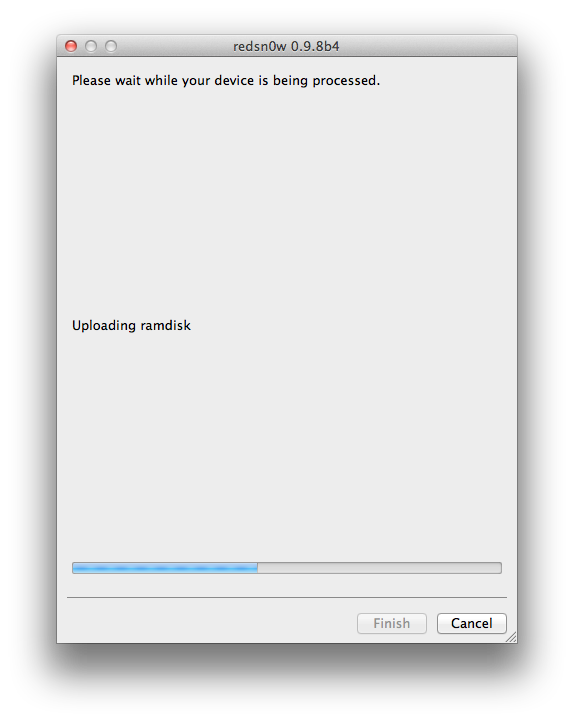
RedSn0w will then begin uploading the new RAM Disk and Kernel.

Click here to enlarge

Step Thirteen
Once this is complete you will be notified that RedSn0w is done. Click the Finish button. When your iPod finishes rebooting (5 minutes or so) it will be jailbroken with Cydia on the SpringBoard.

Click here to enlarge


BOOT TETHERED:
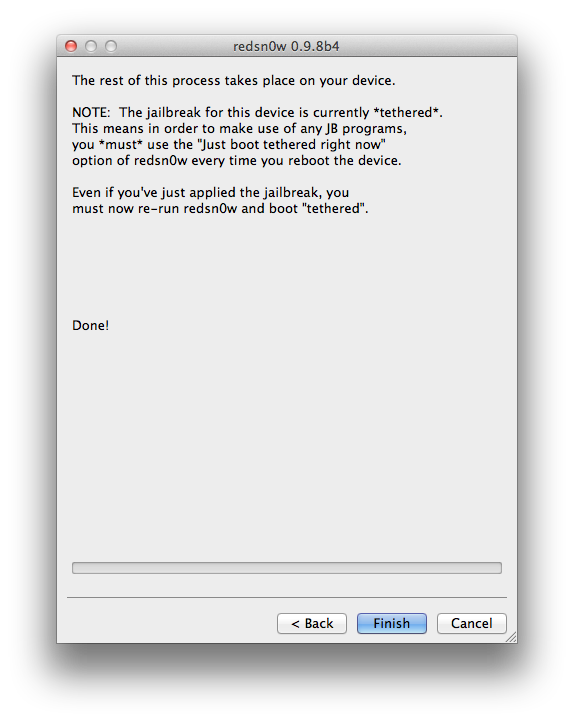
Since this is a tethered jailbreak you must use Redsn0w to help you boot back into your jailbroken device if its powered off for any reason. Simply connect your iPod to the computer, launch RedSn0w, select Just boot tethered right now from the options window and click Next to have RedSn0w boot your device.

Click here to enlarge

*A big thanks to the iPhone Dev-Team and Geohot for their hard work and contribution to the iPhone community.
Read More..

Generates Your Own Fake Siri Conversations Right Now How To


Create A Fake Conversation With Siri

If you want to fool your friends with some iPhone related shenanigans. someone create this amazing web app for fun.


Simply enter the text you want to want both you and Siri to have said, and a legitimate-looking screenshot, complete with a choice of US cellular networks, is generated.

I’m not going to write so much i want to let you go now to try this cool web app.
Read More..

Sunday, October 13, 2013

TinyUmbrella Updated To v5 00 04 With iOS5b3 Support

Click here to enlarge
Just a quick heads-up: notcom just updated TinyUmbrella to v5.00.04. The new updated brings support for iOS5b3 and fixes a stupid name encoding bug where folks would see their device name show up like this: “John‚Äôs iPad” instead of “John’s iPad”.

Download TinyUmbrella For Mac and Windows here
Read More..

Saturday, October 12, 2013

iPhone How to Enable iCloud Automatic Downloads in iOS

These are instructions on how to enable iCloud Automatic Downloads for Apps, iTunes, and iBooks in iOS. You need an iTunes account to enable this new feature.

These are instructions on how to enable iCloud Automatic Downloads for Apps, iTunes, and iBooks in iOS. You need an iTunes account to enable this new feature.

Step OnePress to launch Settings from your Springboard.

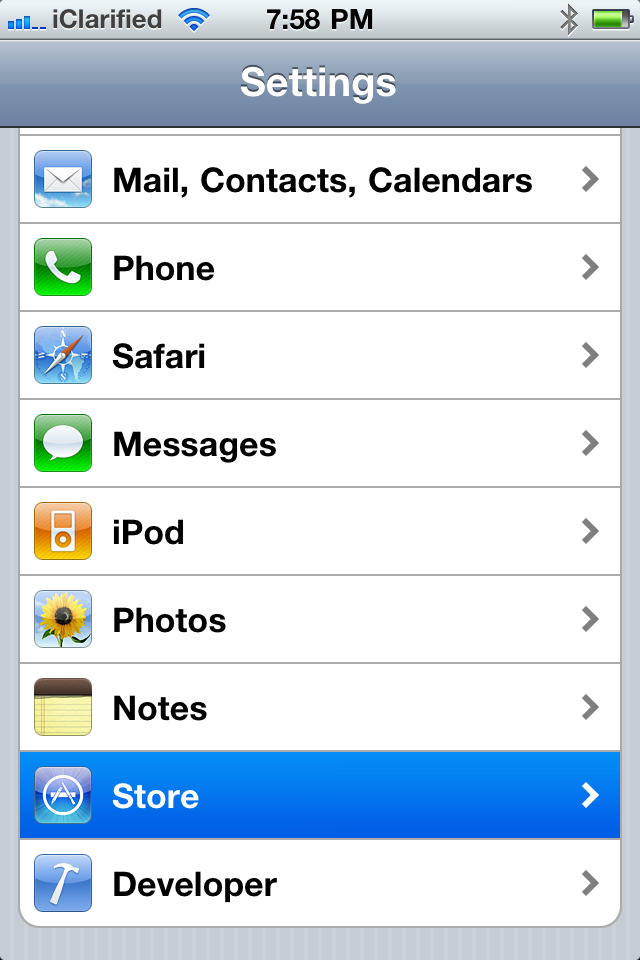
Step TwoPress to select Store from the Settings Menu.


Step ThreePress the Sign In button if you are not already Signed In.


Step FourTo enable Automatic Downloads for Apps, iTunes, or iBooks turn the respective switch to the ON position.

To enable Automatic Downloads while you are on the cellular network turn the Cellular switch to the ON position.


Now when you purchase or download a new app, song, or book the item will automatically be pushed to all your devices.
Read More..

How to Downgrade Your iPhone Firmware Using TinyUmbrella Windows

These are instructions on how to downgrade your iPhone firmware using TinyUmbrella. In order to follow this tutorial you must already have saved your SHSH Blobs for the firmware you want to restore to.

You can use this tutorial to downgrade to iOS 4.3.3 in order to jailbreak using JailbreakMe. The Mac version of this tutorial is here.

Step One
Download TinyUmbrella from here and save it in a Pwnage folder on your desktop if dont have it already.
Click here to enlarge

Step Two
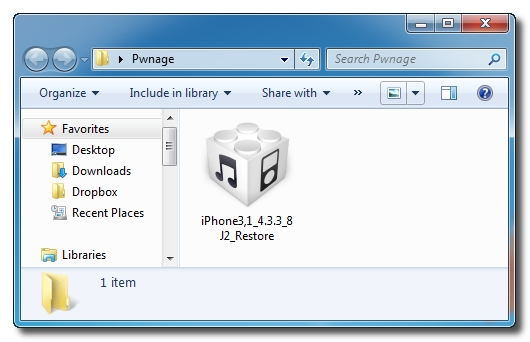
Download the firmware you want to restore to from here and save it in a Pwnage folder on your desktop. Remember you must have saved your SHSH Blobs for this firmware already.
Click here to enlarge

Step Three
Launch TinyUmbrella by double clicking its icon.
Click here to enlarge

Step Four
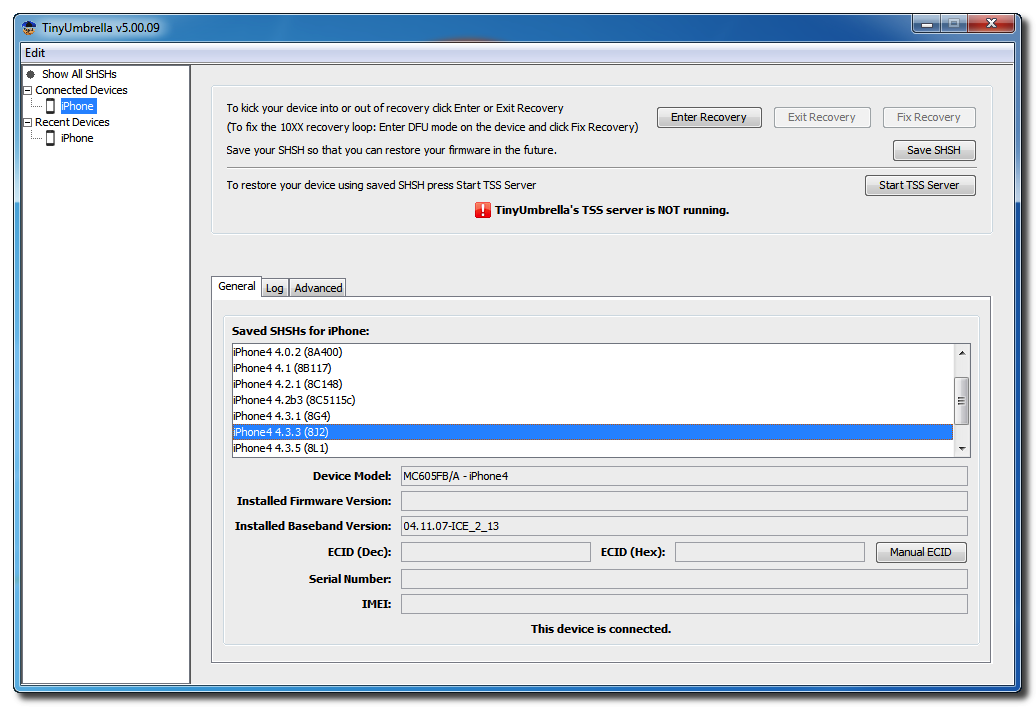
Connect your device and make sure it lists saved SHSH Blobs for the firmware you are restoring to. You may need to click Save SHSH to restore your blobs from Cydia if you dont see any listed.
Click here to enlarge

Step Five
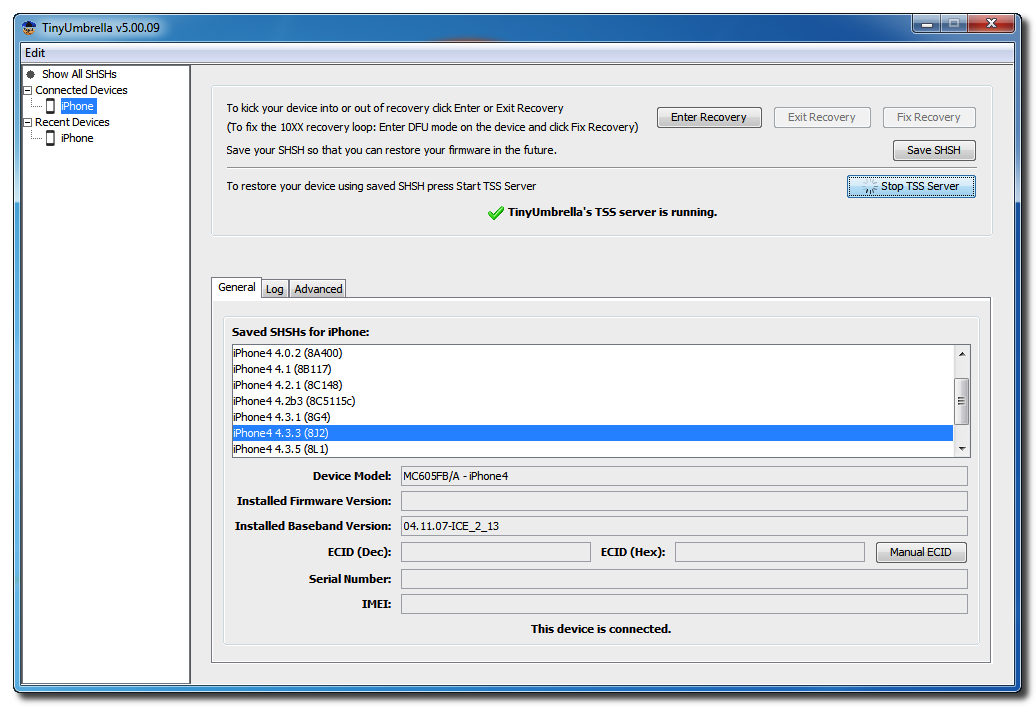
Click the Start TSS Server button.
Click here to enlarge

Click here to enlarge
*Do not continue if TinyUmbrellas TSS server is not started successfully.

Step Six
Launch iTunes by clicking its icon in your Start Menu.
Click here to enlarge

Step Seven
Place your iPhone into DFU mode by holding down the Power and Home buttons for 10 seconds then release the Power button and continue holding the Home button for another 10 seconds.

You can find help with DFU mode here.
Click here to enlarge

Step Seven
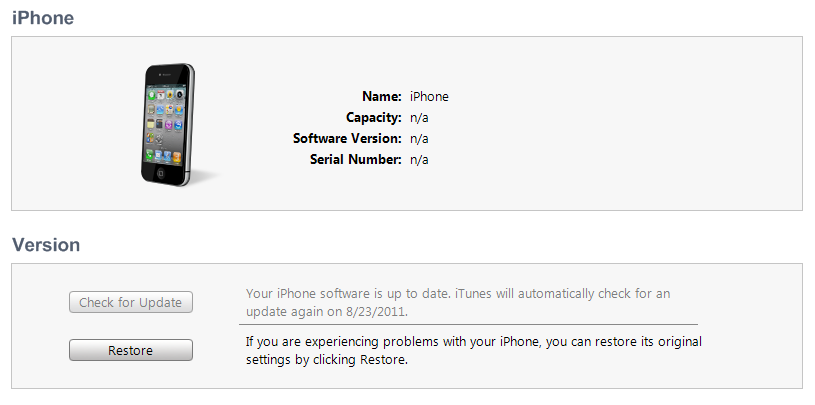
Select your iPhone from the list of devices on the left, hold down the Shift key and click Restore.
Click here to enlarge

Step Eight
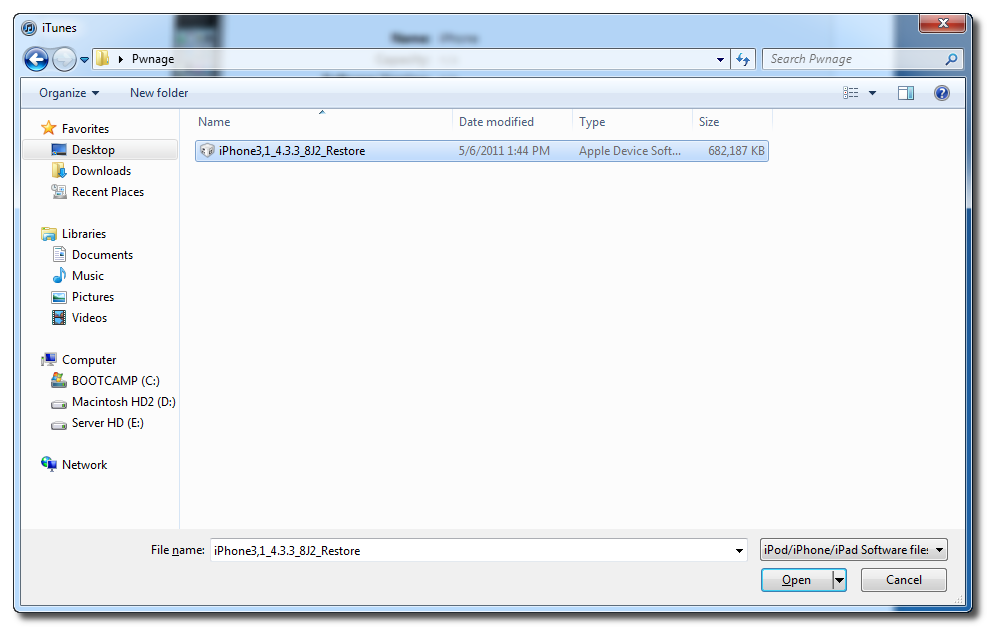
Navigate to the Pwnage folder on your desktop, select the ipsw file you downloaded and click the Open button.
Click here to enlarge

Step Nine
iTunes will now restore to the lower firmware version.
Click here to enlarge

Step Ten
If you happen to get an Error 1 or you get stuck in recovery mode, you will need to use FixRecovery to get your device out of recovery mode.
Click here to enlarge

Download FixRecovery from here and save it to the Pwnage folder on your desktop. Then extract the archive.
Click here to enlarge

Download zlib1.dll from here and save it to the Pwnage folder on your desktop. Then extract the archive.
Click here to enlarge

Step Eleven
Place your iPhone into DFU mode by holding down the Power and Home buttons for 10 seconds then release the Power button and continue holding the Home button for another 10 seconds.

You can find help with DFU mode here.
Click here to enlarge

Step Twelve
Double click to launch the fixrecovery43 executable we just extracted.
Click here to enlarge

Step Thirteen
FixRecovery will perform its magic after which your device will be successfully rebooted.
Click here to enlarge

Click here to enlarge


IMPORTANT:
● If fixrecovery does not work the first time you may need to rerestore to your desired firmware version and try again. Remember to keep the TSS Server running during your second restore as well.

● This tutorial does work to get your from iOS 5 beta back down to iOS 4. Although some have reported less issues with a lower version of iTunes this tutorial was tested to work with iTunes 10.5.0.77.
Read More..