Showing posts with label speed. Show all posts
Showing posts with label speed. Show all posts
Sunday, March 23, 2014
How to increase internet speed
Friends this is very tough to work on computer having very low speed. You want to increase your internet connection speed. There are many tweaks to boost and increase internet speed. Some of these are here which has been tested by myself and i found these tricks very useful increasing my internet speed.
TRICK 1 :
TRICK 2 :
TRICK 1 :
- Click START and then RUN, or press WIN + R
- type gpedit.msc and press Enter.
- expand "Local Computer Policy"
- then expand "Administrative Templates"
- then expand "Network Branch"
- Click on "QoS Packet Scheduler"
- on right side of window Double click "Limit reservable bandwidth"
- a different window will pop up, set Enabled and change Bandwidth limit (%) to 0.
- Click OK and Restart your computer.
TRICK 2 :
- Download SG TCP Optimizer , dont need to install , just double click and it runs. the window looking like below
 | ||
- Under the General Setting tab, just drag the slider to match your connections download speed. and then at the bottom of window select Optimal Settings button and click Apply changes.
- you will now be looking a window like below
 |
- Make sure the Backup box must be ticked, and then click OK.
- Restart your system and experiance the increasing internet connection speed.
TRICK 3 :
Sometimes your internet connection works too low due to virus and hard drives junk files or errors.
So for best results use any Good Antivirus to remove virus if found, Remove all the hard drives junk files or errors by using freeware open source softwares like C Cleaner (free), Registry booster and speed up PC (paid) etc.
enjoy and comment.....
So for best results use any Good Antivirus to remove virus if found, Remove all the hard drives junk files or errors by using freeware open source softwares like C Cleaner (free), Registry booster and speed up PC (paid) etc.
enjoy and comment.....

Friday, March 21, 2014
How To Increase Internet Speed Of Mozilla Firefox Browser
Mozilla Firefox being a favorite browser for any internet users, there are a few tricks that you can do to speed up your mozilla firefox browser to make it connect to the internet much faster than the normal speed.
The tricks i am posting can be done by any person who is new to technology and computers. This small and simple tricks can make your browser faster than ever and make your downloads quicker thus saving much of your time. Firefox is speed browser,good to uploading and downloading,But this tips helps to increase the speed. Follow these given steps carefully
1. Type about:config in your mozilla firefox browser.
2. A warning window will popup, Press Ill be careful, I promise! button.
3. Type network in search
4. A list of preference will appear, double click on network.buffer.cache.size and increase its value (you
can increase the value more than the supposed limit, the computer will simply limit it to the maximum that it is being programmed for).
5. Scroll down to find network.http.max-connections and increase the values of all the connections.
6. Click on network.http.pipelining and Set pipelining to true.
7. Double Click on network.http.pipelining.maxrequests and Increase the value of pipelining max-requests.
Youve done it, now close your browser and restart it to find a new browser working faster than before. The speed increase is not much visible if you are using faster networks. But if you are two people using the same Wi-Fi connection you will definitely observe the difference.
Tag: how to speed up internet, how to speed up mozilla firefox, how to increase speed of mozilla firefox, Speed up your browser
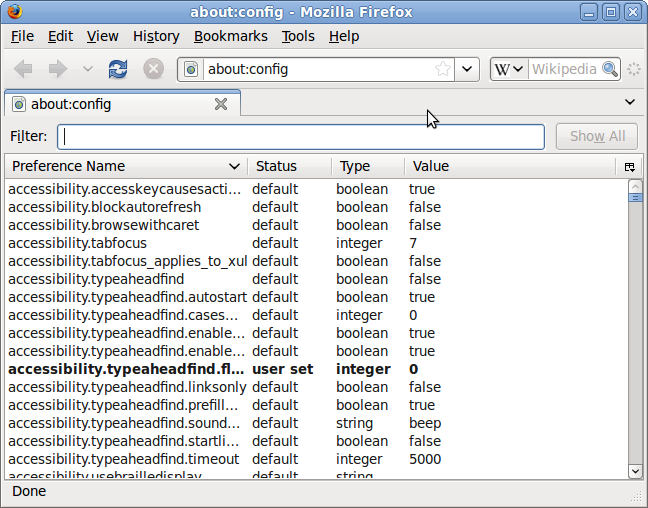 |
1. Type about:config in your mozilla firefox browser.
2. A warning window will popup, Press Ill be careful, I promise! button.
3. Type network in search
4. A list of preference will appear, double click on network.buffer.cache.size and increase its value (you
can increase the value more than the supposed limit, the computer will simply limit it to the maximum that it is being programmed for).
5. Scroll down to find network.http.max-connections and increase the values of all the connections.
6. Click on network.http.pipelining and Set pipelining to true.
7. Double Click on network.http.pipelining.maxrequests and Increase the value of pipelining max-requests.
Youve done it, now close your browser and restart it to find a new browser working faster than before. The speed increase is not much visible if you are using faster networks. But if you are two people using the same Wi-Fi connection you will definitely observe the difference.
Tag: how to speed up internet, how to speed up mozilla firefox, how to increase speed of mozilla firefox, Speed up your browser
Sunday, September 29, 2013
Trick How to Speed up Internet Connection Without Software
Trick How to Speed ??up Internet Connection Without Software - There are many applications or software to speed up internet connections are available on the internet, from a paid or free like: ashampoo internet accelerator, Onspeed, cFosSpeed??, fosSpeedconsole, Internet Turbo and others. But if there is a way to speed internet connection without the software, then this is what you should try, because it is more practical and free of course.
Here will be explained tips how to speed up internet connection without having to use the software. Tips speed internet connection without the software I found on the forum next to discuss thoroughly the problems Internet connection without the software.
Accelerate Internet Connection Without Software. There are several settings that must be changed in the registry of your computer, such as Shared Folders and Setting the boot if your computer is connected to another computer network, setting the browsers temporary files, cache control, reduces Bandwidth Windows Update, etc. All you need to do is Optimization of DNS Lookup. This is one way to improve or speed up internet connection, and to change it you can use the software TCP / IP Optimizer. But this time youve done is to tweak the registry on your computer (without software).
Heres how:
Click the Start menu> Run
In the Run dialog box type regedit, and then click OK.
Now youre looking for this registry address: HKEY_LOCAL_MACHINE SYSTEM Current ControlSet Services Tcpip ServiceProvider.
Once you are in the directory ServiceProvider change the values ??below it all into 1.
* DnsPriority = 1
* HostsPriority = 1
* LocalPriority = 1
* NetbtPriority = 1
Close the registry restart your computer.
Tweeking Firefox
Warning! :
You are advised not to perform this procedure if you have not advanced very well.Tweaking it was actually released by the developers of firefox so it is not just any tweaking, but if you dare to try at his own risk. If you enter an incorrect value, because after tweaking there is no option / menu to restore default settings firefox, to return to the default must be done manually or having to reinstall Mozilla Firefoxnya. So if you dare to do so please note the changes one by one all the tweaking you do.
A. Type: "about: config" without the quotes in your firefox and then enter.
2. Will come out a warning.
3. Select peringan that appears, after which it will exit the setting for tweaking firefox.
4. To change this, click 2 times on each setting and enter the name of the data changes.
5. If the data under the default settings are not in firefox, right click select New. To the data is numeric, select Integer, for true / false select Boolean.
Setting parameters:
For users of Dial Up
Set "browser.cache.disk_cache_ssl: true"
Set "browser.xul.error_pages.enabled: true"
Set "network.http.max-connections: 32?
Set "network.http.max-connections-per-server: 8?
Set "network.http.max-persistent-connections-per-proxy: 8?
Set "network.http.max-persistent-connections-per-server: 4?
Set "network.http.pipelining: true"
Set "network.http.pipelining.maxrequests: 8?
Set "network.http.proxy.pipelining: true"
Set "plugin.expose_full_path: true"
Set "signed.applets.codebase_principal_support: true"
Set "content.interrupt.parsing: true"
Set "content.max.tokenizing.time: 3000000?
Set "content.maxtextrun: 8191?
Set "content.notify.backoffcount: 5?
Set "content.notify.interval: 750 000?
Set "content.notify.ontimer: true"
Set "content.switch.threshold: 750 000?
For DSL users:
Set "network.http.pipelining: true"
Set "network.http.proxy.pipelining: true"
Set "network.http.pipelining.maxrequests: 64?
Set "nglayout.initialpaint.delay: 0?
For ADSL users:
Set "network.http.max-connections: 64?
Set "network.http.max-connections-per-server: 21?
Set "network.http.max-persistent-connections-per-server: 8?
Set "network.http.pipelining: true"
Set "network.http.pipelining.maxrequests: 100?
Set "network.http.proxy.pipelining: true"
Set "nglayout.initialpaint.delay: 0?
Shortcut to speed up browsing:
Ctrl + Enter, to open a domain that uses the. Com. way is to type the domain name only (no need to add "http://www" and the suffix. com) and click ctrl + enter. For example, if you want to open "http://www.google.com" so type in "google" without quotes, then click ctrl + enter.
Shift + Enter, to open the domain is using. Net. way is to type just the domain name then shif + click enter. Example, if you want to open the "http://www.telkom.net" then just type in "telecoms" without quotes, then shif + click enter.
Ctrl + Shift + Enter, to open a domain that uses the. Org. way is to type just the domain name and then click Ctrl + Shift + Enter. For example, you want to open "www.wordpress.org" so just type in "wordpress" without quotes, then click Ctrl + Shift + Enter.
Subscribe to:
Posts (Atom)