Showing posts with label computer. Show all posts
Showing posts with label computer. Show all posts
Thursday, March 20, 2014
How to Use USB Pen drive as RAM of Computer
 |
How to use USB pen drive as RAM in Windows XP -:
1. First connect your pen drive to computer. Note that pen drive should be at least of 1GB.
2. Now right click on the my computer and then click properties.
3. Click on Advanced Tab and then Performance.
4. Now click on Advanced and then click on Virtual Memory.
5. Select your pen drive icon and click Custom size.
6. Now view the memory available in your pen drive and note it down then click on OK.
7. Restart your computer and enjoy your fast system.
How to use USB pen drive as RAM in Windows Vista and Windows 7 -:
1. Insert your pen drive and format it.
2. Right click on your pen drive and click on properties.
3. Now click on Ready boost tab and then Use this device.
4. Choose maximum space to reserve system speed then click on OK and Apply.
Youve done! use your pen drive as RAM.
Tabs: How to use pen drive as RAM, How to use USB pen drive or flash drive as RAM in Windows XP, How to use USB pen drive as RAM in Windows Vista, How to use pen drive as RAM in Windows 7

Tuesday, March 18, 2014
How to Backup your e mails from your Gmail Account to your computer
If you want to backup your e-mail from your Gmail account onto your computer its very simple.
Just use Mozilla Thunderbird or Outlook Express and follow the below steps -
Just use Mozilla Thunderbird or Outlook Express and follow the below steps -
1. Sign in to Gmail.
2.Click the gear icon  in the upper right, then select Settings.
in the upper right, then select Settings. 2. Click on Forwarding and POP/IMAP.
3. Select Enable POP for all mail or Enable POP for mail that arrives from now on.
Make sure the setting is set to "Keep Google Mails copy in the inbox".
Also if you look on that screen there is also a link to Configuration Instructions, if you click on that link it will take you to a page that shows you how to set up your e-mail program, like Thunderbird, or Outlook Express.
4. Now click on Save Changes
For ease I would highly recommend using Thunderbird rather than Outlook as Thunderbird has all the Gmail servers already built in to it.
For Thunderbird
For Thunderbird
1. Open Mozilla Thunderbird
2. Just go to the "Tools" menu and click "Account Settings".
3. In the Account Settings box click on "Add Account".
4. Select Gmail from the list and click Next
5. Enter Your Name and Gmail address
6. Click Next and then click Finish.
All the other settings will be automatically set up for you.
When you click on the Get Mail icon in Thunderbird it will then ask you for your Gmail account. If this computer is only going to be used by you (and anyone else that you dont mind reading your e-mail) tick the box "remember password" and then you dont need to enter your password again.
It will then contact Gmail and download all your e-mail to your computer. Here you get all your e-mails in your computer.
3. In the Account Settings box click on "Add Account".
4. Select Gmail from the list and click Next
5. Enter Your Name and Gmail address
6. Click Next and then click Finish.
All the other settings will be automatically set up for you.
When you click on the Get Mail icon in Thunderbird it will then ask you for your Gmail account. If this computer is only going to be used by you (and anyone else that you dont mind reading your e-mail) tick the box "remember password" and then you dont need to enter your password again.
It will then contact Gmail and download all your e-mail to your computer. Here you get all your e-mails in your computer.
Friday, March 14, 2014
How to choose best suitable Processor for your computer or laptop
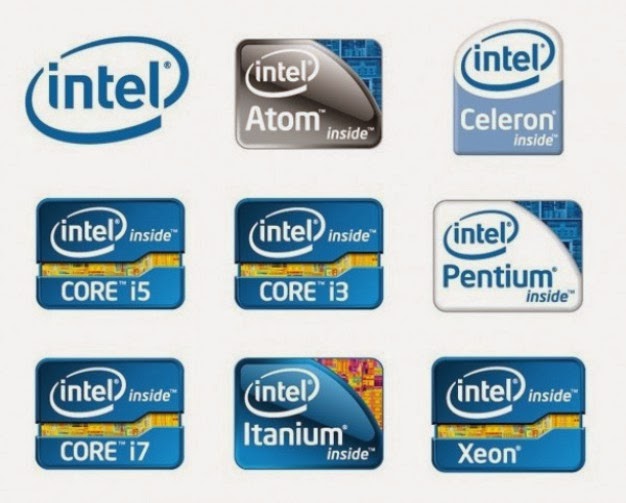
You must know what processor is best suitable to buy in your budget. A wrong perception about processor sometimes make you spend more money. Here Im trying to make you more familiar to the different processors available in market, and I will suggest you to what processor you should buy according to your requirement.
Many companies are manufacturing processors, but in todays market competition Intel and AMD have their own name as a superior manufactures. HP and IBM have also developed their processor products.
Intel Processors:
Intel has manufactured many processors starting from 8086 series to Pentium. Pentium has many versions; and all are very responsive. After Pentium, Intel launched Dual-Core and Core-2-duo (latest). Basically, core means processor, and dual core contains two processors embedded on PC chip. So the dual core processors are comparatively much faster and efficient.
If PC chip is embedded with two processor called as dual core, and if embedded with four processors then called as quadcore processor. It should be noted that more in numbers of processors, the more in speed of system.
Core i processor :
Core i is a brand name of Intel processor, which are multicore processor. These are very famous processors now days. Intel has launched a big series of processors of brand core i named core i3, core i5, core i7, core i9. The number of count progress, the more advance in processing speed. These processors are comparatively expensive but very faster and efficient.
Intel has manufactured Atom processor for Netbook and Tablets; which are cheaper and having with less processing speed.
Intel has also manufactured Itanium processor mostly used in server, where you need a good speed of data processing. That has really amazing speed.
Celeron processor are the cheaper processor made by Intel; used at home for general applications.
AMD processors:
AMD company developed Sempron and Athlone to face Celeron processor. Phenom and Turion are the high speed processors developed by AMD.
Now the question arise how to select the processor according to your requirement. Im giving a list where you can select your best one justify your budget and requirement.
Celeron- General home usage
Dual core or Core i3 processor- Good for MS Office, music, internet, video watching.
Core2duo or Core i5 processor- Good for office applications, HD movies, YouTube videos.
Core i7 processor- Graphics, video editing and Programming.
I hope this will helps you if you are a newbiee. For any query, feel free to comment.
Saturday, August 31, 2013
How to Fix a Computer Power Supply Damaged

How to Fix a Computer Power Supply Damaged - Power supply is an important part of the computer. Power supply has a function to provide power to all computer equipment. Power supply is like a food basket for all workers in the computer. Without the power supply, as high as any specification of your computer will not mean anything. Power supply is the lifeblood of your computer, if is damaged, then the stability of uninterrupted computer access, even you will not be able to operate a computer at all.
If you suspect that your power supply is dying, replace it. A common clue which indicates a failing power supply is a high-pitched whining or grinding noise from the area of the case where the power supply is housed. Dont wait until the supply dies, because its failure can cause voltage problems which can ruin your motherboard, hard drive, or other components.
Invest in a high quality power supply. Do some research before you purchase one. More wattage on the package doesnt mean better. Most home PCs dont actually use more than 300W, even though this is not what power supply marketing people want you to know. The unit should provide adequate wattage for your needs. Dont skimp on the power supply, as you may regret it later. Power supplies that fail can damage other components in your computer, especially the motherboard.
Power supply has an important task to change the power supply from high voltage to low voltage consumed by the computer. As we know that the voltage is different in each country, by the power supply was changed to 12 V and 5 V. Furthermore not only lowers power supply voltage, but also a change from the current-voltage AC (Alternating) to a voltage DC (Unidirectional), because the computer does not consume alternating voltage.
Function of power supply will be disrupted if damaged. The preparation How to Fix a Computer Power Supply Damaged are as follows:
- Prepare standard equipment to improve power supply is a screwdriver, pliers, and AVO meter.
- Open the casing cover power supply using a screwdriver.
- Measure the input voltage of your electrical outlet is 220 V showed a normal number? If there is zero chance powernya broken wires, replace the cable. Or if the numbers do not mean there are up to 220 V voltage drop, check your stabilizers or electrical conditions in your area.
- Measure out from the power supply voltage is correct about 12 V and 5 V? If not check the power supply components in the electrolyte condenser.
- Be careful during the analysis of damage, because youre working with power tools.
Any Tricks article thats on How to Fix a Computer Power Supply Damaged, may help you. Thank you for your visit, we may learn useful computer online.
Subscribe to:
Posts (Atom)