Showing posts with label restore. Show all posts
Showing posts with label restore. Show all posts
Wednesday, September 25, 2013
How to Re Restore 5 1 1 5 1 1 on iPhone4S using redsn0w 0 9 15b1 Windows
These are instructions on how to re-restore your iPhone from iOS 5.x to iOS 5.x. This procedure will work for any A5+ device so long as you have the SHSH Blobs saved for the firmware you are currently on and the firmware you would like to restore to.
Important***: You DO NOT QUALIFY for iOS5-to-iOS5 restores if you got to your current 5.x via an OTA (Over-the-Air) update.
Step One
Create a folder on your desktop called Pwnage
Download the latest version of RedSn0w and place it in the Pwnage folder. Likewise, download the firmware you would like to restore to and the firmware you are current on and place it/them in the Pwnage folder.
Extract the RedSn0w zip file to the Pwnage folder.
Step Two
Right click or control-click the redsn0w application from the redsn0w folder we extracted earlier and choose Open from the popup menu that appears.
Step Three
Click Extras from the main menu.
Step Four
Click Even More from the Extras menu.
Step Five
Click Restore from the Even More menu.
Step Six
Click IPSW from the Restore menu, choose the IPSW you would like to restore to from the window that appears, and click Open.
Step Seven
Redsn0w will prompt you to connect your device. Do so, then click the Ok button.
Step Eight
If you need to point RedSn0w to another firmware ipsw it will ask you to do so. If you are re-restoring the same firmware version, RedSn0w will check Cydia to see if you have the correct blobs saved.
If RedSn0w is unable to find your blobs automatically you can try to click the Remote button to try again or you can click the Local button to search for blobs on your computer.
Step Nine
RedSn0w will place your device into recovery mode.
You may be asked to acknowledge that this procedure will update your Baseband. Click Yes to continue or No to stop.
RedSn0w will now restore your iPhone.
Step Ten
Youll be informed when your restore has completed successfully.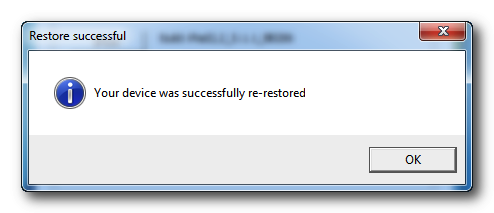


Thursday, September 19, 2013
How to Fix iOS 5 Firmware Restore Error 3002 1604 1600
Step 1: Install newest version of iTunes while do not connect your iPhone, iPod or iPad yet.
Step 2: Once installed, run new iTunes for a while then close it.
Step 3: Windows users simply go to folder C:Documents and SettingsApplication DataApple ComputeriTunesiPhone Software Updates. Mac users need to locate it. I don t really sure where it is.
Step 4: Cut and paste files there to somewhere else.
Do not delete them in case the steps does not work for you, you can still copy them back to the folder. You can find out your username by pressing Ctrl+Alt+Del. Step 5: Put your iPhone into DFU Mode
Step 6: Finally, proceed with iOS 5 restore procedure.
Actually there is another way to fix the error on Windows 64-bit using custom iOS 5 .ipsw created with Sn0wBreeze:
Step 1: Go to C:UsersuserAppDataRoamingAppleComputeriTunesDevice
Step 2: Cut and paste files and paste them somewhere else
Step 3: Take the recently .IPSW file created with snowbreeze and paste it on this folder and rename it to "x12220000_5_Recovery.ipsw".
Step 4: Then, go back to itunes
Step 5: Enter DFU mode >> restore >> hold [Shift] to restore >> select the file on the folder C:UsersuserAppDataRoamingAppleComputeriTunesDevice and it will work out.
If you are still bothered by the same issues, try the 2 ways above, hope it is helpful. If you want to know how to install and jailbreak the iOS 5 beta version, you can refer to the previous articles. Please stay tuned.

Subscribe to:
Posts (Atom)