Thursday, October 3, 2013
FREE BlackBerry Swiss Army BBSAK v1 9 11
BBSAK v1.9.11 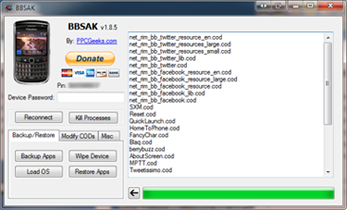
Story Behind BBSAK
BBSAK was built as a JL Cmdr replacement tool with a more friendly GUI, developed by two hobbyist developers. It has grown to what it is today, a windows application with many funtions for modifiying BlackBerries. It uses Javaloader to do its magic. We hope that you all will find it as useful as I do. Please if you post on other sites use the link provided here, so we can keep count of downloads.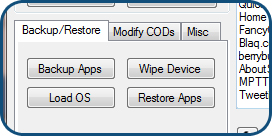
Backup 3rd Party Applications!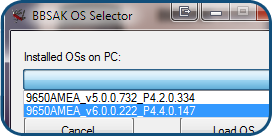
Install Older OSs W/O Uninstalling!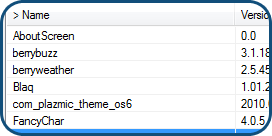
Install & Remove COD Files.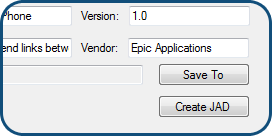
Make & Install JAD Files.
rar
password is guarforumhttp://www.mediafire.com/?vrtlxagf24l4av7

Downgrade 4 3 5 to 4 1 iPhone 3GS
One of Limera1n blog readers was able to downgrade his iPhone 3GS from iOS 4.3.5 to 4.1 firmware. Lets check his simple guide to downgrade 4.3.5 to 4.1 after the jump.

Download - Part 1 - Part 2 - iOS 4.1 custom firmware (made by sn0wbreeze)
Download redsn0w 0.9.6 (mirror)
Download iTunes 10.4
Note: We have not had a chance to verify this guide, so if you gonna try it, please feed us back.
Why to downgrade 4.3.5 to 4.1 iPhone 3GS?
As most of you know that iOS 4.3.5 only have tethered jailbreak which mean that you have to connect your iPhone 3GS to PC every time you reboot it. When you downgrade 4.3.5 to 4.1 iPhone 3GS you will be able to get untethered jailbreak.Required downloads to downgrade 4.3.5 to 4.1 iPhone 3GS:
Download Ireb4.Download - Part 1 - Part 2 - iOS 4.1 custom firmware (made by sn0wbreeze)
Download redsn0w 0.9.6 (mirror)
Download iTunes 10.4
How to downgrade 4.3.5 to 4.1 iPhone 3GS :
Step 1: Run Ireb4 , your iPhone 3GS will enter dfu mode.
Step 2: Go to iTunes and flash 4.1 custom firmware ipsw.
Step 3: Jailbreak your iPhone 3GS with Redsn0w 0.9.6b6 - follow previous our guide -
Step 2: Go to iTunes and flash 4.1 custom firmware ipsw.
Step 3: Jailbreak your iPhone 3GS with Redsn0w 0.9.6b6 - follow previous our guide -
Step 4: Unlock your iPhone 3GS with ultrasn0w - follow our previous guide -
Note: We have not had a chance to verify this guide, so if you gonna try it, please feed us back.
Wednesday, October 2, 2013
Install Windows 8 Preview on Your Mac Using Boot Camp
These are instructions on how to install Windows 8 Consumer Preview on your Mac using Boot Camp.
Before you begin this tutorial you will need the Windows 8 Consumer Preview ISO and Product Key. Those of you with a DVD burner will need to burn this ISO to DVD before continuing. Those of you (like us) without a DVD drive will need to connect a blank 8GB USB flash drive before beginning.
Step One
Open a new Finder window by clicking the Finder icon in your dock.
Step Two
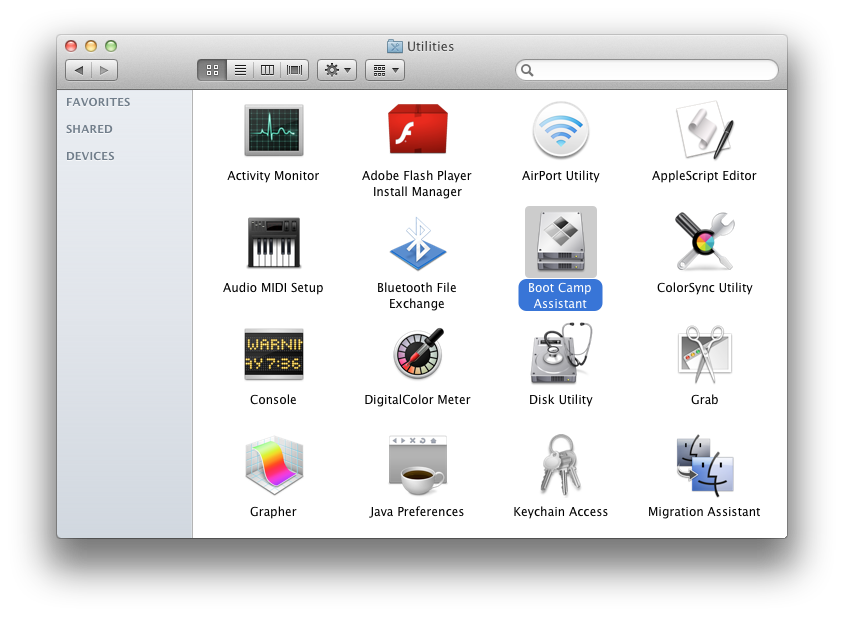
Navigate to the Applications : Utilities folder and double click the Boot Camp Assistant icon to launch the application.
Step Three
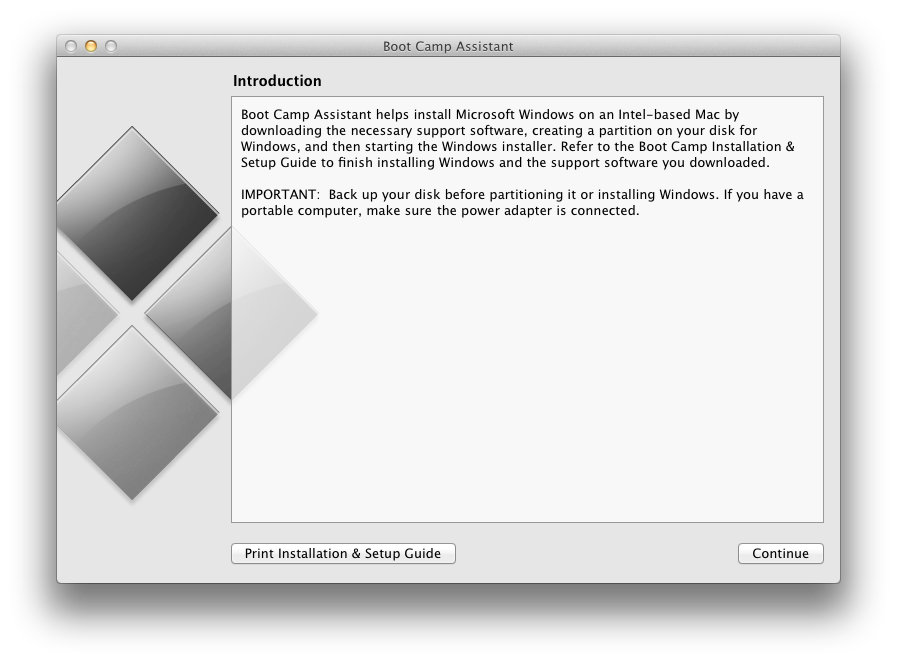
The Boot Camp Assistant will open. Click the Continue button.
Step Four
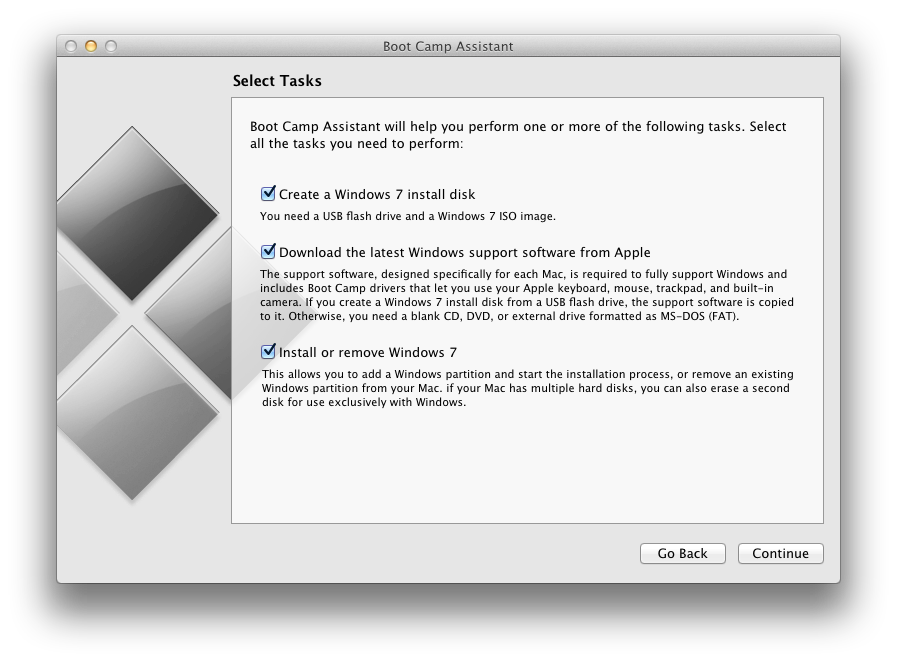
You will now be asked to select from a series of tasks. Leave all 3 tasks selected and click Continue.
Step Five
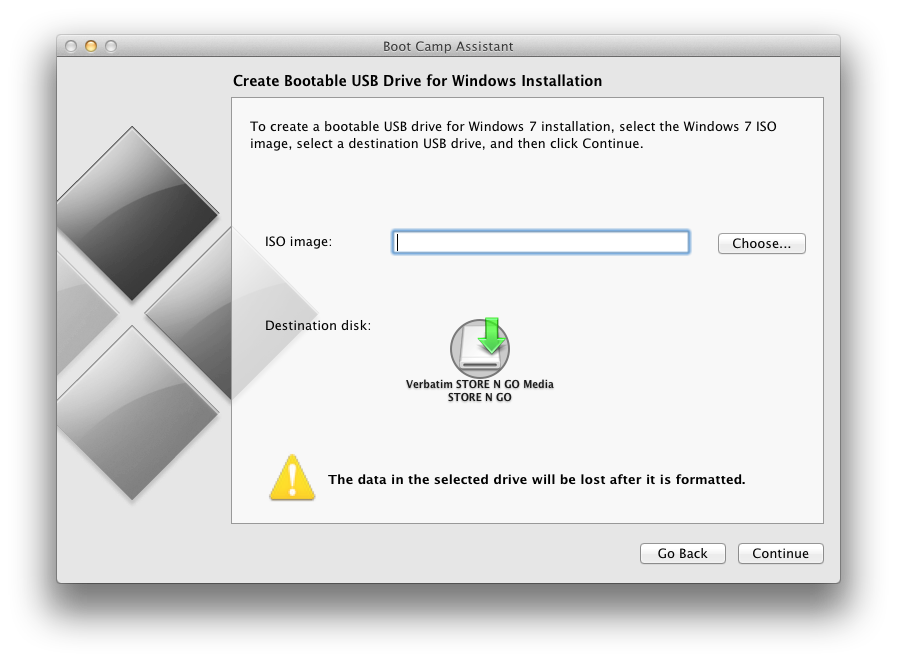
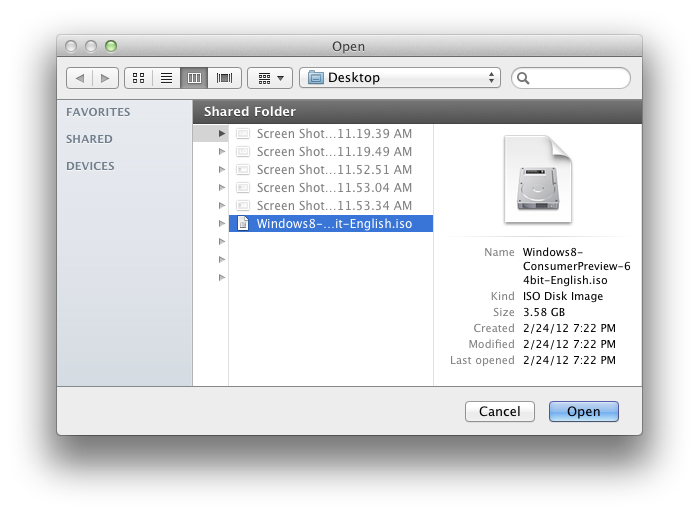
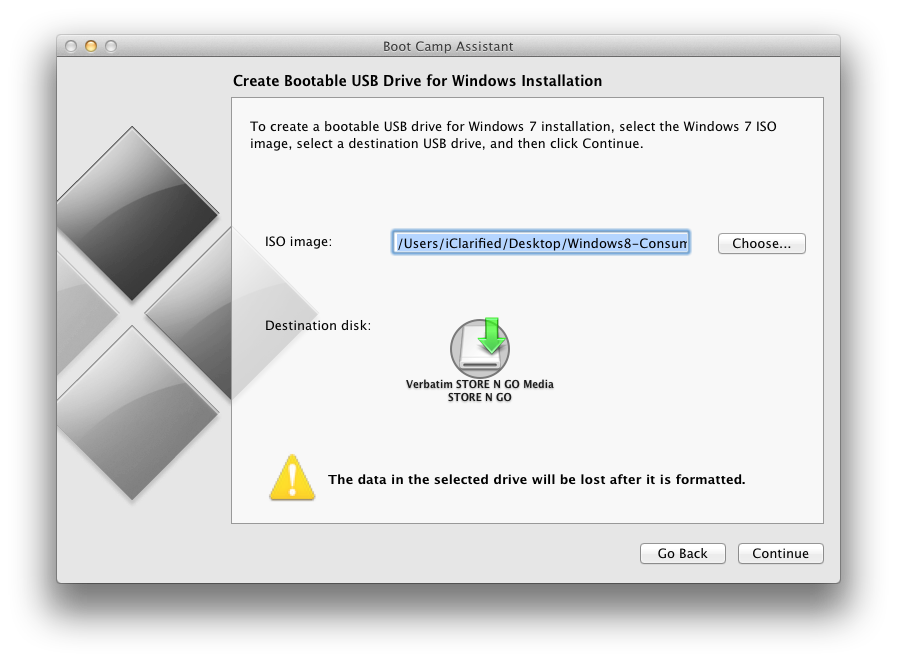
Click the Choose button, select the ISO you just downloaded, and click Open.
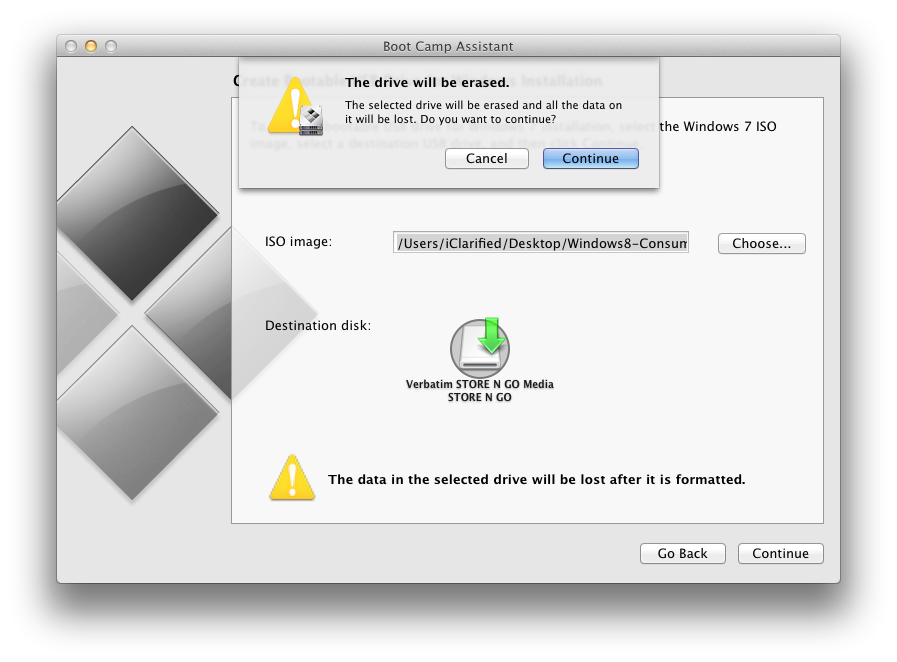
Make sure the correct USB flash drive is set as the destination disk and click the Continue button.
Step Six
You will be warned that the drive will be erased. Click Continue.
Step Seven
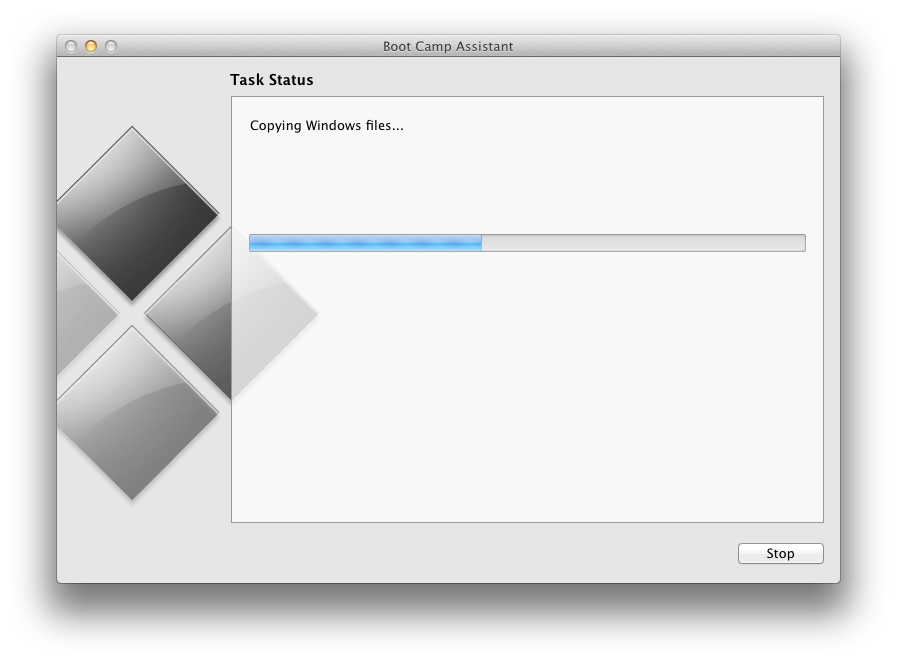
Boot Camp Assistant will now copy the Windows files to the USB flash drive.
Step Eight
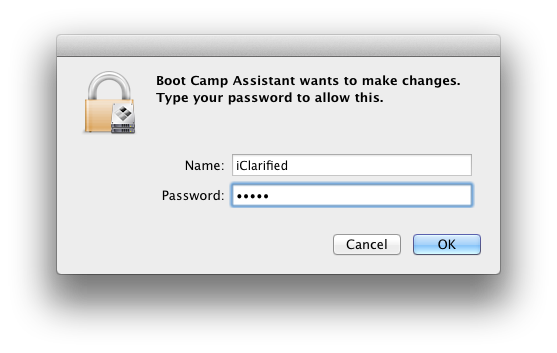
You will be asked to enter your Administrative username and password. Do this, then click the OK button.
Step Nine
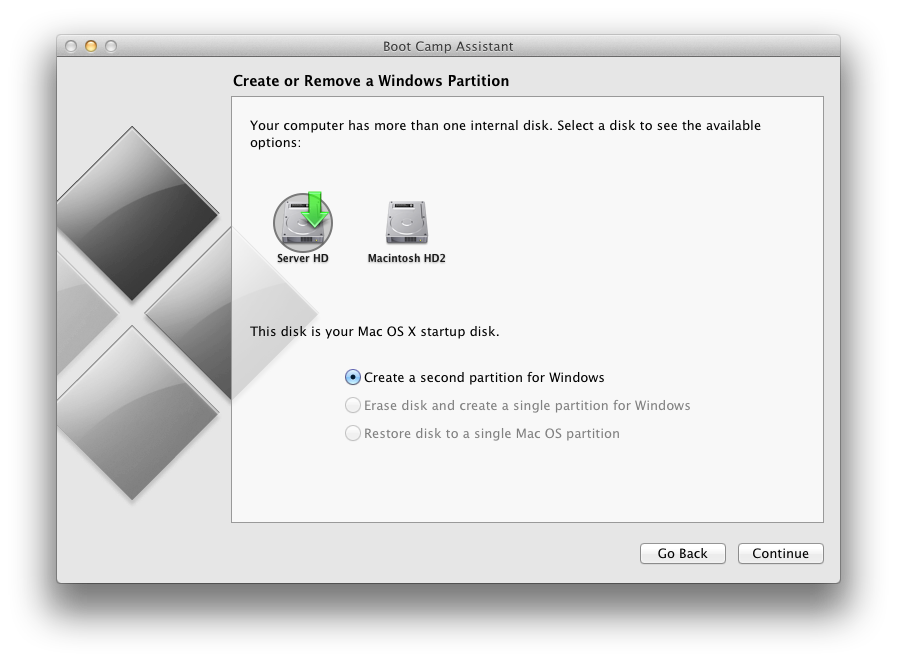
If you have more than one hard drive, you will be asked to select which system hard drive you would like to partition for Windows. Choose the correct hard drive and click the Continue button.
Step Ten
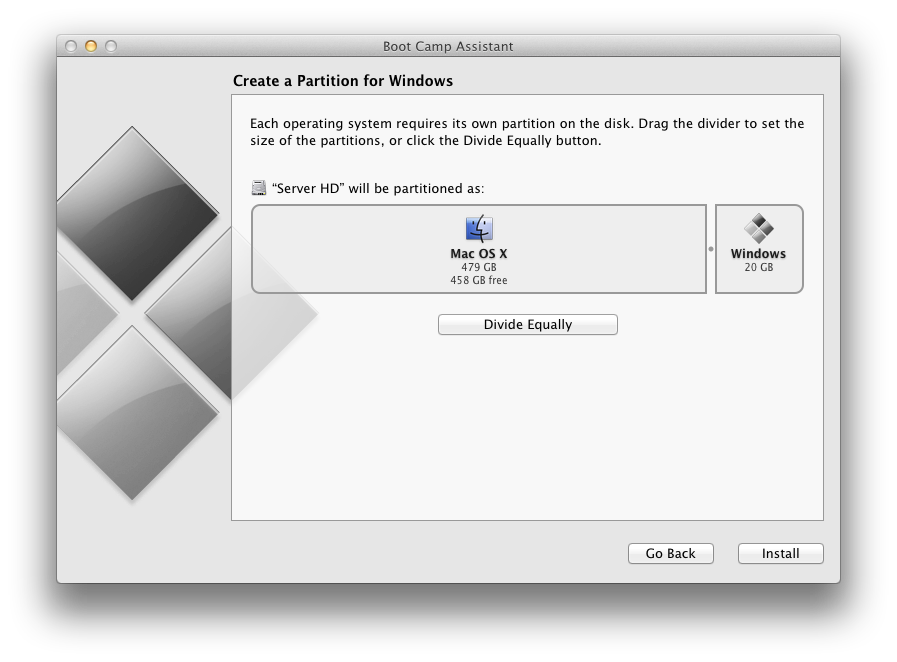
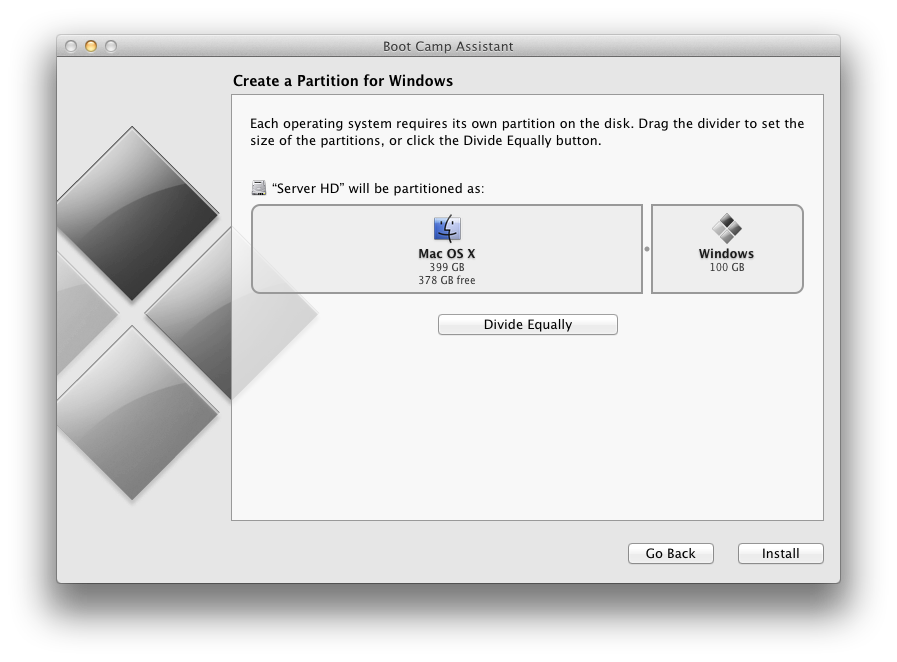
You will now be asked to Create a Partition for Windows. You can drag the divider to set the size of the partitions.
When satisfied with the size of your partition click the Install button.
Step Eleven
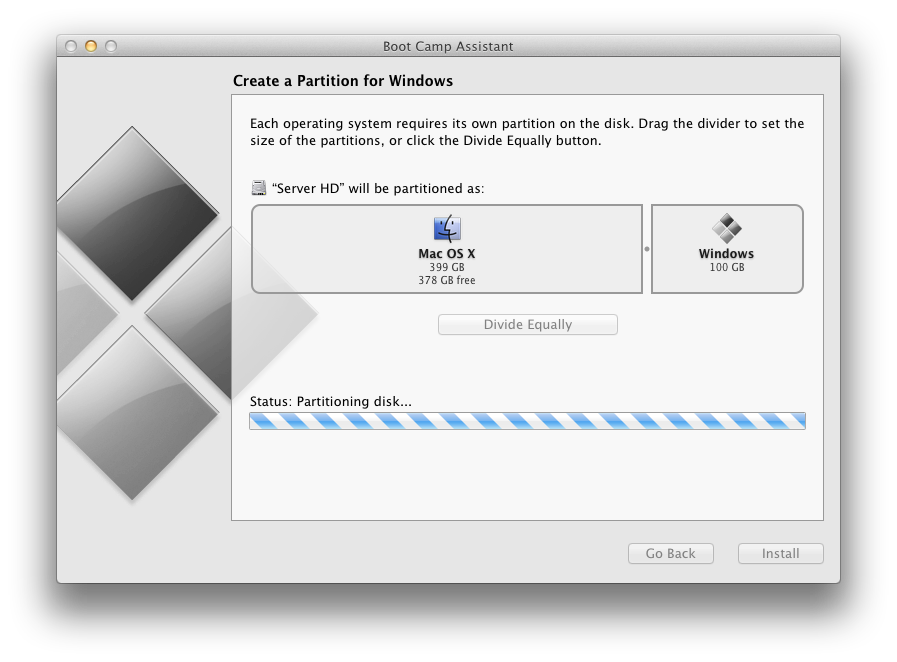
Boot Camp Assistant will now partition your disk.
Step Twelve
Once the partition has been completed your computer will automatically be restarted and launch Windows setup from the USB flash drive.
Step Thirteen
Proceed through the Windows setup.
When asked whether to do a Upgrade or Custom (advanced) install, choose Custom (advanced).
When asked "Where do you want to install Windows?" select the partition labelled BOOTCAMP. Next click Drive Options then click Format. Click OK to confirm format and click Next to continue the installation.
Step Fourteen
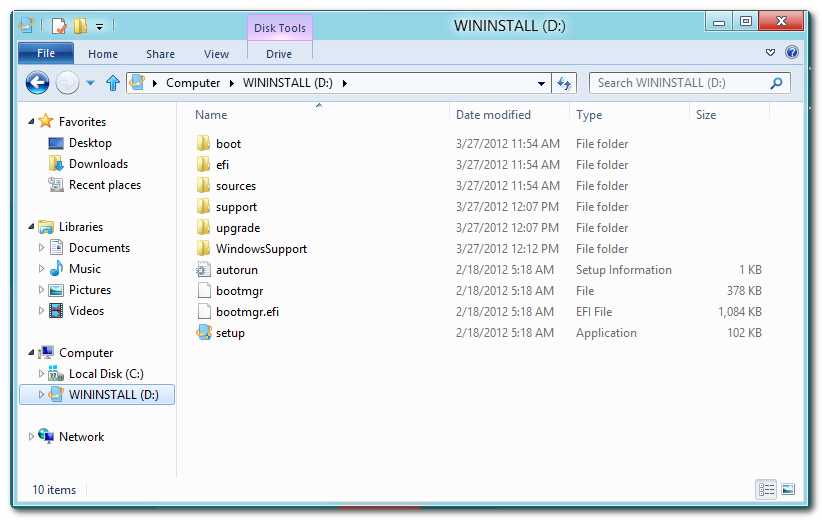
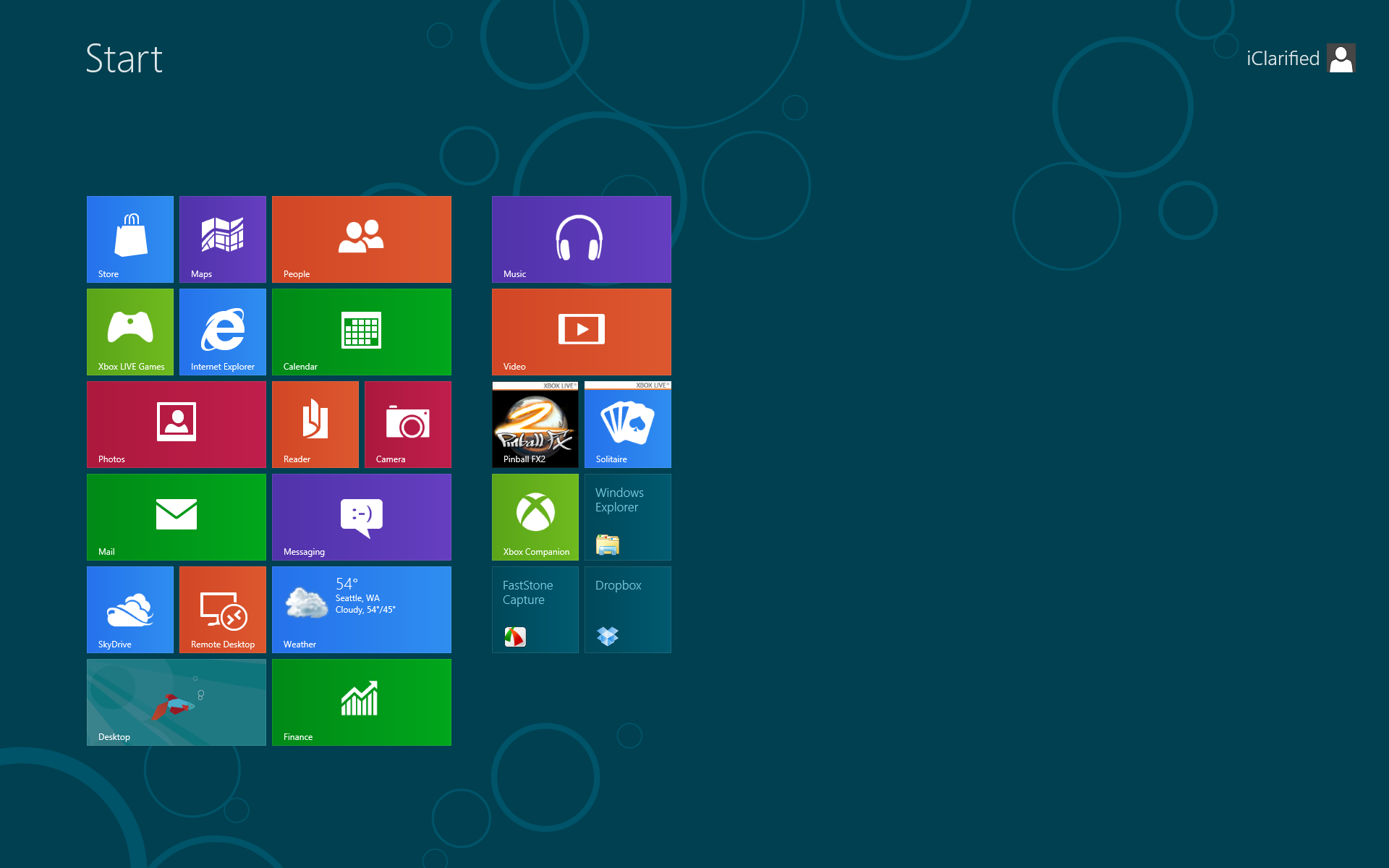
Once installation has completed successfully, click the Windows Explorer tile.
Step Fifteen
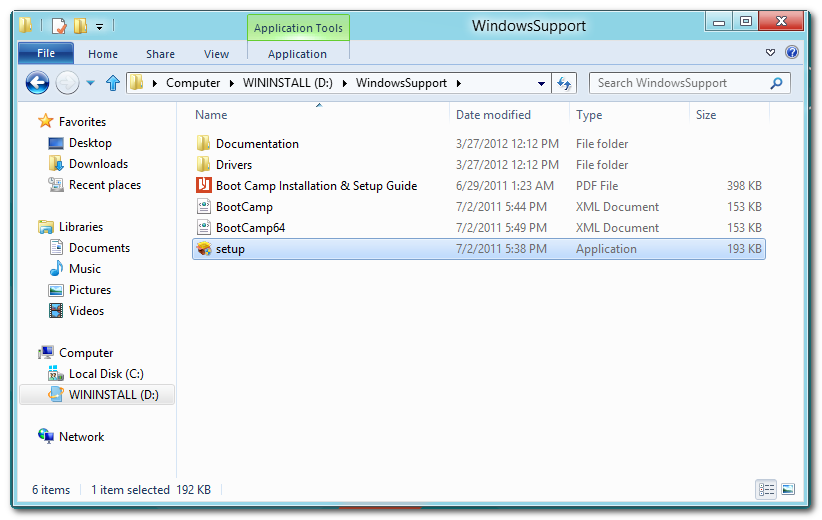
Select the WININSTALL USB flash drive from the list of devices under Computer and double click the WindowsSupport folder to open it.
Step Sixteen
Double click setup to launch the executable.
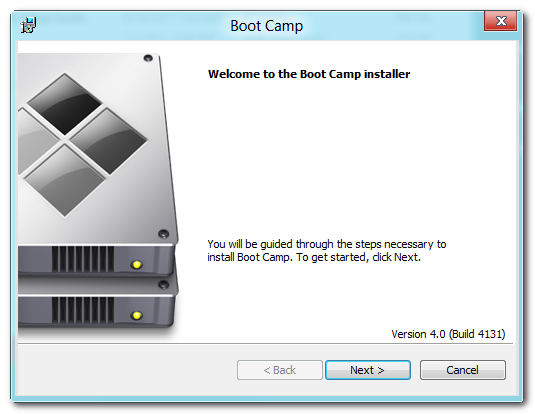
Step Seventeen
The Boot Camp Installer will appear to guide you through the steps necessary to install Boot Camp. Click the Next button to get started.
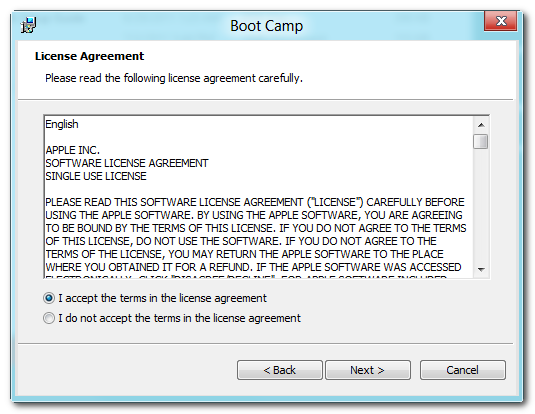
Step Eighteen
Read the license agreement, select I accept the terms in the license agreement, then click the Next button to continue.
Step Nineteen
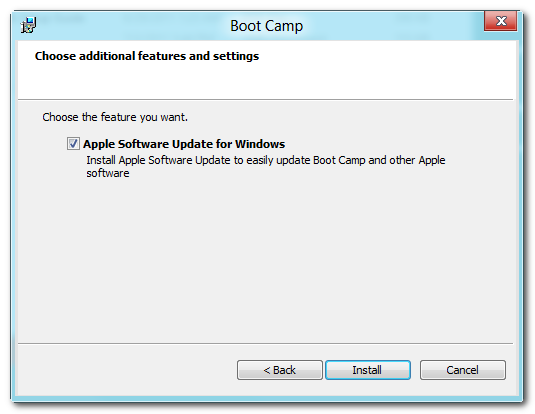
Choose whether you would like to install Apple Software Update for Windows then click the Install button.
Step Twenty
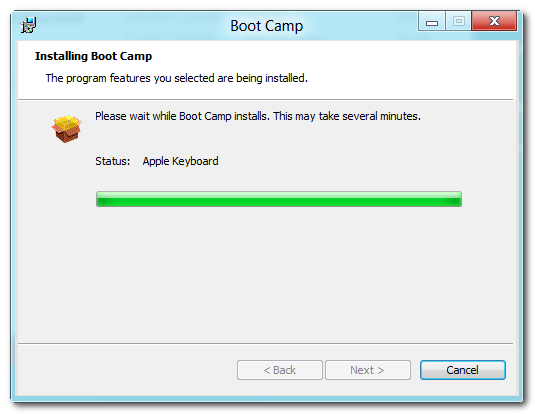
Boot Camp will proceed to install the drivers necessary for your Mac to work properly with Windows.
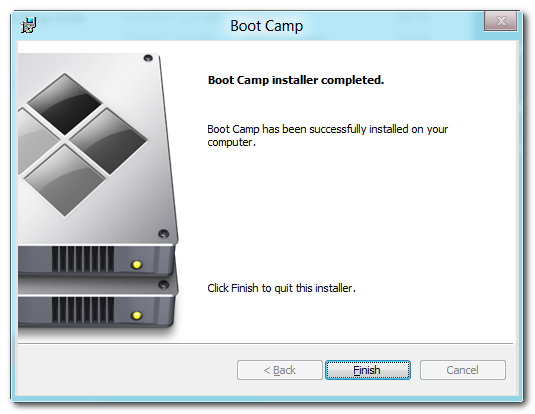
When the installation has completed click the Finish button.
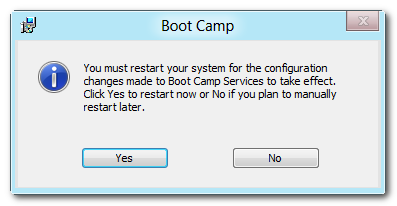
You will then be prompted to restart your system for the configuration changes to take effect. Click the Yes button.
Step Twenty One
Once your system has restarted you will have successfully installed Windows 8 on your Mac using Boot Camp.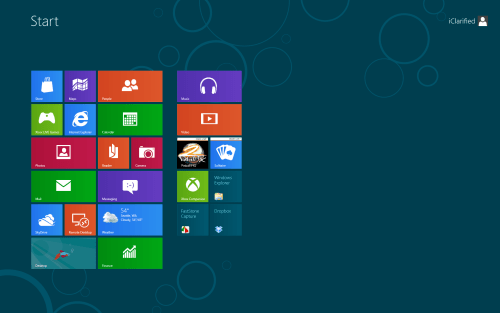

Apple Releases iOS 4 2 2 for Apple TV
Apple late last night issued iOS 4.2.2 (It’s actually 4.3, but Apple TV updates are numbered differently ) update for the current-generation Apple TV. The update specifically addresses a number of minor bugs, such as audio and video output problems experienced with some content.
Here’s the full list of fixes from Apple’s release documentation:
Read More..
Here’s the full list of fixes from Apple’s release documentation:
- Audio: Addresses an issue in which audio is not output when playing some video content.As usual, you can get this update over-the-air via the settings menu on your Apple TV.
- Video playback: Addresses an issue in which video is not displayed when playing some content.
- Audio output setting: Adds an audio output setting for switching to 16-bit audio for compatibility with some TVs and AV receivers.
- Live FF/RW improvements: Improves the performance of fast-forwarding and rewinding live events.
- Movie description: Addresses an issue in which the description information is not displayed for some movies.
- YouTube video order: Addresses an issue in which YouTube subscription videos were not ordered by date.
iTunes new update 10 6 1 7
Apple rolls out iTunes 10.6.1 update

Apple’s patch notes

iTunes 10.6.1 provides a number of improvements, including:
Fixes several issues that may cause iTunes to unexpectedly quit while playing videos, changing artwork size in Grid view, and syncing photos to devices.
- Ad******* an issue where some iTunes interface elements are incorrectly described by VoiceOver and WindowEyes.
- Fixes a problem where iTunes may become unresponsive while syncing iPod nano or iPod shuffle.
- Resolves an ordering problem while browsing TV episodes in your iTunes library on Apple TV.The update is available through OS Xs Software Updat
iTunes download page.
Tuesday, October 1, 2013
How to Install Icy Cydia Alternative on iPhone 4 3GS iPod Touch 4G 3G iPad
Icy is a Cydia alternative and competitor. Icy has a friendly-interface, its simillar to Cydia, but Icy was always the faster and smoother. Lets see how to get Icy on you iOS device after the jump.


Steps to install Icy for iPhone, iPod touch or iPad :
Step 1: Jailbreak your device
Download Icy (it will be available by next week) , but its now available in beta at iSpazio, you only have to go to Cydia then tab on Manage > edit > add then att this rep http://repo.ispazio.net, after you install this repo go and search for Icy. Thats it.
Read More..
Steps to install Icy for iPhone, iPod touch or iPad :
Step 1: Jailbreak your device
- For iOS 4.1 (Limera1n (Windows / Mac / Linux))
- For iOS 4.2.1 Choose between (Greenpois0n (Windows / Mac / Linux)
- For iOS 4.3.1 (Redsn0w (Mac / Windows) - PwnageTool (Mac) - Sn0wbreeze (Windows))
- For iOS 4.3.2 (Redsn0w (Mac / Windows) - PwnageTool (Mac) - Sn0wbreeze (Windows))
- For iOS 4.2.7 (Snowbreeze (Windows))
Download Icy (it will be available by next week) , but its now available in beta at iSpazio, you only have to go to Cydia then tab on Manage > edit > add then att this rep http://repo.ispazio.net, after you install this repo go and search for Icy. Thats it.
Subscribe to:
Posts (Atom)