Showing posts with label ipad. Show all posts
Showing posts with label ipad. Show all posts
Thursday, October 10, 2013
How to Jailbreak iOS 5 iPhone 4 3GS iPod Touch 4G 3G iPad 1 Redsn0w Tutorial
Dev-team has released Redsn0w 0.9.8b1 to jailbreak iOS 5 beta 1, heres the full step by step guide that shows you how to jailbreak iOS 5 beta 1 on iOS devices.

iOS jailbreak - Supported Devices :
- iPod touch 3G
- iPod touch 4G
- iPad 1
- iPhone3GS
- iPhone4 (GSM)
- iPhone4 (CDMA)
Important Note : You should read dev-team restrictions and warnings Posted Here, before you intend to jailbreak your iOS device.
Required Downloads:
- Download Redsn0w 0.9.8b1 for Mac
How to jailbreak iOS 5 - iPhone 4, 3GS, iPod touch 4G, 3G and iPad 1
Step 1: Restore to iOS 5.0 beta 1Step 2: Start Redsn0w and point it to iOS 5.0 beta1 firmware ipsw file.


Step 5: Wait until you get iOS 5.0 beta 1 jailbroken in few minutes. Congratulations.
Tethered Jailbreak : Once current Redsn0w jailbreak is still tethered jailbreak, you will be required to connect your iOS device with your computer and run Redsn0w again then choose "Just boot tethered right now".

Sunday, October 6, 2013
Jailbreak 5 0 1 Untethered iPhone 4 3GS iPod Touch 4G 3G iPad with Redsn0w 0 9 10 b1 Tutroial
Jailbreak 5.0.1 untethered now became a reality. The iPhone Dev-team has just pushed Redsn0w 0.9.10 b1 to jailbreak 5.0.1 untethered on iPhone 4, 3GS, iPod touch 4G, 3G and iPad 1. Pod2g was the guy behind 5.0.1 untethered jailbreak, as he handed over his project to both Chronic Dev-team and iPhone Dev-team. The two teams have made a major task on 5.0.1 untethered jailbreak. iPhone Dev-team have put 5.0.1 untethered in to RedsnOw 0.9.10 b1 and PwnageTool. Chronic Dev-team put untethered 5.0.1 jailbreak into a Cydia package, thanks Pod2g and the both teams for making us happy.

Supported devices :
Required Downloads :
Step 1: Connect your iDevice with your PC via USB, and open iTunes then Restore to iOS 5.0.1 (If you are already running iOS 5.0.1, bypass this step)
Step 2: Start Redsn0w 0.9.10 b1, and press on "Jailbreak" button

Step 3: Now select “Install Cydia” and click “Next”.
 Step 4: Now make sure your device is both OFF and PLUGGED IN to the computer before you click “Next”.

At this stage you will be presented with a screen where you will be guided on how to enter DFU mode. Quickly hold “Power” button and then while holding the “Power” button, you will now have to hold “Home” button too. Now after few seconds release “Power” button but keep holding “Home” button until installation begins.
Strep 5: Wait until you get iOS 5.0.1 untethered jailbroken in few minutes. Congratulations.
Before starting to jailbreak 5.0.1 untethered on iPhone 4, 3GS, iPod touch 4G, 3G and iPad - You have to know this :
Supported devices :
- iPhone 4 (GSM - CDMA)
- iPhone 3GS
- iPod touch 4G
- iPod touch 3G
- iPad 1
- If you have one of those devices and are not on 5.0.1 yet, update now! The SHSH window is still open for 5.0.1 If you unlock via ultrasn0w or gevey, make sure you only get to 5.0.1 via a custom IPSW! Once you’re at 5.0.1, use the latest redsn0w 0.9.10 to both jailbreak and untether.
- If you’re already at 5.0.1 with a tethered jailbreak, you have two choices: either run redsn0w 0.9.10 over your current jailbreak (deselect “Install Cydia” if you do that), or install the Cydia package prepared by the chronic devteam. The patches are the same regardless of which you choose.
- Some of you are using a hybrid 5.0/5.0.1 configuration. If so, do not attempt to install this untether over that setup! You will most likely get into a reboot cycle. Do a sync and fresh restore to 5.0.1 then install the jailbreak + untether.
How to jailbreak 5.0.1 untethered iPhone 4, 3GS, iPod touch 4G, 3G, iPad 1 - [Tutorial]
Required Downloads :
- Download Redsn0w 0.9.10
b2 b3b4 - Windows (be sure to run in Administrator mode) - Download Redsn0w 0.9.10
b2 b3b4- Mac - Download iOS 5.0.1 ipsw for iPhone, iPod touch or iPad
- Download iTunes
Step 1: Connect your iDevice with your PC via USB, and open iTunes then Restore to iOS 5.0.1 (If you are already running iOS 5.0.1, bypass this step)
Step 2: Start Redsn0w 0.9.10 b1, and press on "Jailbreak" button
Step 3: Now select “Install Cydia” and click “Next”.
At this stage you will be presented with a screen where you will be guided on how to enter DFU mode. Quickly hold “Power” button and then while holding the “Power” button, you will now have to hold “Home” button too. Now after few seconds release “Power” button but keep holding “Home” button until installation begins.
Strep 5: Wait until you get iOS 5.0.1 untethered jailbroken in few minutes. Congratulations.
How to jailbreak 5.0.1 untethered iPhone 4, 3GS, iPod touch 4G, 3G, iPad 1 - [Video Tutorial]
Save SHSH Blobs iPad 2 To Keep iPad 2 Jailbreak
Yesterday we reported you that DevTeam was expressly stated that Apple will prevent the process of downgrading to lower iOS version for iPhone, iPod and iPad running the newly iOS 5. On the other hand, devices running firmwares lower than iOS 5 still in safe side, precisely they still able to downgrade their devices with old iTunes.Just read the latest Dev Team blog post... if you have an iPad 2, it would be a very good idea to save your 4.3.x SHSH blobs.As most of you know that Comex is about to release the long awaited iPad 2 jailbreak with JailbreakMe, Comex is now recommending all users interested on his iPad 2 jailbreak who are running iOS 4.3.x, to save SHSH blobs for the latest firmware version (4.3.3) to be able to keep the jailbreak.
How to Save SHSH blobs iPad 2:
You can Save SHSH blobs for your current iOS 4.3.x, just plug your iPad 2 with computer, then download TinyUmbrella then click the Save SHSH button.

Tuesday, October 1, 2013
How to Install Icy Cydia Alternative on iPhone 4 3GS iPod Touch 4G 3G iPad
Icy is a Cydia alternative and competitor. Icy has a friendly-interface, its simillar to Cydia, but Icy was always the faster and smoother. Lets see how to get Icy on you iOS device after the jump.


Steps to install Icy for iPhone, iPod touch or iPad :
Step 1: Jailbreak your device
Download Icy (it will be available by next week) , but its now available in beta at iSpazio, you only have to go to Cydia then tab on Manage > edit > add then att this rep http://repo.ispazio.net, after you install this repo go and search for Icy. Thats it.
Read More..
Steps to install Icy for iPhone, iPod touch or iPad :
Step 1: Jailbreak your device
- For iOS 4.1 (Limera1n (Windows / Mac / Linux))
- For iOS 4.2.1 Choose between (Greenpois0n (Windows / Mac / Linux)
- For iOS 4.3.1 (Redsn0w (Mac / Windows) - PwnageTool (Mac) - Sn0wbreeze (Windows))
- For iOS 4.3.2 (Redsn0w (Mac / Windows) - PwnageTool (Mac) - Sn0wbreeze (Windows))
- For iOS 4.2.7 (Snowbreeze (Windows))
Download Icy (it will be available by next week) , but its now available in beta at iSpazio, you only have to go to Cydia then tab on Manage > edit > add then att this rep http://repo.ispazio.net, after you install this repo go and search for Icy. Thats it.
How to Save Your iPhone iPad ipod SHSH Blobs Using RedSnow
| Phone | How to Save Your iPhone SHSH Blobs Using RedSnow (Windows) | ||
| These are instructions on how to backup and save your iPhone SHSH Blobs to Cydia using RedSn0w for Windows. Step One Create a folder on your desktop called Pwnage Download RedSn0w from 0.9.9b1 here and place it in the Pwnage folder. Extract the RedSn0w zip file into the same folder. 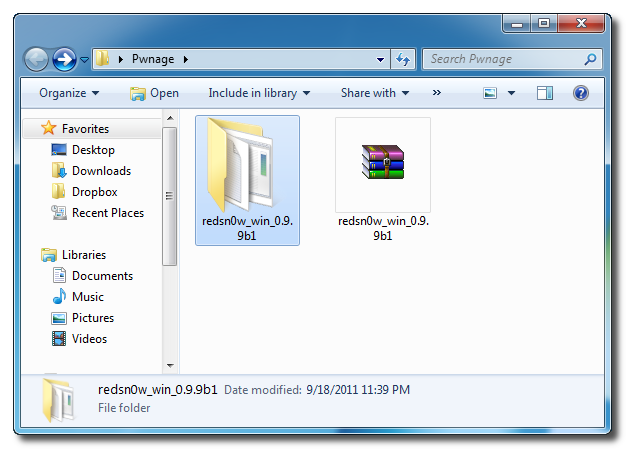 Step Two Launch the redsn0w application from the redsn0w folder we just extracted. **Windows 7 users should run the redsn0w executable mode as an administrator in Windows Vista compatibility mode. You can do this by right clicking the executable and selecting Properties from the contextual menu.  Step Three Once RedSn0w opens click the Extras button 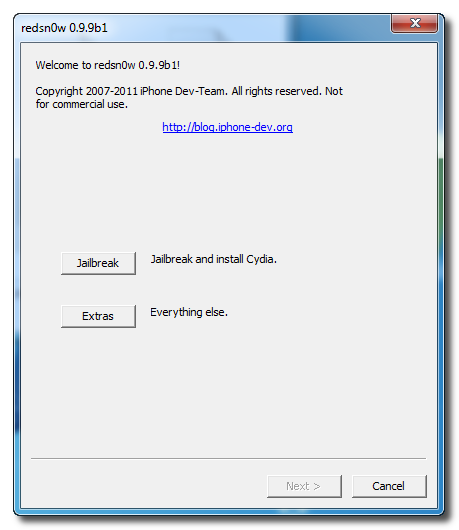 Step Four Click the SHSH blobs button from the Extras menu. 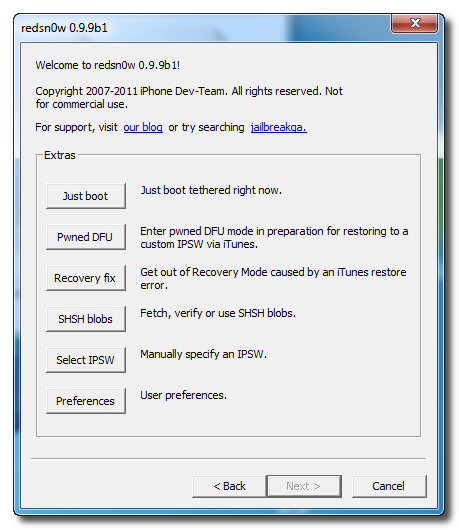 Step Five Click the Fetch button to fetch the SHSH blobs on your device and send them to the Cydia server for storage. 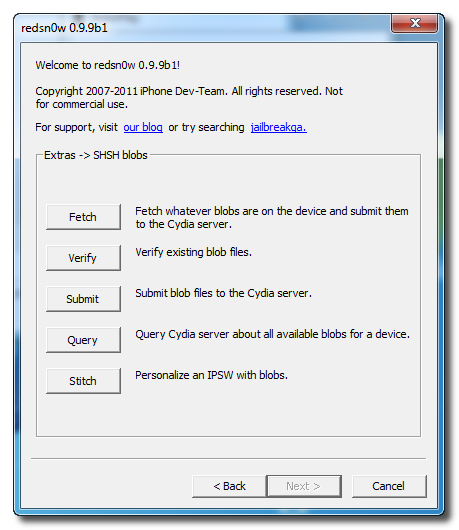 Step Six Please plug your iPhone into the computer and make sure its OFF then click the Next button 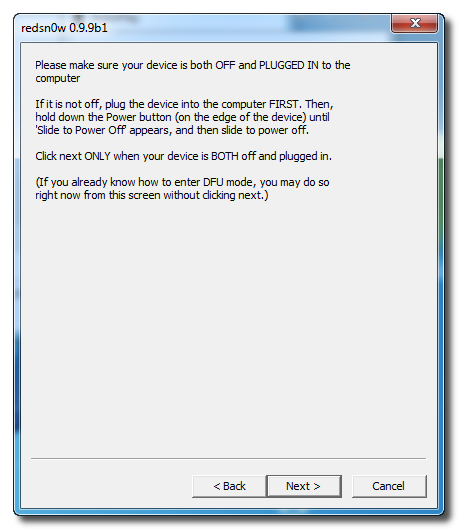 Step Seven RedSn0w will now guide you through the steps to get into DFU mode. You can find more help with DFU mode here 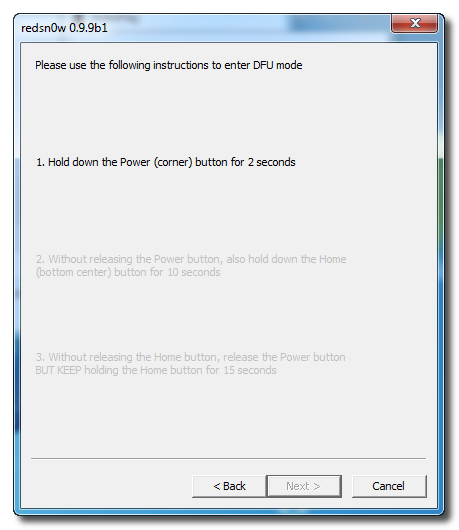 Hold down both the Home button and the Power button for 10 seconds. 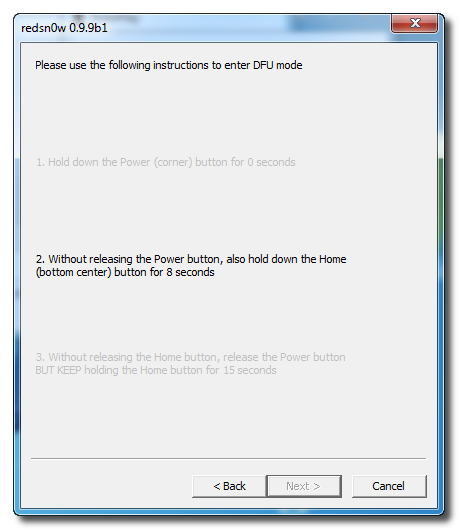 Release the Power button and continue holding the Home button until RedSn0w detects the device. 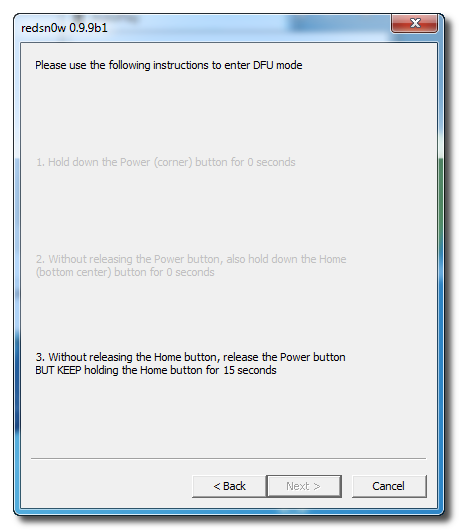 Step Eight Your iPhone will now reboot 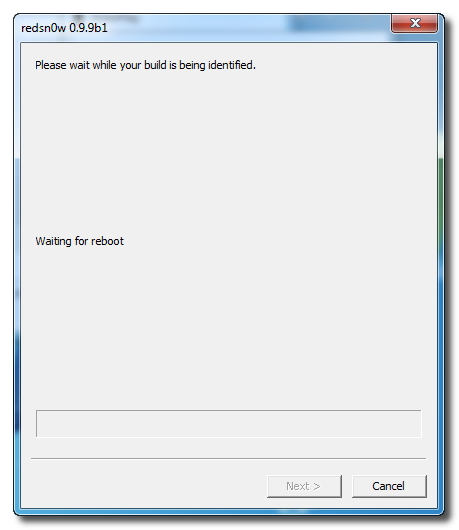 Step Nine RedSn0w will then begin fetch the SHSH blobs from your device and submit them to Cydia. 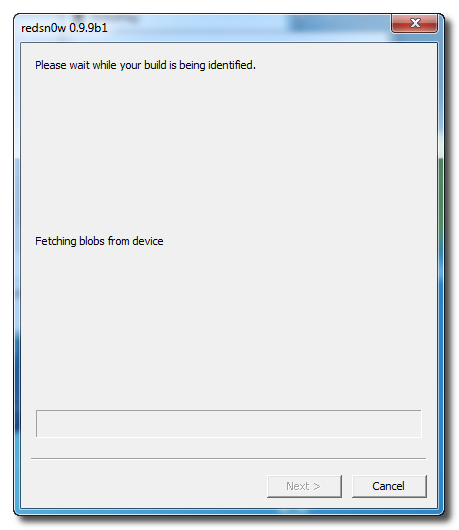 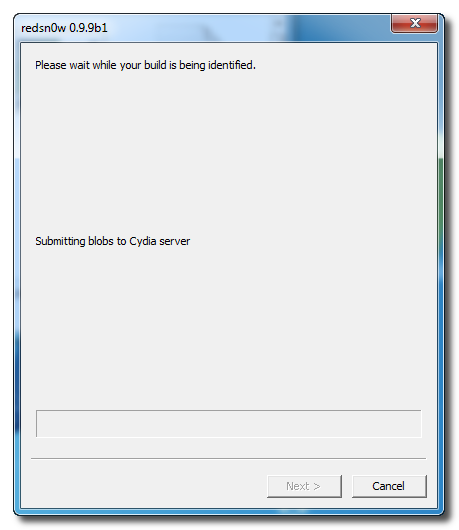 Step Ten Once this is complete you will be notified that your submission was a success. Click the Back button to return to RedSn0w. 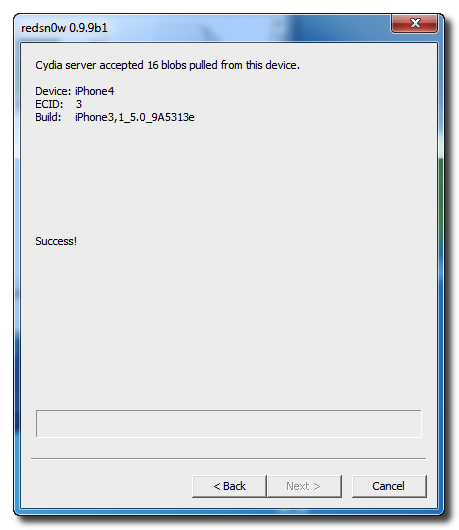 Step Eleven Click the SHSH blobs button and then click the Query button to make sure Cydia has your blobs saved. 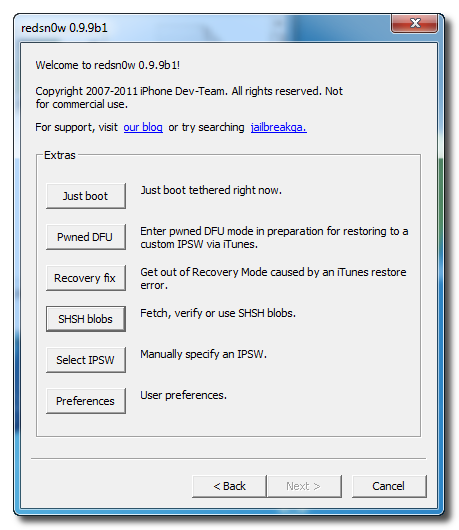 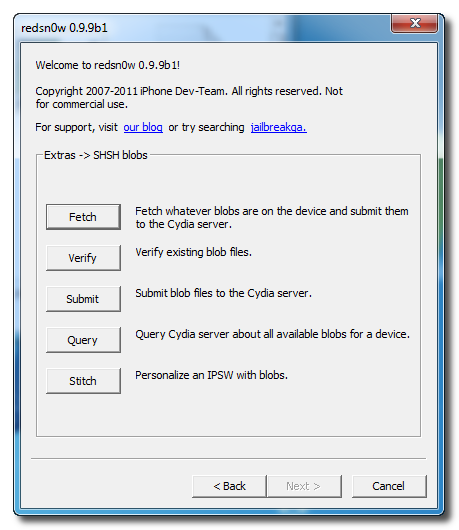 Step Twelve Enter * into the ECID textfield and click OK to check all your devices. 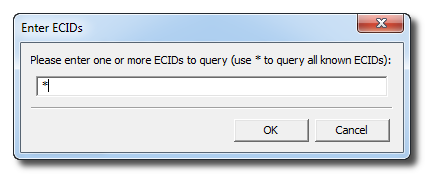 Step Thirteen RedSn0w will now query Cydia and display the list of stored blobs. 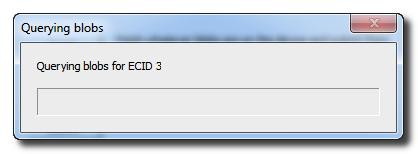 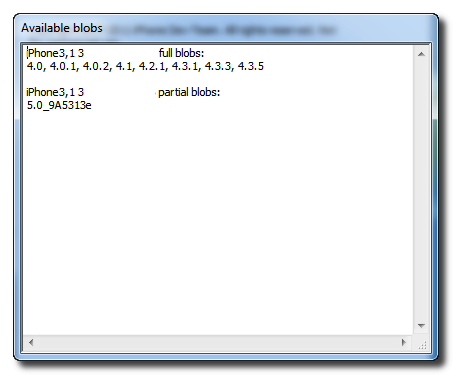 Important: RedSn0w also saves your blobs in a plist located within the RedSn0w folder. We would recommend keeping these for added safety. 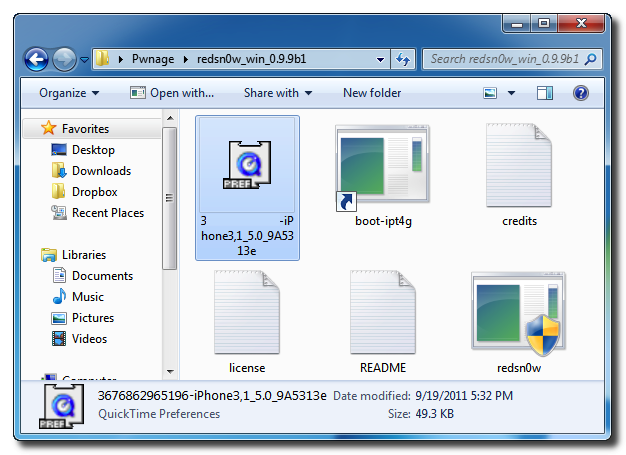 How to Save SHSH Blobs Using RedSn0w (Mac) Lets see how to Save iPad SHSH Blobs using Redsn0w : Step one : Create a folder on your desktop and rename it with Pwnage , then Download RedSn0w 0.9.9b1 from here and place it in the Pwnage folder then Extract the RedSn0w.zip file into the same folder.  Step two : Run Redsn0w application from the folder we just extracted. Step three : When RedSn0w opens click Extras button.  Step four : Click SHSH blobs button from the Extras menu.  Step five : Click the Fetch button to fetch the SHSH blobs on your device and send them to the server of Cydia.  Step six : Conect your iPad to the computer while your iPad is OFF then click the Next button  Step seven : Now you will be guided by Redsn0w through the steps to get into DFU mode.    Step eight : Your iPad will restart now.  Step nine : RedSn0w will then begin fetch the SHSH blobs from your device and submit them to Cydia.   Step ten : When your submission is completed you will be notified. Click the Back button to return to RedSn0w.  Step Eleven : Click the SHSH blobs button then click the Query button to make sure Cydia has your blobs saved.   Write * into the ECID text field and click OK to check all devices  Step Thirteen : Now RedSn0w will query Cydia and show the list of stored blobs.   Tip RedSn0w also saves your blobs in a plist located within the RedSn0w folder. We would recommend keeping these for added safety.  | ||
10 Best iPad Applications In 2012

10 Best iPad Applications In 2012 - IPad application requirements appropriate to the company more and more, with functions that can be used for work. With the development of more advanced application that creates a lot of usefulness for the company, so employees can be constructive and not just sitting at his desk, but when they are away from the desk can do the job.
Now Apple users can take advantage of the tremendous growth of wireless access. The application introduces a service update to Keynote, Numbers and Pages include data in the near future. Among them is the Office OS X and Applications IOS with 3G and Wi-Fito sync so that employees do work while traveling or at work.
The following are the 10 Best iPad Applications In 2012:
1. Quickoffice Pro HD

This application can be used easily to share Office files through the keynote. Interface with the look of the Professional, including the ease of synchronization with Google Docs.Users are also facilitated when sharing a separate file such as text documents,presentations and spreadsheets. By using the Quickoffice Pro HD The three files can be sent with just one send.
Quickoffice Pro HD using a standard format, so there is no further requirement for userswho want to share documents. If no internet connection, users can work locally,otherwise if there is a connection, either Wi-Fi or 3G, users can work through the onlineserver. The drawback is that the module has no layout functionality Pages, Keynote or Numbers.
2. LogMeIn Ignition

LogMeIn is an application used to update the server IP address and service with detailsof your broadband router. If you leave your computer at work, the client software on your iPhone or iPad will be connected and can find your computer is left on the Internet, which allows you to view the screen while controlling the mouse and keyboard remote.
Did you forget to read the email? No problems with LogMeIn, simply log in from nearby Wi-Fi connection and you can send an email to your iPad.
3. GoodReader for iPad

GoodReader is an application to display Microsoft documents and PDG, archivesSafari, iWorkfiles, video, images and audio. The elegant display contains a variety of features including screen brightness slider to change the navigation easy for you to slide through the page or bookmark set and location number.
If you read a complex PDF documents, GoodReader provides an alternative to clear the picture, leaving only the text. This is a great way to keep up with the reports that you might want to read on the train or bus on your way home.
The program contains the tools menu located on the side with the ability to save the original file. Can save files directly in the form of Zip.
4. Wunderlist HD

Wunderlist HD is an application serves as the registrar a list of your tasks and schedules that can appear on the desktop menu, so it will not forget your work schedule.
5. Pen-ultimate

Pen-ultimate is An application that we can use as a paperback book, with lots of colors like a pen. There are also several options including the paper used. It looks very attractive and exclusive.
6. Plain Text

PlainText contains many features and is one of the best available application writing. Plaintext is a simple text editor with an uncomplicated, paper-like user interface. Unlike the default Notes app, allows you to create plain text and organize your documents in folders and sync everything with Dropbox.com. The synchronization application with your personal computer or MAC is really cool, one of the features of the application is that every time you stop, you will upload the document.
7. Skype

Skype is one of the best applications in the field of technology that is can used for telephone. By implementing a Voice Over IP technology (VoIP), you can contact others in the hemisphere without having to use any telephone. You can contact friends, family, business associates or anyone else without having to move from your work in front of the notebook or desktop computer.
8. Evernote

These applications facilitate employees to write down ideas quickly and will be listed on the indexed. You can set the record in private collections in the notebook, describing it using keywords strategically to help you find it later. Ever note can be paired with desktop client. This is one of the fastest ways to create a digital scrapbook.
9. SugarSync

SugarSync is similar to the hard drive. This application can be installed on other devices,this means you and your friends can share the same data set. This program lets you choose the folder you want to synchronize on your personal computer. SugarSync will copy everything to your own online storage, including synchronization with your other devices. This proves how simple and easy to get the images to the iPad when you need them for a presentation or document.
10. Dropbox

Dropbox is an indispensable tool storage online. You can manage all of your personalcomputer and the MAC to log in, use the same information as the iPhone or iPad, and you will be synchronized on all three. Shown to safely store any files, and enhance security against losing your iPad, because your work will always be backed up directly online . This program is free up to 2GB of storage. For more details see photoDropbox Automatic Upload for Android.
Any Tricks hopefully this article can help you with using the iPad, thank you for your visit.
Subscribe to:
Posts (Atom)