Showing posts with label iphone. Show all posts
Showing posts with label iphone. Show all posts
Tuesday, October 15, 2013
iPhone Dev Team Releases Untethered Jailbreak for iOS 4 3 1
Three years ago (almost to the day!), the first version of PwnageTool was released for firmware 1.1.4. So today we’re excited to release another edition of both PwnageTool and redsn0w to bring an untethered jailbreak for Apple’s latest firmware, FW 4.3.1.
WARNING WARNING — ultrasn0w users don’t update yet! See a few paragraphs down!
The 4.3.1 untether exploit comes courtesy of Stefan Esser (@i0n1c on twitter), a security researcher based in Germany. Stefan has a long history of vulnerability research, and ironically his first contribution to the iPhone jailbreak community was improved security — last year he beat Apple to the punch and implemented ASLR for jailbroken iPhones with his “antid0te” framework. We’re happy to see that Stefan then turned his iPhone attention over to an untethered jailbreak exploit!
The 4.3.1 untether works on all devices that actually support 4.3.1 except for the iPad2:
iPhone3GS
iPhone4 (GSM)
iPod touch 3G
iPod touch 4G
iPad1
AppleTV 2G (PwnageTool only for now)
The reason the untether won’t work as-is on the iPad2 is that it requires a bootrom or iBoot-level exploit to install, and the iPad2 is not susceptible to either the limera1n or SHAtter bootrom exploits.
WARNING WARNING — ultrasn0w users don’t update yet! We need to first release an update to ultrasn0w that fixes some incompatibilities when FW 4.3.1 is used on the older basebands supported by ultrasn0w. And remember once we do fix ultrasn0w for 4.3.1 (we’ll announce it here and on twitter), you must only get there via a custom IPSW from PwnageTool, Sn0wbreeze or xpwn! Don’t ever try to restore or update to a stock IPSW, or you’ll lose the unlock!
For everyone else, redsn0w is the easier program to use (and redsn0w runs on both Mac and Windows).
Read More..
WARNING WARNING — ultrasn0w users don’t update yet! See a few paragraphs down!
The 4.3.1 untether exploit comes courtesy of Stefan Esser (@i0n1c on twitter), a security researcher based in Germany. Stefan has a long history of vulnerability research, and ironically his first contribution to the iPhone jailbreak community was improved security — last year he beat Apple to the punch and implemented ASLR for jailbroken iPhones with his “antid0te” framework. We’re happy to see that Stefan then turned his iPhone attention over to an untethered jailbreak exploit!
The 4.3.1 untether works on all devices that actually support 4.3.1 except for the iPad2:
iPhone3GS
iPhone4 (GSM)
iPod touch 3G
iPod touch 4G
iPad1
AppleTV 2G (PwnageTool only for now)
The reason the untether won’t work as-is on the iPad2 is that it requires a bootrom or iBoot-level exploit to install, and the iPad2 is not susceptible to either the limera1n or SHAtter bootrom exploits.
WARNING WARNING — ultrasn0w users don’t update yet! We need to first release an update to ultrasn0w that fixes some incompatibilities when FW 4.3.1 is used on the older basebands supported by ultrasn0w. And remember once we do fix ultrasn0w for 4.3.1 (we’ll announce it here and on twitter), you must only get there via a custom IPSW from PwnageTool, Sn0wbreeze or xpwn! Don’t ever try to restore or update to a stock IPSW, or you’ll lose the unlock!
For everyone else, redsn0w is the easier program to use (and redsn0w runs on both Mac and Windows).
DOWNLOAD section:
For MAC users:
http://www.mediafire.com/?vv5jvmcpiyrr2p6
For Win users:
http://www.mediafire.com/?a891j0muajd4550
HOW TO:
NOTE: the process is identical on both Mac OSX and Windows, and also identical with previous redsn0w releases. The images used in this tutorial are from previous redsn0w tutorial, so do not be alarmed.
1. Restore your device with a stock iOS 4.2.1 firmware. ( again, by doing this you will loose the ability to unlock!!!)
2. Run redsn0w, and click on browse. Browse for the stock iOS 4.2.1 and open it
3. Wait for redsn0w to recognize it and click ‘Next’
4. On the next screen select what you want to be installed on your iOS device(s). By default, Cydia and ‘enable battery percentage’ is selected. I suggest you deselect battery percentage and everything else, and just install Cydia. This will improve ( a bit ) the overall speed of your device – if you are on a iPhone 3G. If you choose to “Enable battery percentage”, you actually toggle that off and on via Settings->General->Usage.
IF you only need to restore with a custom firmware, deselect everything, and select only “Just enter pwned DFU mode right now”
5. redsn0w will ask you to turn your device off. If it’s not already off, plug it in FIRST and then turn it off. Click next to continue
6. Now, you will need to put your device in DFU mode. Follow the instructions on the screen.
7. Wait a few seconds for redsn0w to do its thing, and you are done. You can close redsn0w because everything else it’s happening directly on the device.
NOTE: Any Windows users seeing “Waiting for reboot” for too long (more than 20 seconds or so), please try “shaking” the JB process by unplugging then replugging your USB cable (while letting redsn0w continue to run). Also, try using a USB port “closer” to your computer (as opposed to on your monitor or behind another hub).


Monday, October 14, 2013
iPhone Tools v1 1 A Free iPhone Software Tool Pc
iPhone Tools


Download
.Net Framework 4
t Framework 4 Is Required. Otherwise Software May Gives
Screenshot:
Features:
Change Log:
V:1.1
-Registration in a easy way(Standalone/Free)
-Some bugs fixed
- Carrier Checker
- Bulk Carrier Check
- IMEI Validation Offline
- IMEI Validation Online
- Apple Support And Service Checker
- Serial Checker
- iPhone Factory Unlocking Service
- Some Other Tools
Change Log:
V:1.1
-Registration in a easy way(Standalone/Free)
-Some bugs fixed
Download
.Net Framework 4
t Framework 4 Is Required. Otherwise Software May Gives
Sunday, October 13, 2013
Unlock iPhone 4 on 4 10 01 3 10 01 2 10 04 1 59 00 BB Update
While we are surfing Tweets of iPhone hackers accounts we noticed some interesting news. As most of you know that MuscleNerd of iPhone Dev-team and Sherif Hashim the hacker behind ultrasn0w unlock didnt announce any updates regarding unlock iPhone 4 on basebands higher than 01.59.00 such as 2.10.04 / 3.10.01 / 04.10.01 since long time.
Pod2g the well-khnow iPhone hacker and the guy who found the untethered jailbreak exploit of Greenpois0n to jailbreak 4.1 / 4.2.1, he mentioned that MuscleNerd should write some papers about baseband exploiting so that other hackers can continue the project of unlock since MuscleNerd doesnt have the enough time to do it as hes is very busy in jailbreaking iOS devices. Check out the full conversation below :
In another Tweet, Pod2G confirming to the popular iPhone developer, chronic, that hes working on some exploit without referring the kind of those exploits.We have to wait and see, but you have to know that you can unlock your iPhone 4 on 4.10.01 / 3.101.01 / 2.10.04 on any iOS version with Gevey SIM which is a perfect solution to unlock your iPhone 4. But I hope to see new version of Ultrasn0w from Pod2g to unlock iPhone 4 for free.
Downgrade 4.10.01 to 1.59.00 Baseband iPhone 4 Possibility
How can I downgrade 4.10.01 to 1.59.00 Baseband iPhone 4 ? This question has been asked from many Limera1n.cc readers. As most of you know that 1.59.00 baseband is the last unlockable baseband on iPhone 4 with ultrasn0w.Is Downgrade 4.10.01 to 1.59.00 Baseband iPhone 4 Possible ?
Unfortunately theres no way to downgrade 4.10.01 to 1.59.00 baseband, and iPhone Dev-team didnt even promise to work on this project. iPhone Dev-team is only work on downgrade 6.15.00 baseband for iPhone 3GS and iPhone 3G only. So dont trust anyone who claims to be able to give or sell you a product or a guide to downgrade your baseband on iPhone 4.
Downgrade 4.10.01 to 1.59.00 Baseband iPhone 4 is not possible - What Can I do ?
To unlock your iPhone 4 on baseband 4.10.01 you have to use Gevey SIM which is a perfect solution for your case. On the other hand, Pod2g, the well-know iPhone hacker is now involved in iPhone 4 unlock on higher basebands. Pod2g has received all paper from MuscleNerd related to unlock iPhone 4 project. So we expect to see a new version of ultrasn0w to unlock iPhone 4 on 4.10.01 baseband.


TinyUmbrella Updated With Tentative iPhone 4S and iOS 5 0 1 Support

You can download the new version of TinyUmbrella for Mac and Windows here…
IOS 5 Custom iPhone Firmware Activated Jailbreaked
::::NEW:::::iphone 4 IOS 5 Custom Firmware (Activated) Jailbreaked:::::NEW:::::
iphone 4 IOS 5 Custom Firmware (Activated) JailbreakediBooty-for-5.0


Saturday, October 12, 2013
iPhone Dev Team Releases Redsn0w 0 9 15b2 with Some Bug Fixed
The iPhone Dev-Team has updated Version 0.9.15b2 with some bug fixes for iPhone 3GS and iPad owners.
Version 0.9.15b2 fixes a few issues for 3GS owners: old-bootrom awesomeness is no longer forgotten directly after a restore, and iPad baseband upgrade/downgrade support is fixed (same production date cutoffs apply!). If your 3GS is currently tethered at 6.0 even though you have an old bootrom, just re-run redsn0ws Jailbreak step (no need to restore). Dont forget you can add some pizzaz with your own boot logo or a nerdy verbose boot.

iPhone How to Enable iCloud Automatic Downloads in iOS
These are instructions on how to enable iCloud Automatic Downloads for Apps, iTunes, and iBooks in iOS. You need an iTunes account to enable this new feature.
These are instructions on how to enable iCloud Automatic Downloads for Apps, iTunes, and iBooks in iOS. You need an iTunes account to enable this new feature.
Step OnePress to launch Settings from your Springboard.

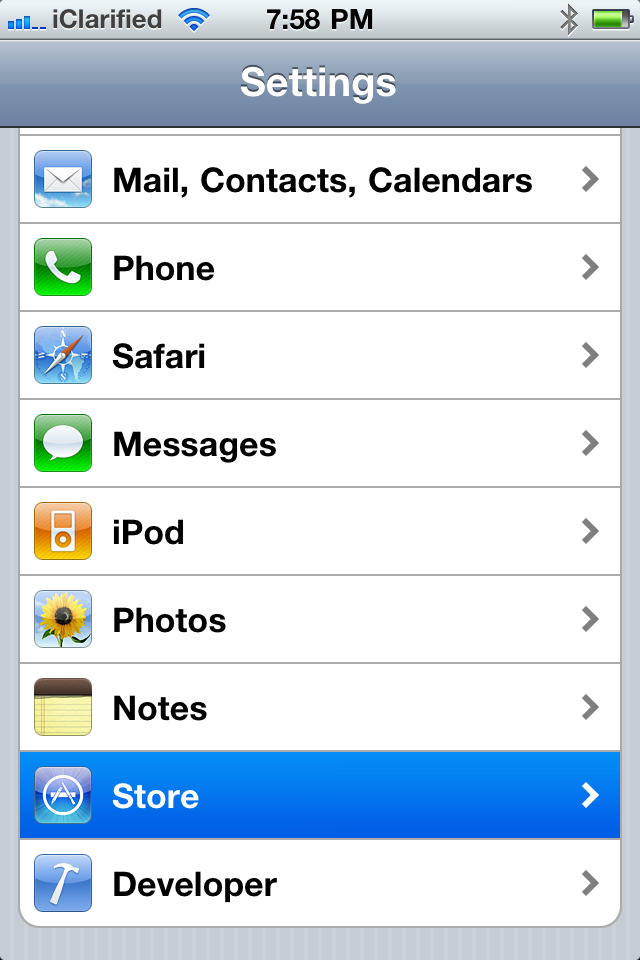
Step TwoPress to select Store from the Settings Menu.


Step FourTo enable Automatic Downloads for Apps, iTunes, or iBooks turn the respective switch to the ON position.
To enable Automatic Downloads while you are on the cellular network turn the Cellular switch to the ON position.


Now when you purchase or download a new app, song, or book the item will automatically be pushed to all your devices.
Read More..
These are instructions on how to enable iCloud Automatic Downloads for Apps, iTunes, and iBooks in iOS. You need an iTunes account to enable this new feature.
Step OnePress to launch Settings from your Springboard.

Step TwoPress to select Store from the Settings Menu.
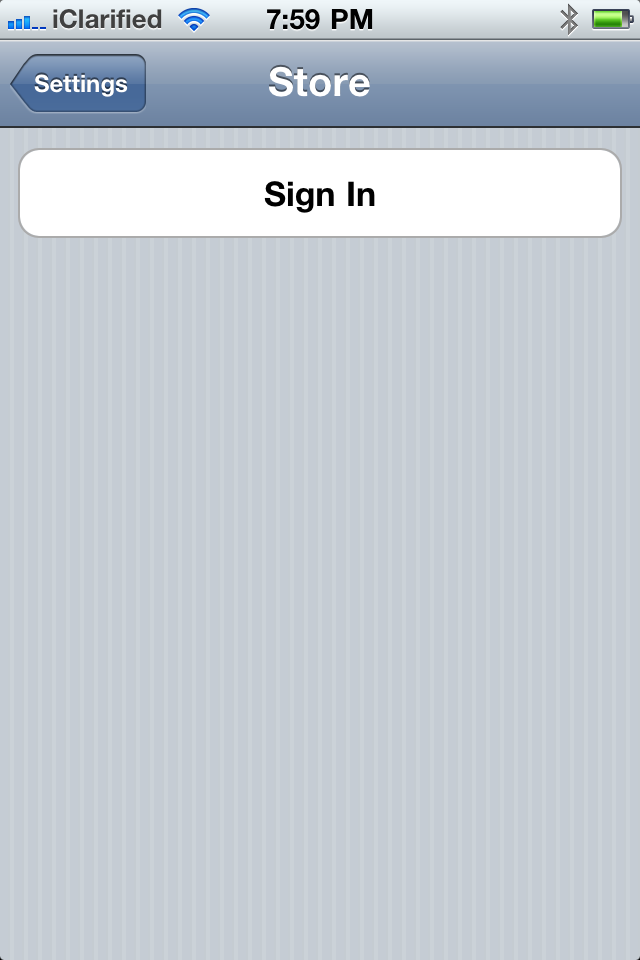
Step ThreePress the Sign In button if you are not already Signed In.
Step FourTo enable Automatic Downloads for Apps, iTunes, or iBooks turn the respective switch to the ON position.
To enable Automatic Downloads while you are on the cellular network turn the Cellular switch to the ON position.


Now when you purchase or download a new app, song, or book the item will automatically be pushed to all your devices.
How to Downgrade Your iPhone Firmware Using TinyUmbrella Windows
These are instructions on how to downgrade your iPhone firmware using TinyUmbrella. In order to follow this tutorial you must already have saved your SHSH Blobs for the firmware you want to restore to.
You can use this tutorial to downgrade to iOS 4.3.3 in order to jailbreak using JailbreakMe. The Mac version of this tutorial is here.
Step One
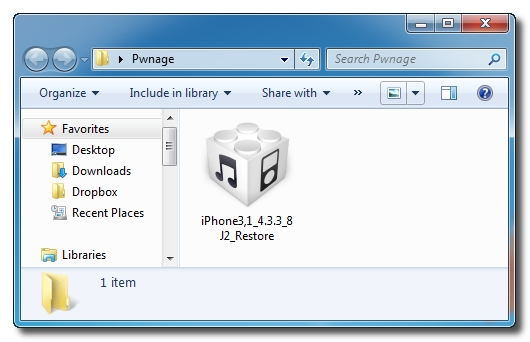
Download TinyUmbrella from here and save it in a Pwnage folder on your desktop if dont have it already.
Step Two
Download the firmware you want to restore to from here and save it in a Pwnage folder on your desktop. Remember you must have saved your SHSH Blobs for this firmware already.
Step Three
Launch TinyUmbrella by double clicking its icon.
Step Four
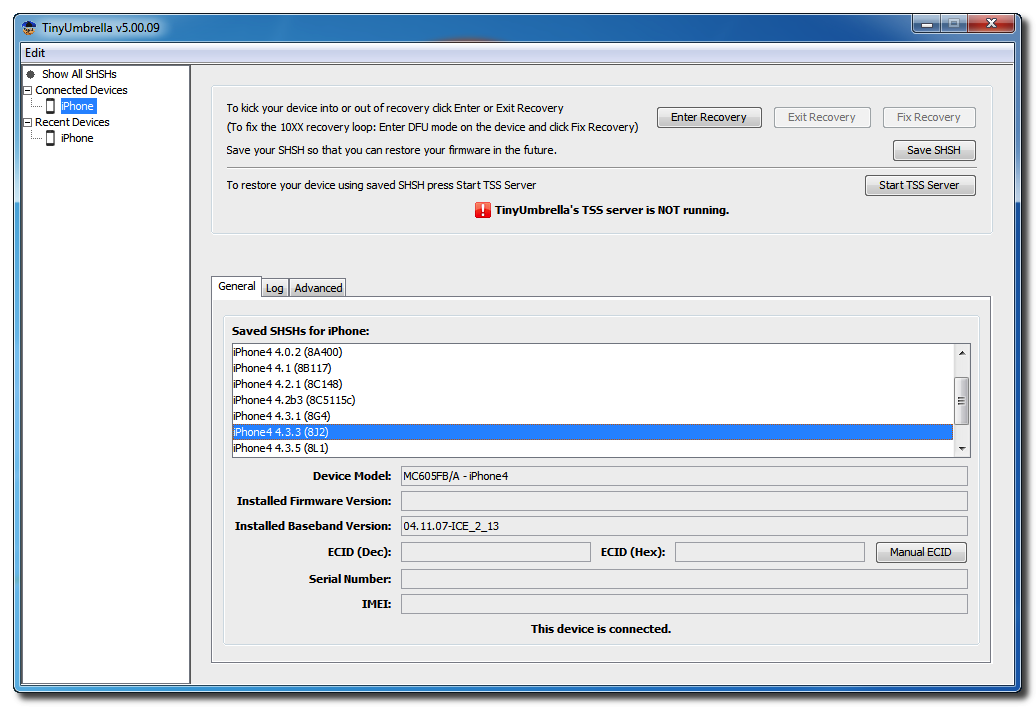
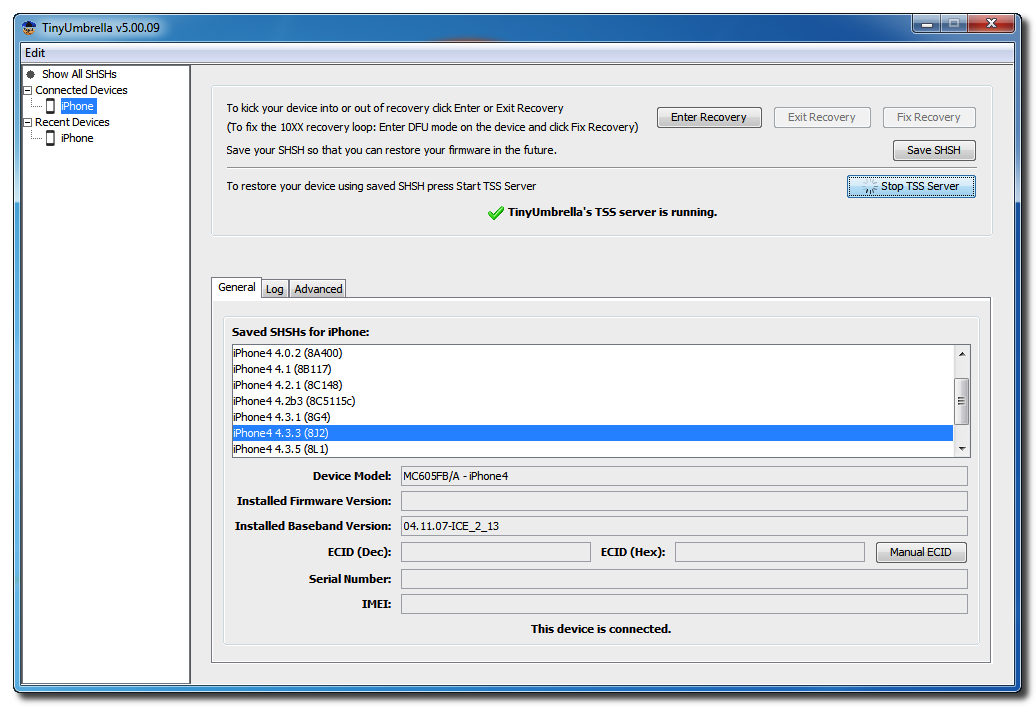
Connect your device and make sure it lists saved SHSH Blobs for the firmware you are restoring to. You may need to click Save SHSH to restore your blobs from Cydia if you dont see any listed.
Step Five
Click the Start TSS Server button.
*Do not continue if TinyUmbrellas TSS server is not started successfully.
Step Six
Launch iTunes by clicking its icon in your Start Menu.
Step Seven
Place your iPhone into DFU mode by holding down the Power and Home buttons for 10 seconds then release the Power button and continue holding the Home button for another 10 seconds.
You can find help with DFU mode here.
Step Seven
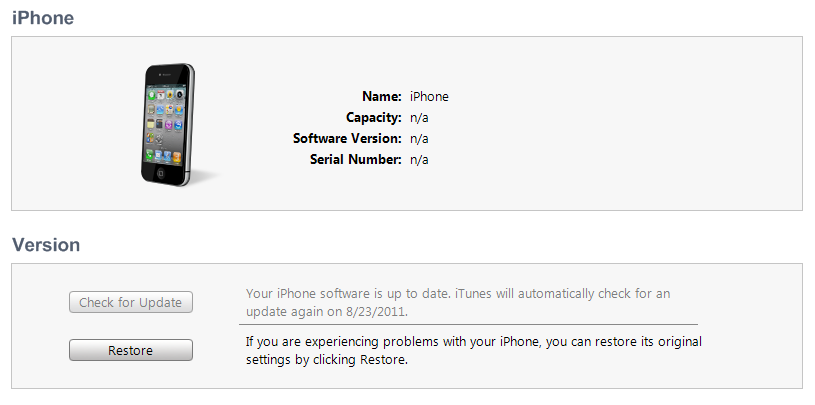
Select your iPhone from the list of devices on the left, hold down the Shift key and click Restore.
Step Eight
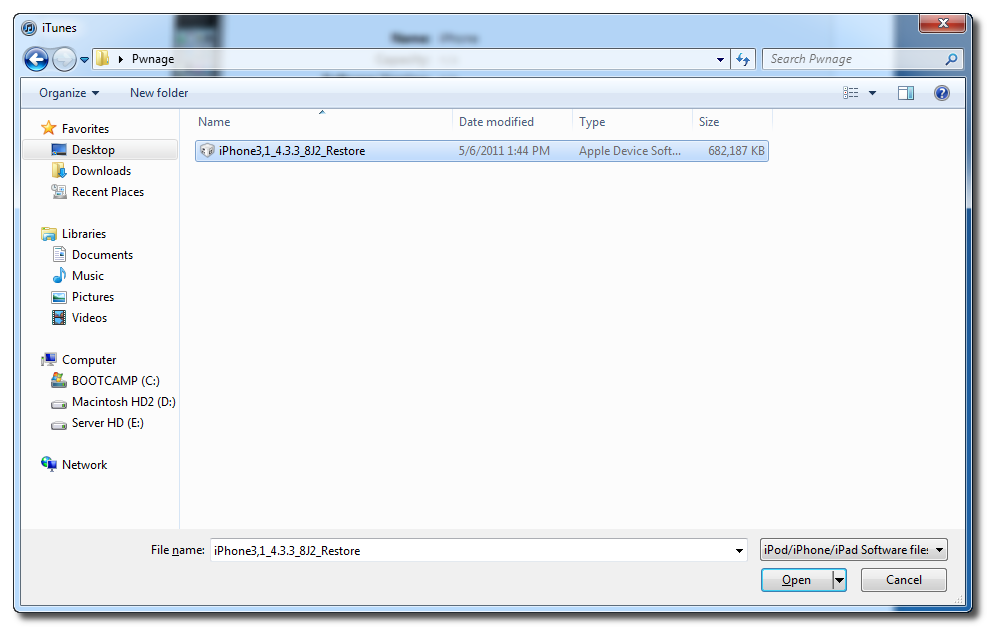
Navigate to the Pwnage folder on your desktop, select the ipsw file you downloaded and click the Open button.
Step Nine
iTunes will now restore to the lower firmware version.
Step Ten
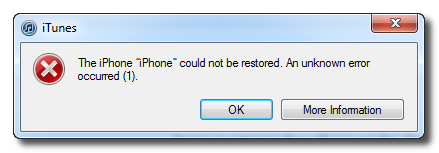
If you happen to get an Error 1 or you get stuck in recovery mode, you will need to use FixRecovery to get your device out of recovery mode.
Download FixRecovery from here and save it to the Pwnage folder on your desktop. Then extract the archive.
Download zlib1.dll from here and save it to the Pwnage folder on your desktop. Then extract the archive.
Step Eleven
Place your iPhone into DFU mode by holding down the Power and Home buttons for 10 seconds then release the Power button and continue holding the Home button for another 10 seconds.
You can find help with DFU mode here.
Step Twelve
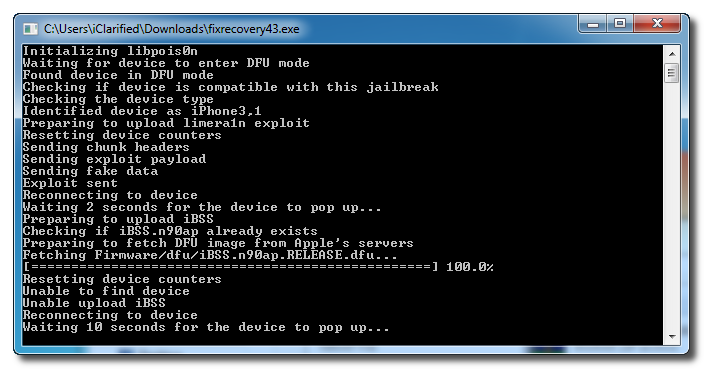
Double click to launch the fixrecovery43 executable we just extracted.
Step Thirteen
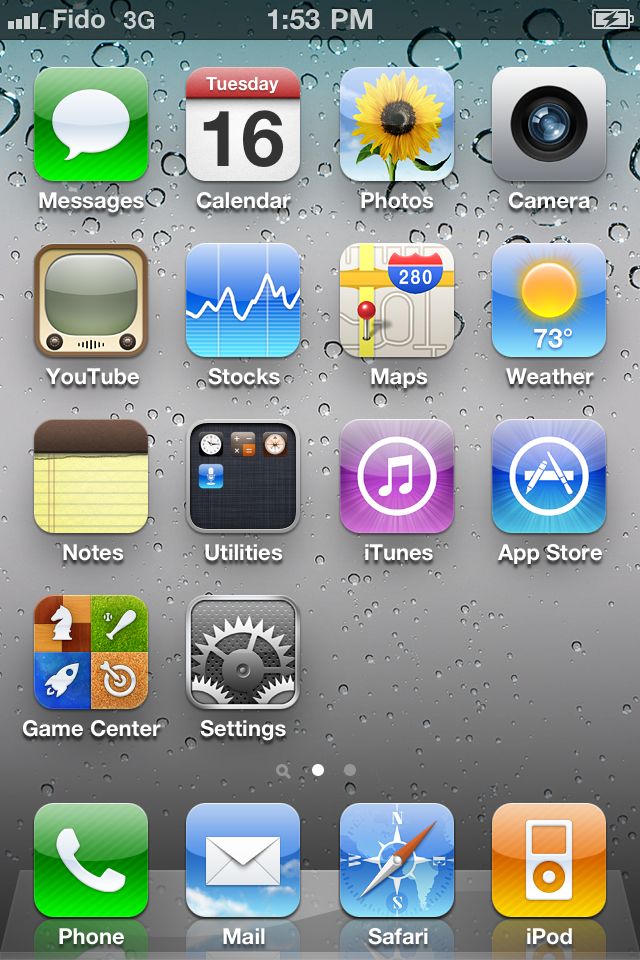
FixRecovery will perform its magic after which your device will be successfully rebooted.
IMPORTANT:
● If fixrecovery does not work the first time you may need to rerestore to your desired firmware version and try again. Remember to keep the TSS Server running during your second restore as well.
● This tutorial does work to get your from iOS 5 beta back down to iOS 4. Although some have reported less issues with a lower version of iTunes this tutorial was tested to work with iTunes 10.5.0.77.









Friday, October 11, 2013
Lastest iPhone PC Suite 2 9 62 272
Free: PC Suite is totally free to use. Additionally, it offers free technical support, free resources downloading and installation. free paid mobile phone resources cracked and shared by friends on the internet.
- Manage your smart phone easily and safely: Back up and import contacts, back up and import call logs and SMS records, set the ringtones, themes and wallpapers, manage the system, memory and registry of the phone, install and uninstall software, manage schedule…you can manage all functions and settings on your smart phone.
- Chat via SMS: You can chat with your friends and family via the SMS online on your PC easily.
- Enjoy videos anytime: You can subscribe tons of Videos in PC Suite to Download in your iPhone and enjoy them with Panda Player (for iPhone)
- Gorgeous user experience: We integrate the iPhone style in PC Suite to make you enjoy the most fashionable interface and feel the most considerate operation during your use.
- Massive resources, free to install: Wallpapers, ringtones, themes, softwares, games and eBooks, FREE is our eternal principle.
How to change the language :
- iPhone PC Suite has the English language file included in its LangPack folder. To make it default you have to run the installer first - of course . After the installation process is complete, close the iPhone PC Suite and go to: My computer > C Drive > Program Files > NetDragon > 91 Mobile > iPhone > LangPack, and delete everything, excepting the "en-US.lang" file.
Letitbit:
iPhone_PC_Suite_2.9.62.272.rar ~ 67.26 mb
Depositfiles:
iPhone_PC_Suite_2.9.62.272.rar ~ 67.26 mb
Turbobit:
iPhone_PC_Suite_2.9.62.272.rar ~ 67.26 mb

Thursday, October 10, 2013
Downgrade iPhone 4 iOS 5 Baseband 4 11 08 to 4 10 01 to Unlock with Gevey Turbo SIM
UPDATE #4, 25 October 2011, 11.38AM (+8 GMT): Hardware hack for you to consider.
UPDATE #3, 18 October 2011, 7.18PM (+8 GMT): One reader just commented that he was able to do downgrade, but I’m not sure if he did it much earlier. It’s still worth trying, though. I responded to his comment and waiting for confirmation.
UPDATE #2, 18 October 2011, 11.06AM (+8 GMT): Sorry guys, Apple is no longer signing iOS 4.3.5. This tutorial is no longer valid. To those who managed to downgrade your baseband, good on you and remember to always preserve your baseband.
UPDATE #1, 18 October 2011, 11.00AM (+8 GMT): It seems like Apple had stopped signing iOS 4.3.5 for iPhone 4, I’m testing it now.
Did you blindly update to iOS 5 without realizing the consequences that it will also update your baseband to 4.11.08 that can’t be unlocked with your Turbo SIM? Apple had stopped signing iOS 4.3.5 on October 17, 2011.
Apple is still signing iOS 4.3.5, which means you can still downgrade to this iOS version. It has baseband 4.10.01 that can be unlocked with Gevey Blue Turbo SIM.
Here are the steps:
1. Download and install iTunes 10.4 or earlier. You will need to remove iTunes 10.5 first.
2. Download iOS 4.3.5 IPSW for iPhone 4 from Apple.
3. Put your device into DFU mode (search a tutorial on YouTube).
4. Connect to iTunes and it will say that your device is in recovery mode and needs to be restored.
5. Go ahead and click shift+restore (Windows) or option+restore (Mac). Select the IPSW you just downloaded.
6. iTunes will verify with Apple server and begins restoring your device. Once completed you will need the official SIM card to activate it. You can use other tools such as TinyUmbrella to confirm that you now have baseband 4.10.01.
7. Now download custom iOS 5 from here. Reinstall iTunes 10.5 in the meantime.
8. Download latest redsn0w from the Dev Team’s website or from here. Start redsn0w, go to Extras > Pwned DFU. This allows your iPhone to accept custom firmware. If you don’t do this, you will get error 1604, 1600 etc.
9. Connect your iPhone to your computer.
10. Click shift+restore (Windows) or option+restore (Mac) and select the custom iOS 5 IPSW you just downloaded.
This time your baseband will be preserved while running on iOS 5 and you can unlock it with Gevey Blue Turbo SIM.
Again – do it now because once Apple stops signing iOS 4.3.5, you will be stuck forever!
Here some Hardware solutions:
UPDATE #3, 18 October 2011, 7.18PM (+8 GMT): One reader just commented that he was able to do downgrade, but I’m not sure if he did it much earlier. It’s still worth trying, though. I responded to his comment and waiting for confirmation.
UPDATE #2, 18 October 2011, 11.06AM (+8 GMT): Sorry guys, Apple is no longer signing iOS 4.3.5. This tutorial is no longer valid. To those who managed to downgrade your baseband, good on you and remember to always preserve your baseband.
UPDATE #1, 18 October 2011, 11.00AM (+8 GMT): It seems like Apple had stopped signing iOS 4.3.5 for iPhone 4, I’m testing it now.
Did you blindly update to iOS 5 without realizing the consequences that it will also update your baseband to 4.11.08 that can’t be unlocked with your Turbo SIM? Apple had stopped signing iOS 4.3.5 on October 17, 2011.
Apple is still signing iOS 4.3.5, which means you can still downgrade to this iOS version. It has baseband 4.10.01 that can be unlocked with Gevey Blue Turbo SIM.
Here are the steps:
1. Download and install iTunes 10.4 or earlier. You will need to remove iTunes 10.5 first.
2. Download iOS 4.3.5 IPSW for iPhone 4 from Apple.
3. Put your device into DFU mode (search a tutorial on YouTube).
4. Connect to iTunes and it will say that your device is in recovery mode and needs to be restored.
5. Go ahead and click shift+restore (Windows) or option+restore (Mac). Select the IPSW you just downloaded.
6. iTunes will verify with Apple server and begins restoring your device. Once completed you will need the official SIM card to activate it. You can use other tools such as TinyUmbrella to confirm that you now have baseband 4.10.01.
7. Now download custom iOS 5 from here. Reinstall iTunes 10.5 in the meantime.
8. Download latest redsn0w from the Dev Team’s website or from here. Start redsn0w, go to Extras > Pwned DFU. This allows your iPhone to accept custom firmware. If you don’t do this, you will get error 1604, 1600 etc.
9. Connect your iPhone to your computer.
10. Click shift+restore (Windows) or option+restore (Mac) and select the custom iOS 5 IPSW you just downloaded.
This time your baseband will be preserved while running on iOS 5 and you can unlock it with Gevey Blue Turbo SIM.
Again – do it now because once Apple stops signing iOS 4.3.5, you will be stuck forever!
Here some Hardware solutions:
How to Jailbreak iOS 5 iPhone 4 3GS iPod Touch 4G 3G iPad 1 Redsn0w Tutorial
Dev-team has released Redsn0w 0.9.8b1 to jailbreak iOS 5 beta 1, heres the full step by step guide that shows you how to jailbreak iOS 5 beta 1 on iOS devices.

iOS jailbreak - Supported Devices :
- iPod touch 3G
- iPod touch 4G
- iPad 1
- iPhone3GS
- iPhone4 (GSM)
- iPhone4 (CDMA)
Important Note : You should read dev-team restrictions and warnings Posted Here, before you intend to jailbreak your iOS device.
Required Downloads:
- Download Redsn0w 0.9.8b1 for Mac
How to jailbreak iOS 5 - iPhone 4, 3GS, iPod touch 4G, 3G and iPad 1
Step 1: Restore to iOS 5.0 beta 1Step 2: Start Redsn0w and point it to iOS 5.0 beta1 firmware ipsw file.


Step 5: Wait until you get iOS 5.0 beta 1 jailbroken in few minutes. Congratulations.
Tethered Jailbreak : Once current Redsn0w jailbreak is still tethered jailbreak, you will be required to connect your iOS device with your computer and run Redsn0w again then choose "Just boot tethered right now".
Wednesday, October 9, 2013
Gevey SIM can unlock iPhone 4 on Baseband 2 10 04 3 10 01 ! Confirmed !
Guys over RedmondPie has just got some exclusive screenshots of unlocked iPhone 4 on baseband 02.10.04 running T-Mobile network. This iPhone 4 is unlocked by Gevey SIM which was announced few days ago.

Gevey SIM for iPhone 4 basically works by forcing the activation of the baseband using the emergency dialer, and it is also said to be vulnerable up to iOS 4.3. In case you want to get a one, you can navigate here and read more about it.
We totally advice and recommend you wait for a legal iPhone 4 unlock from the iPhone Dev Team which will be possible soon thanks to the 40-bit NCK exploit for iPhone 4.
Heres a video in action:
Read More..
Gevey SIM for iPhone 4 basically works by forcing the activation of the baseband using the emergency dialer, and it is also said to be vulnerable up to iOS 4.3. In case you want to get a one, you can navigate here and read more about it.
We totally advice and recommend you wait for a legal iPhone 4 unlock from the iPhone Dev Team which will be possible soon thanks to the 40-bit NCK exploit for iPhone 4.
Heres a video in action:
Tuesday, October 8, 2013
Want A Cheap Unlocked iPhone 5 Choose Verizon
The iPhone 5 as apple says is the most powerful smartphone ever and the best thing to have happened to the iPhone since it came out in 2007, With record selling and highly recommended by reviewers you might be thinking of getting one. Well if you are thinking to get an iPhone 5 on contract, Verizon is the best carrier you can buy with, yes the largest Wireless network across united states is providing the iPhone 5 in just 199$ and that too Unlocked.
The Verizon’s iPhone 5 comes out as unlocked from the box, and you can use it with other CDMA and GSM networks including its rival AT&T. Well after reading reading this, the first thing which will hit your mind is that why is Verizon being so nice to us all of a sudden? Maybe they’ll lock it later? Well to avoid that confusion, Verizon themselves have issued an official statement today that they will let their users switch to other carriers, and they are not gonna lock it again ever.

This is for the first time ever that Verizon is letting their iPhone users switch to other network without any unlock, and give an unlock iPhone 5 for the same price. The reason behind it is FCC, yes an order issued by FCC for using the 700 MHz spectrum which is being used in the iPhone 5 having LTE. So they don’t have any choice, either they sell it without locking it or they stop making the iPhone 5.
So folks, if you are thinking of buying the iPhone 5, Verizon should be the first and last choice to you, because in just 199$ you get an unlocked iPhone 5 with 4G LTE.
NEW YORK (AP) — Verizon Wireless said Monday that it wont prevent its version of the iPhone 5 from being used on AT&Ts network.
The Verizon version of the iPhone 5, which went on sale Friday, came with an unexpected feature: it works on the network of AT&T and many other phone companies, as well as on Verizons.
Its the first time Verizon, the countrys largest cellphone company, has sold a phone that works on competing U.S. networks with no complicated hacking, or "unlocking," procedures.
Last year, the first shipments of the Sprint iPhone 4S were unlocked and worked on AT&T, but Sprint later issued software updates that turned off that capability.
Verizon Wireless spokeswoman Brenda Raney said Monday that Verizon does not plan to relock the iPhone 5.
Verizon and Sprint do "unlock" other phones on request, but only for use on non-U.S. networks. They do so to let travelers save money by using local SIM cards and accounts when overseas.
The Verizon’s iPhone 5 comes out as unlocked from the box, and you can use it with other CDMA and GSM networks including its rival AT&T. Well after reading reading this, the first thing which will hit your mind is that why is Verizon being so nice to us all of a sudden? Maybe they’ll lock it later? Well to avoid that confusion, Verizon themselves have issued an official statement today that they will let their users switch to other carriers, and they are not gonna lock it again ever.

This is for the first time ever that Verizon is letting their iPhone users switch to other network without any unlock, and give an unlock iPhone 5 for the same price. The reason behind it is FCC, yes an order issued by FCC for using the 700 MHz spectrum which is being used in the iPhone 5 having LTE. So they don’t have any choice, either they sell it without locking it or they stop making the iPhone 5.
So folks, if you are thinking of buying the iPhone 5, Verizon should be the first and last choice to you, because in just 199$ you get an unlocked iPhone 5 with 4G LTE.
So about the contract???
NEW YORK (AP) — Verizon Wireless said Monday that it wont prevent its version of the iPhone 5 from being used on AT&Ts network.
The Verizon version of the iPhone 5, which went on sale Friday, came with an unexpected feature: it works on the network of AT&T and many other phone companies, as well as on Verizons.
Its the first time Verizon, the countrys largest cellphone company, has sold a phone that works on competing U.S. networks with no complicated hacking, or "unlocking," procedures.
Last year, the first shipments of the Sprint iPhone 4S were unlocked and worked on AT&T, but Sprint later issued software updates that turned off that capability.
Verizon Wireless spokeswoman Brenda Raney said Monday that Verizon does not plan to relock the iPhone 5.
The feature may mean little initially to most buyers, since they sign up for two years of Verizon service when buying the phone. But it does give them the option to switch carriers when the contract expires, or they can sell the phone to someone who plans to use it on a competing network. They also have the option of breaking the contract, paying an early termination fee, and signing up for cheaper service —the Verizon iPhone 5 even works on prepaid service plans.
Verizon and Sprint do "unlock" other phones on request, but only for use on non-U.S. networks. They do so to let travelers save money by using local SIM cards and accounts when overseas.
Subscribe to:
Posts (Atom)