Showing posts with label firmware. Show all posts
Showing posts with label firmware. Show all posts
Tuesday, October 15, 2013
iOS 5 0 1 Custom Firmware without Baseband update Tethered Jailbreak
There is a simple way to update to iOS 5.0.1 without basebande update . easy unlock and jailbreak . Its a Tethered jailbreak for all device except iPad 2 and iPhone 4s. This iOS 5.0.1 custom firmware made with Sn0wbreeze v2.8b11.There is same ready custom firmwares with 6.15.00 basebond . if you get iTunes 16XX error use iREB.1 . Custom firmware for Device :
Requirements :
NOTE: If you have original carrier sim card use unactivated and if you have not use active one.
————————————————
Download custom firmware iPhone 4 /Activated ——————-> {FileSonic | Hotfile}
Download custom firmware iPhone 4 /Unactivated —————-> {FileSonic | Hotfile}
————————————————
Download custom firmware iPhone 3Gs /Activated —————-> {FileSonic | Hotfile}
Download custom firmware iPhone 3Gs /Unactivated ————-> {FileSonic | Hotfile}
iPhone 3Gs New Bootrom – BaseBand 6.15.00 / Activated ——–> {FileSonic | Hotfile}
————————————————
iPhone 3Gs Old Bootrom [Untethered Jailbreak] /Activated —————————–> {FileSonic | Hotfile}
iPhone 3Gs Old Bootrom [Untethered Jailbreak] /Unactivated ————————–> {FileSonic | Hotfile}
iPhone 3Gs Old Bootrom [Untethered Jailbreak]-BaseBand 6.15.00/Activated –> {FileSonic | Hotfile}


Sunday, October 13, 2013
IOS 5 Custom iPhone Firmware Activated Jailbreaked
::::NEW:::::iphone 4 IOS 5 Custom Firmware (Activated) Jailbreaked:::::NEW:::::
iphone 4 IOS 5 Custom Firmware (Activated) JailbreakediBooty-for-5.0


Saturday, October 12, 2013
How to Downgrade Your iPhone Firmware Using TinyUmbrella Windows
These are instructions on how to downgrade your iPhone firmware using TinyUmbrella. In order to follow this tutorial you must already have saved your SHSH Blobs for the firmware you want to restore to.
You can use this tutorial to downgrade to iOS 4.3.3 in order to jailbreak using JailbreakMe. The Mac version of this tutorial is here.
Step One
Download TinyUmbrella from here and save it in a Pwnage folder on your desktop if dont have it already.
Step Two
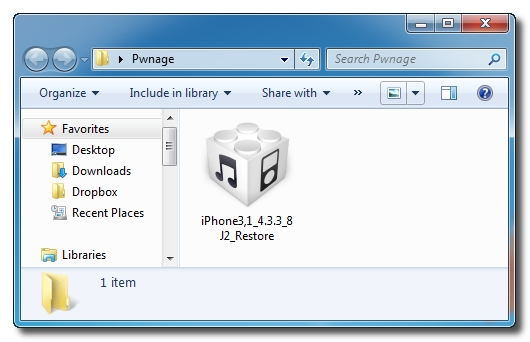
Download the firmware you want to restore to from here and save it in a Pwnage folder on your desktop. Remember you must have saved your SHSH Blobs for this firmware already.
Step Three
Launch TinyUmbrella by double clicking its icon.
Step Four
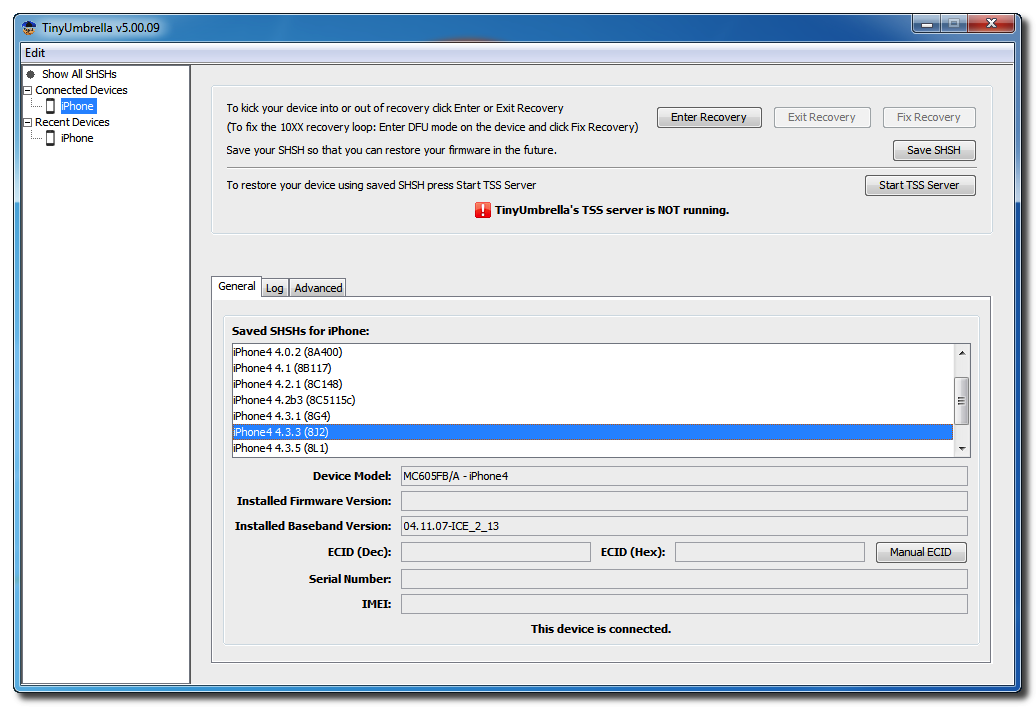
Connect your device and make sure it lists saved SHSH Blobs for the firmware you are restoring to. You may need to click Save SHSH to restore your blobs from Cydia if you dont see any listed.
Step Five
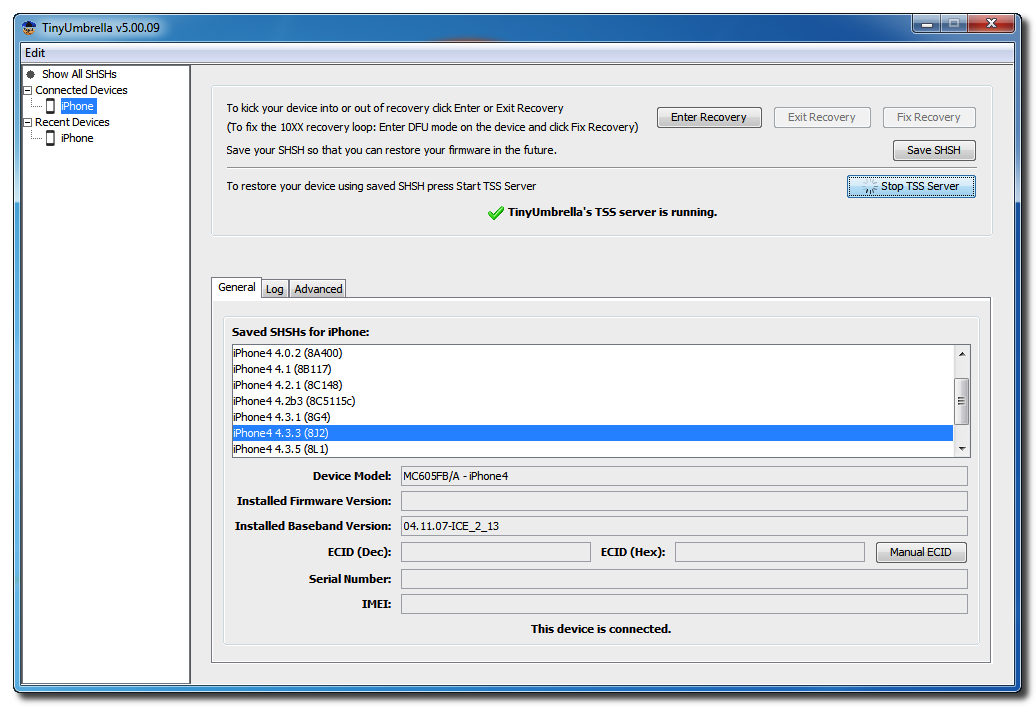
Click the Start TSS Server button.
*Do not continue if TinyUmbrellas TSS server is not started successfully.
Step Six
Launch iTunes by clicking its icon in your Start Menu.
Step Seven
Place your iPhone into DFU mode by holding down the Power and Home buttons for 10 seconds then release the Power button and continue holding the Home button for another 10 seconds.
You can find help with DFU mode here.
Step Seven
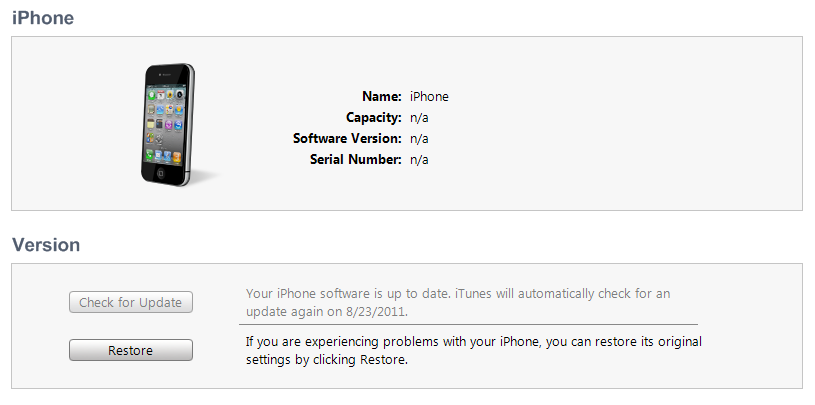
Select your iPhone from the list of devices on the left, hold down the Shift key and click Restore.
Step Eight
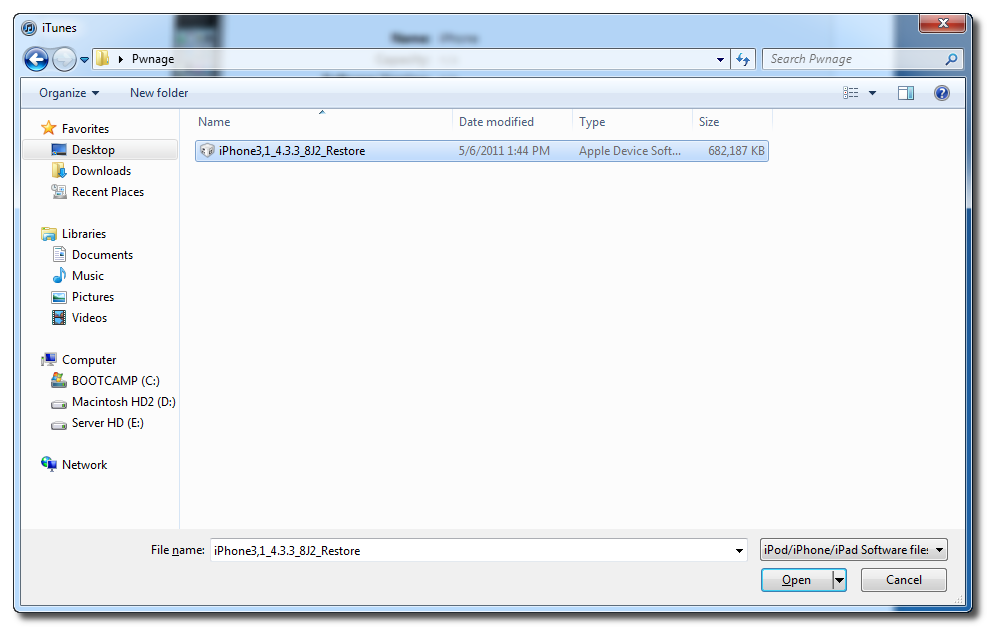
Navigate to the Pwnage folder on your desktop, select the ipsw file you downloaded and click the Open button.
Step Nine
iTunes will now restore to the lower firmware version.
Step Ten
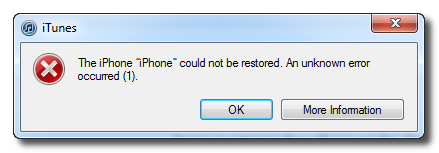
If you happen to get an Error 1 or you get stuck in recovery mode, you will need to use FixRecovery to get your device out of recovery mode.
Download FixRecovery from here and save it to the Pwnage folder on your desktop. Then extract the archive.
Download zlib1.dll from here and save it to the Pwnage folder on your desktop. Then extract the archive.
Step Eleven
Place your iPhone into DFU mode by holding down the Power and Home buttons for 10 seconds then release the Power button and continue holding the Home button for another 10 seconds.
You can find help with DFU mode here.
Step Twelve
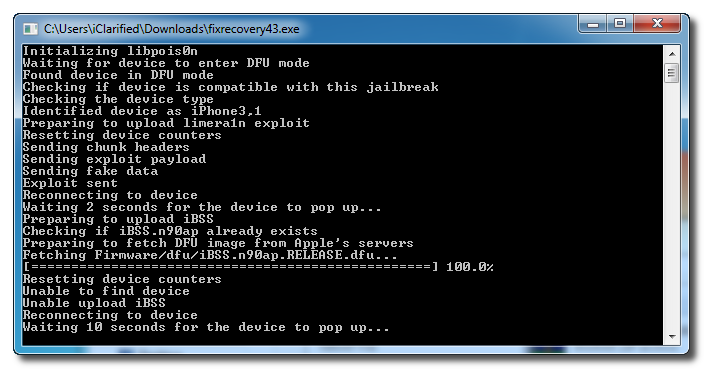
Double click to launch the fixrecovery43 executable we just extracted.
Step Thirteen
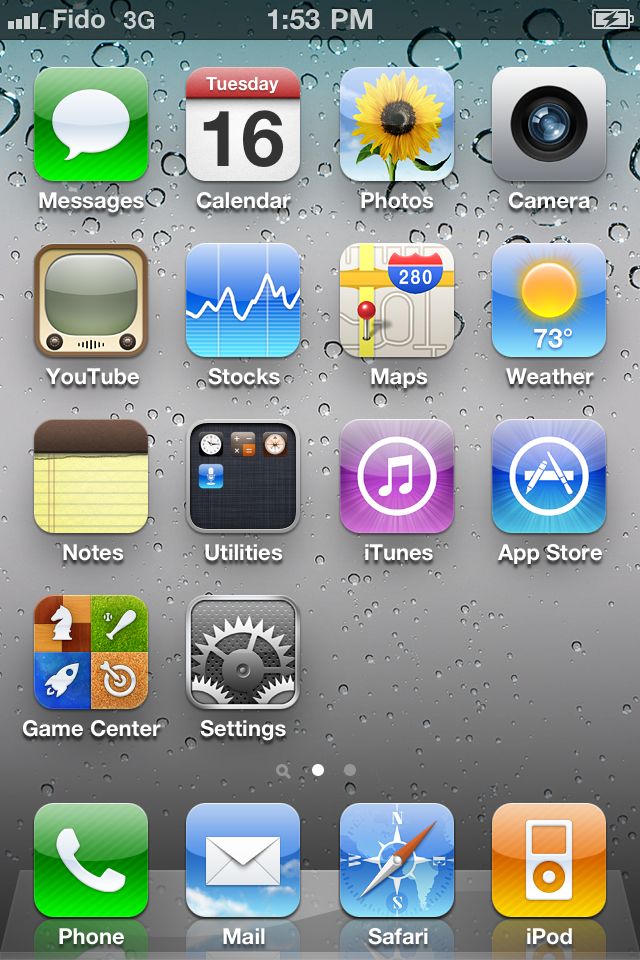
FixRecovery will perform its magic after which your device will be successfully rebooted.
IMPORTANT:
● If fixrecovery does not work the first time you may need to rerestore to your desired firmware version and try again. Remember to keep the TSS Server running during your second restore as well.
● This tutorial does work to get your from iOS 5 beta back down to iOS 4. Although some have reported less issues with a lower version of iTunes this tutorial was tested to work with iTunes 10.5.0.77.









Saturday, September 21, 2013
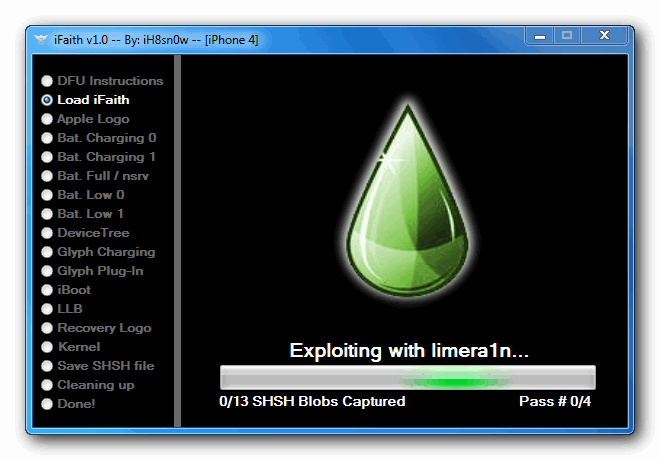
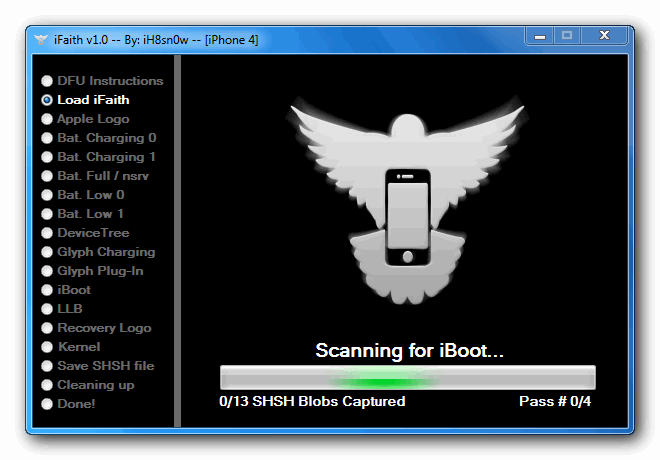
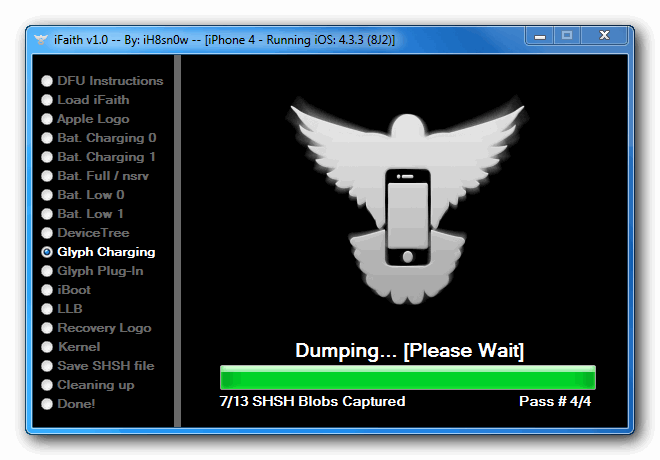
How to Dump the SHSH Blobs of Your Current Firmware Using iFaith
These are instructions on how to dump the SHSH blobs of your current firmware even if Apple is not signing.
For instance, you can dump the SHSH of the current firmware on your device, so long as the device is susceptible to the Limera1n jailbreak (Everything but the iPad 2) Apple does not have to be signing the SHSH in order for you to dump the blob.
*Note the iPod Touch 2G and iPhone 3G will not work since they will always be jailbreakable. The iPad 2 will not work because it is not susceptible to Limera1n. A jailbreak is not needed for this.
Step OneDownload the iFaith from here.
Step TwoExtract the downloaded zip file, and double click the iFaith.exe file.
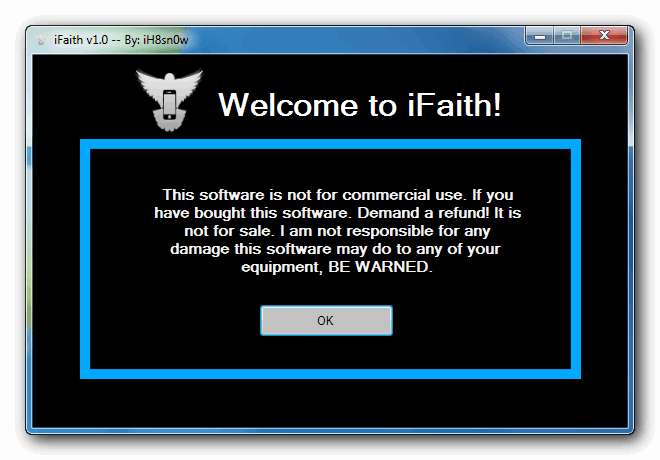
Step ThreeA disclaimer will appear. Read the notice and click ok to proceed.
Step Four
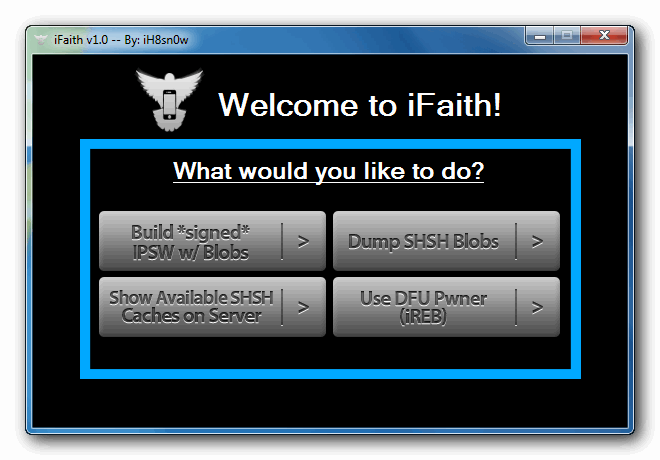
Click the Dump SHSH Blobs button
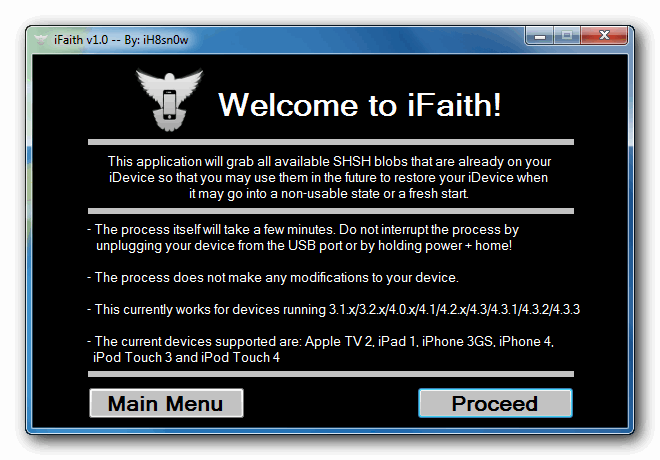
Step FiveRead the information and click Proceed when you are ready.
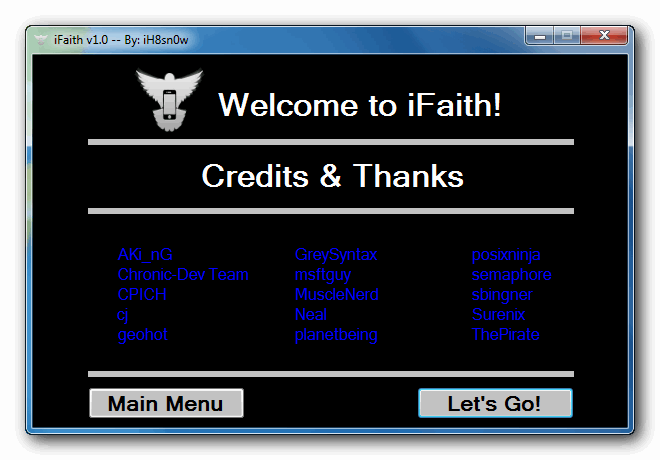
Finally, click the Lets Go! button to start the dumping process.
Step Six
If you are dumping an Apple TV 2, indicate it when iFaith asks you
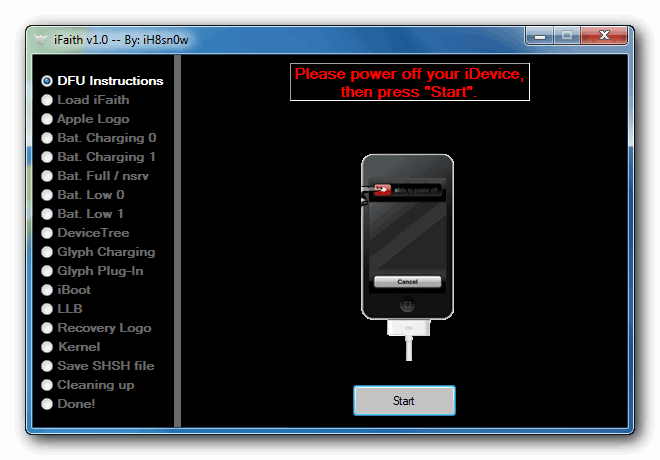
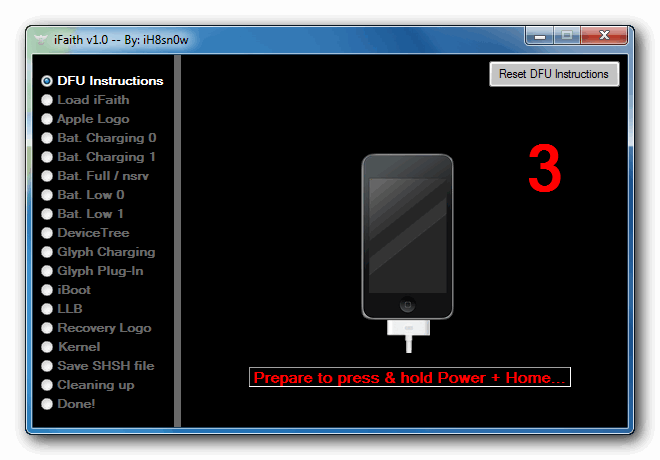
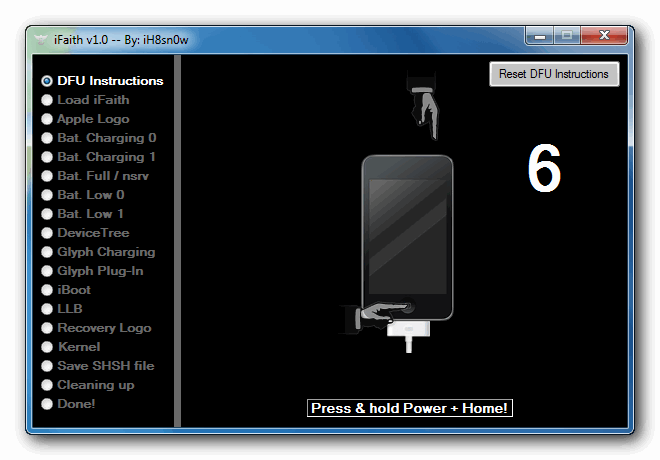
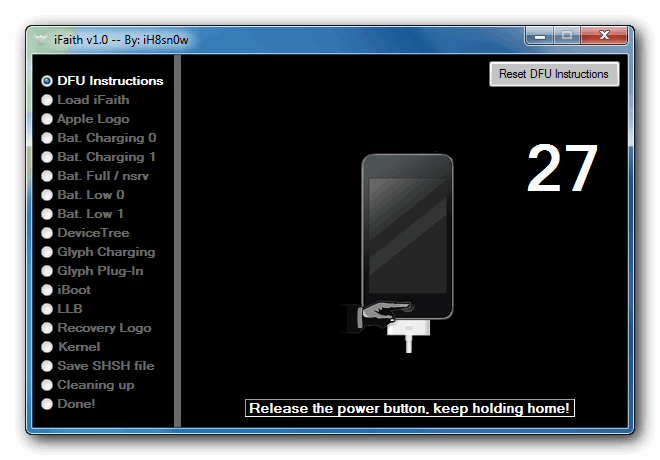
Step SevenFollow the DFU Instructions to place your device in DFU Mode. You can find more on entering DFU mode here.
Press Power and home for 10 Seconds
Release the power button, but keep holding the Home
Once Successful, iFaith will dump the SHSH of your current firmware. It will go through each step which could take a few minutes.
Step Eight
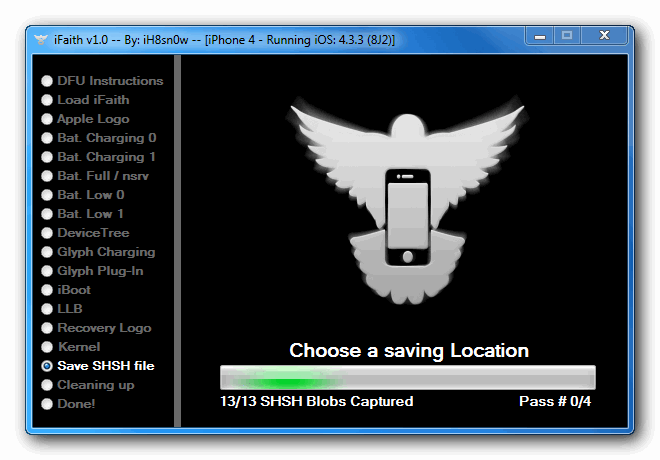
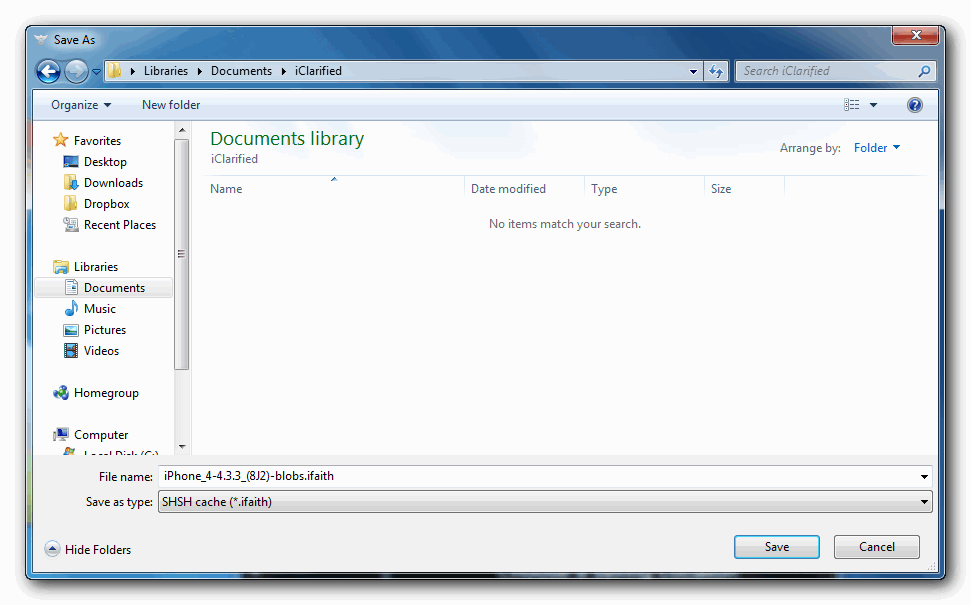
When completed, iFaith will ask you where to locally save the SHSH.
Indicate where you want to save the SHSH file.
Step NineiFaith will notify you that the process was successful
**Thanks goes to ih8sn0w and everyone else who helped in making this tool



Friday, September 20, 2013
AppleTV AppleTV Firmware Download Locations
Below you can find the direct links to the AppleTV Firmware Files for every released firmware version.
1.0.0: OS-dot-DMG 1.0.dmg
1.1.0: 2Z694-5248-45.dmg
2.0.0: 2Z694-5274-109.dmg
2.0.1: 2Z694-5387-25.dmg
2.0.2: 2Z694-5428-3.dmg
2.1.0: 2Z694-5485-1.dmg
2.2.0: 2Z694-5499.dmg
2:3:0: 2Z694-5573-24.dmg
2.3.1: 2Z694-5587-18.dmg
2.4.0: 2Z694-5660-029.dmg
3.0.0: 2Z694-5789-067.dmg
3.0.1: 2Z694-6004-003.dmg
3.0.2: 2Z694-6013-013.dmg
4.1.0: AppleTV2,1_4.1_8M89_Restore.ipsw
4.2.0: AppleTV2,1_4.2_8C150_Restore.ipsw
4.2.1: AppleTV2,1_4.2.1_8C154_Restore.ipsw
4.3.0: AppleTV2,1_4.3_8F191m_Restore.ipsw
4.3.0 (Build 8F202): AppleTV2,1_4.3_8F202_Restore.ipsw
4.3.0 (Build 8F305): AppleTV2,1_4.3_8F305_Restore.ipsw
4.3.0 (Build 8F455): AppleTV2,1_4.3_8F455_Restore.ipsw
4.4.0: AppleTV2,1_4.4_9A334v_Restore.ipsw
4.4.1: AppleTV2,1_4.4.1_9A335a_Restore.ipsw
4.4.2: AppleTV2,1_4.4.2_9A336a_Restore.ipsw
4.4.3: AppleTV2,1_4.4.3_9A405l_Restore.ipsw
Bonus:
MacOS X 10.4.9 Combo Updater
1.0.0: OS-dot-DMG 1.0.dmg
1.1.0: 2Z694-5248-45.dmg
2.0.0: 2Z694-5274-109.dmg
2.0.1: 2Z694-5387-25.dmg
2.0.2: 2Z694-5428-3.dmg
2.1.0: 2Z694-5485-1.dmg
2.2.0: 2Z694-5499.dmg
2:3:0: 2Z694-5573-24.dmg
2.3.1: 2Z694-5587-18.dmg
2.4.0: 2Z694-5660-029.dmg
3.0.0: 2Z694-5789-067.dmg
3.0.1: 2Z694-6004-003.dmg
3.0.2: 2Z694-6013-013.dmg
4.1.0: AppleTV2,1_4.1_8M89_Restore.ipsw
4.2.0: AppleTV2,1_4.2_8C150_Restore.ipsw
4.2.1: AppleTV2,1_4.2.1_8C154_Restore.ipsw
4.3.0: AppleTV2,1_4.3_8F191m_Restore.ipsw
4.3.0 (Build 8F202): AppleTV2,1_4.3_8F202_Restore.ipsw
4.3.0 (Build 8F305): AppleTV2,1_4.3_8F305_Restore.ipsw
4.3.0 (Build 8F455): AppleTV2,1_4.3_8F455_Restore.ipsw
4.4.0: AppleTV2,1_4.4_9A334v_Restore.ipsw
4.4.1: AppleTV2,1_4.4.1_9A335a_Restore.ipsw
4.4.2: AppleTV2,1_4.4.2_9A336a_Restore.ipsw
4.4.3: AppleTV2,1_4.4.3_9A405l_Restore.ipsw
Bonus:
MacOS X 10.4.9 Combo Updater
Thursday, September 19, 2013
How to Fix iOS 5 Firmware Restore Error 3002 1604 1600
Step 1: Install newest version of iTunes while do not connect your iPhone, iPod or iPad yet.
Step 2: Once installed, run new iTunes for a while then close it.
Step 3: Windows users simply go to folder C:Documents and SettingsApplication DataApple ComputeriTunesiPhone Software Updates. Mac users need to locate it. I don t really sure where it is.
Step 4: Cut and paste files there to somewhere else.
Do not delete them in case the steps does not work for you, you can still copy them back to the folder. You can find out your username by pressing Ctrl+Alt+Del. Step 5: Put your iPhone into DFU Mode
Step 6: Finally, proceed with iOS 5 restore procedure.
Actually there is another way to fix the error on Windows 64-bit using custom iOS 5 .ipsw created with Sn0wBreeze:
Step 1: Go to C:UsersuserAppDataRoamingAppleComputeriTunesDevice
Step 2: Cut and paste files and paste them somewhere else
Step 3: Take the recently .IPSW file created with snowbreeze and paste it on this folder and rename it to "x12220000_5_Recovery.ipsw".
Step 4: Then, go back to itunes
Step 5: Enter DFU mode >> restore >> hold [Shift] to restore >> select the file on the folder C:UsersuserAppDataRoamingAppleComputeriTunesDevice and it will work out.
If you are still bothered by the same issues, try the 2 ways above, hope it is helpful. If you want to know how to install and jailbreak the iOS 5 beta version, you can refer to the previous articles. Please stay tuned.

Thursday, September 12, 2013
iOS 4 3 5 Firmware IPSW Download iPhone iPad iPod touch Direct Links
Apple has just released iOS 4.3.5 ipsw firmware for iPhone 4, 3GS, iPod touch 4G, 3G, iPad 2, 1 and Apple TV 2G. As most of you know that iOS 4.3.4 was released on July 15. iOS 4.3.5 firmware come to fix a security vulnerability with certificate validation.Download iOS 4.3.5 firmware IPSW files (Direct Links) - Official from Apple:

Tuesday, September 10, 2013
Download 4 3 3 Custom Firmware IPSW Untethered iPhone 4 3GS iPad iPod Touch 4G 3G Jailbreak Activated

Custom iOS 4.3.3 IPSW prepared with PwnageTool 4.3.3:
iPhone 4 (GSM)
- Download iPhone 4 iOS 4.3.3 Custom ipsw firmware untethered - Activated ( for users who are not on official carrier SIM card)
- Download iPhone 4 iOS 4.3.3 Custom ipsw firmware untethered - Unactivated (for users who are on official carrier SIM card)
iPhone 3GS:
- Download iPhone 3GS iOS 4.3.3 Custom ipsw firmware untethered - Activated ( for users who are not on official carrier SIM card)
- Download iPhone 3GS iOS 4.3.3 Custom ipsw firmware untethered - unactivated (for users who are on official carrier SIM card)
iPad 1 (first generation):
- Download iPad 1 iOS 4.3.3 Custom ipsw firmware untethered
iPod Touch 4G:
- Download iPod touch 4G iOS 4.3.3 Custom ipsw firmware untethered
iPod Touch 3G:
- Download iPod touch 3G iOS 4.3.3 Custom ipsw firmware untethered
- Download Apple TV 2G iOS 4.3.3 Custom ipsw firmware untethered
- Close TinyUmbrella.
- Remove Cydias SHSH caching server from your hosts (C:WINDOWSsystem32driveretchosts)
- Reboot.
Custom iOS 4.3.3 IPSW prepared with Sn0wbreeze 2.7:
iPhone 4 (GSM)
- Download iPhone 4 iOS 4.3.3 Custom ipsw firmware untethered - Activated ( for users who are not on official carrier SIM card)
- Download iPhone 4 iOS 4.3.3 Custom ipsw firmware untethered - Unactivated (for users who are on official carrier SIM card)
iPhone 4 (CDMA) Verizon
- Download iPhone 4 iOS 4.2.8 Custom ipsw firmware untethered
- Download iPhone 3GS new bootrom iOS 4.3.3 Custom ipsw firmware untethered - Activated ( for users who are not on official carrier SIM card)
- Download iPhone 3GS new bootrom iOS 4.3.3 Custom ipsw firmware untethered - unactivated (for users who are on official carrier SIM card)
- Download iPhone 3GS new bootrom iOS 4.3.3 Custom ipsw firmware untethered -06.15 baseband Activated ( for users who are not on official carrier SIM card)
- Download iPhone 3GS new bootrom iOS 4.3.3 Custom ipsw firmware untethered -06.15 baseband unactivated (for users who are on official carrier SIM card)
iPhone 3GS Old Bootrom:
- Download iPhone 3GS old bootrom iOS 4.3.3 Custom ipsw firmware untethered - Activated ( for users who are not on official carrier SIM card)
- Download iPhone 3GS old bootrom iOS 4.3.3 Custom ipsw firmware untethered - unactivated (for users who are on official carrier SIM card)
- Download iPhone 3GS old bootrom iOS 4.3.3 Custom ipsw firmware untethered -06.15 baseband Activated ( for users who are not on official carrier SIM card)
- Download iPhone 3GS old bootrom iOS 4.3.3 Custom ipsw firmware untethered -06.15 baseband unactivated (for users who are on official carrier SIM card)
- Download iPad 1 iOS 4.3.3 Custom ipsw firmware untethered
iPod Touch 4G:
- Download iPod touch 4G iOS 4.3.3 Custom ipsw firmware untethered
iPod Touch 3G:
- Download iPod touch 3G iOS 4.3.3 Custom ipsw firmware untethered
- Download Apple TV 2G iOS 4.3.3 Custom ipsw firmware untethered
Subscribe to:
Posts (Atom)